Creating a Form Structure
Learn how to create new Form Structure, so you can set up what data needs to be collected on Tasks
Step-by-Step Guide
Forms
Setup
Step 1
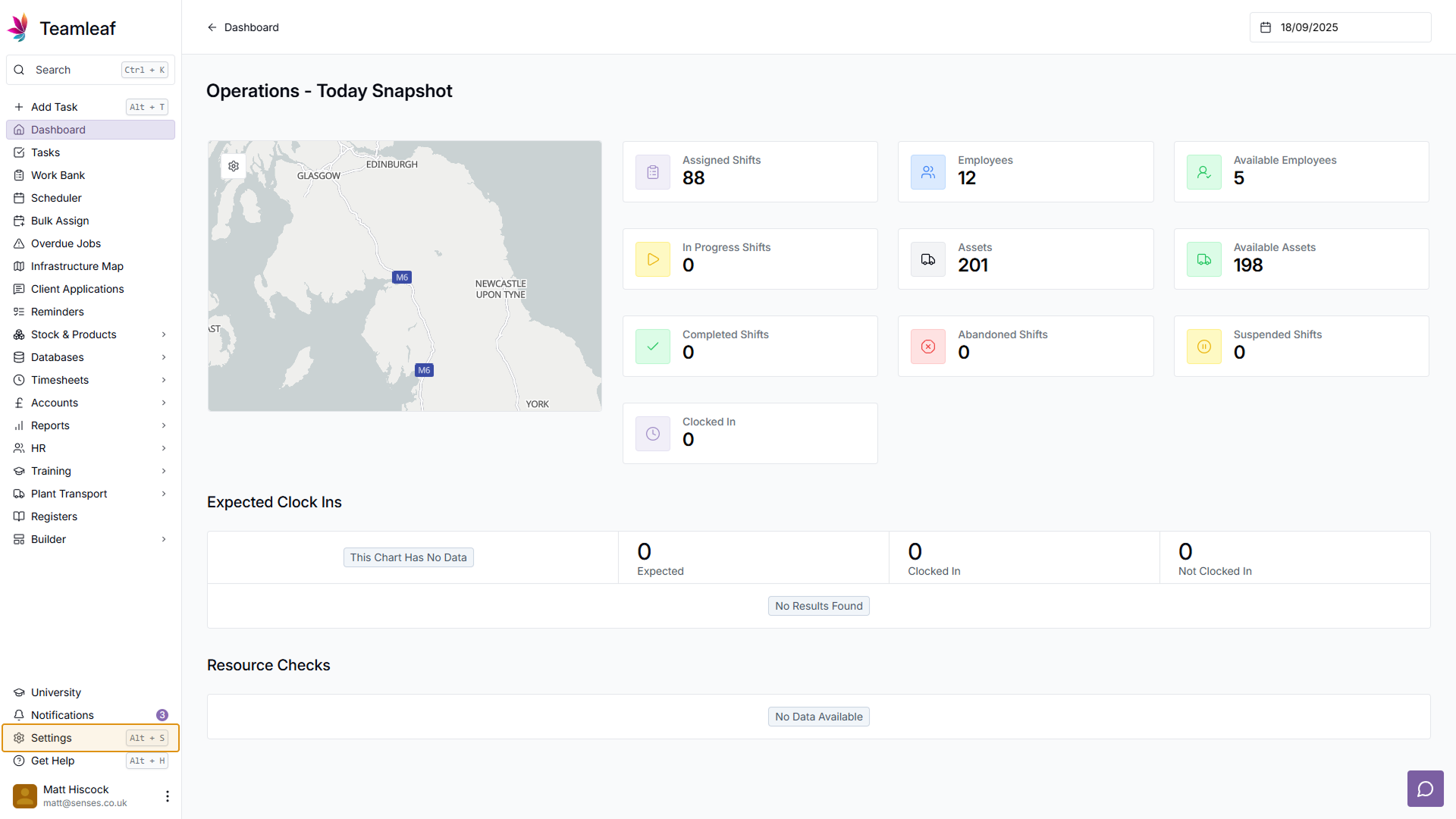
Go to Settings
To start making a Form Structure, first go to Settings
Step 2
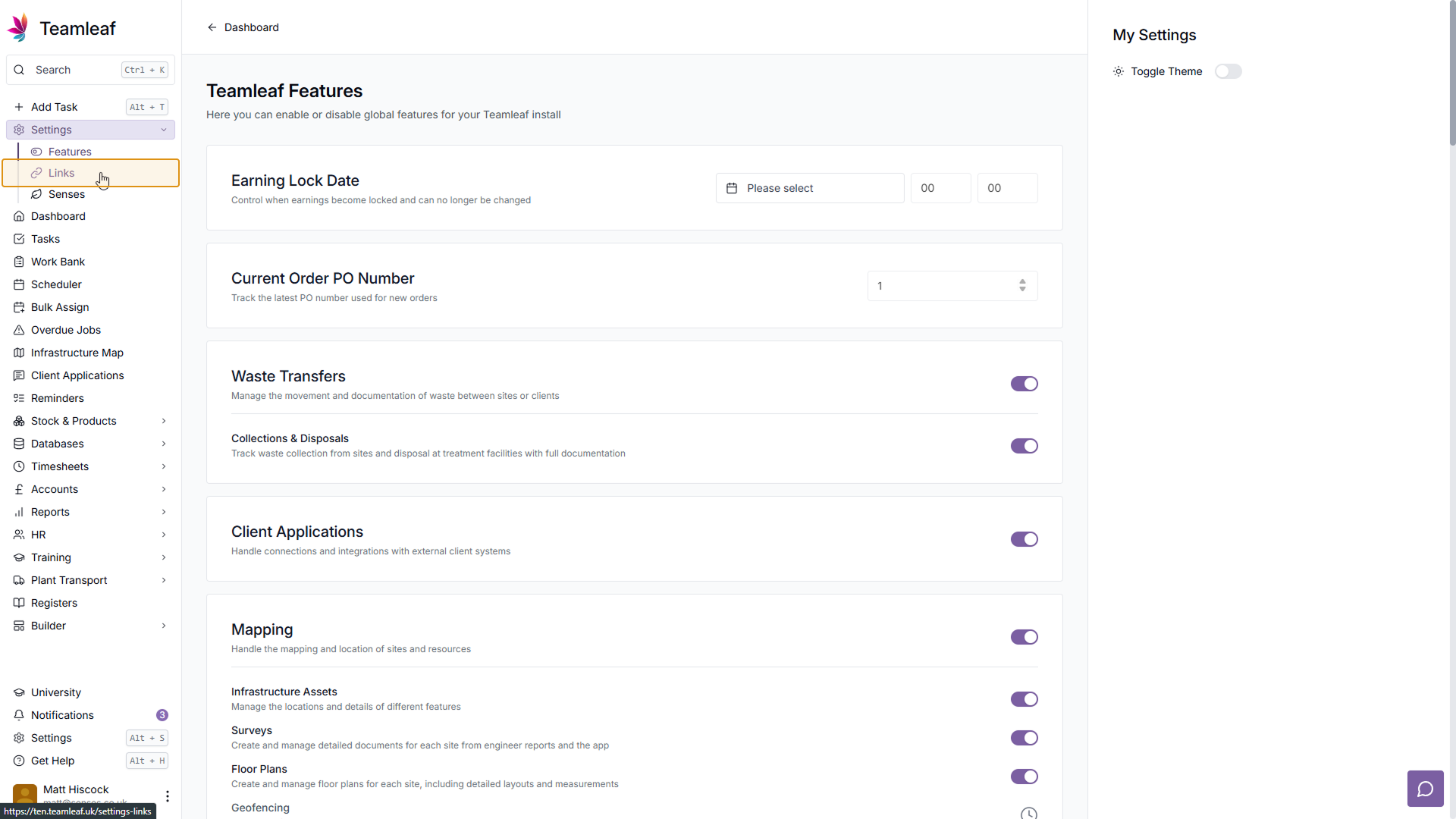
Go to Links
Next, click 'Links' in the settings submenu on the left sidebar
Step 3
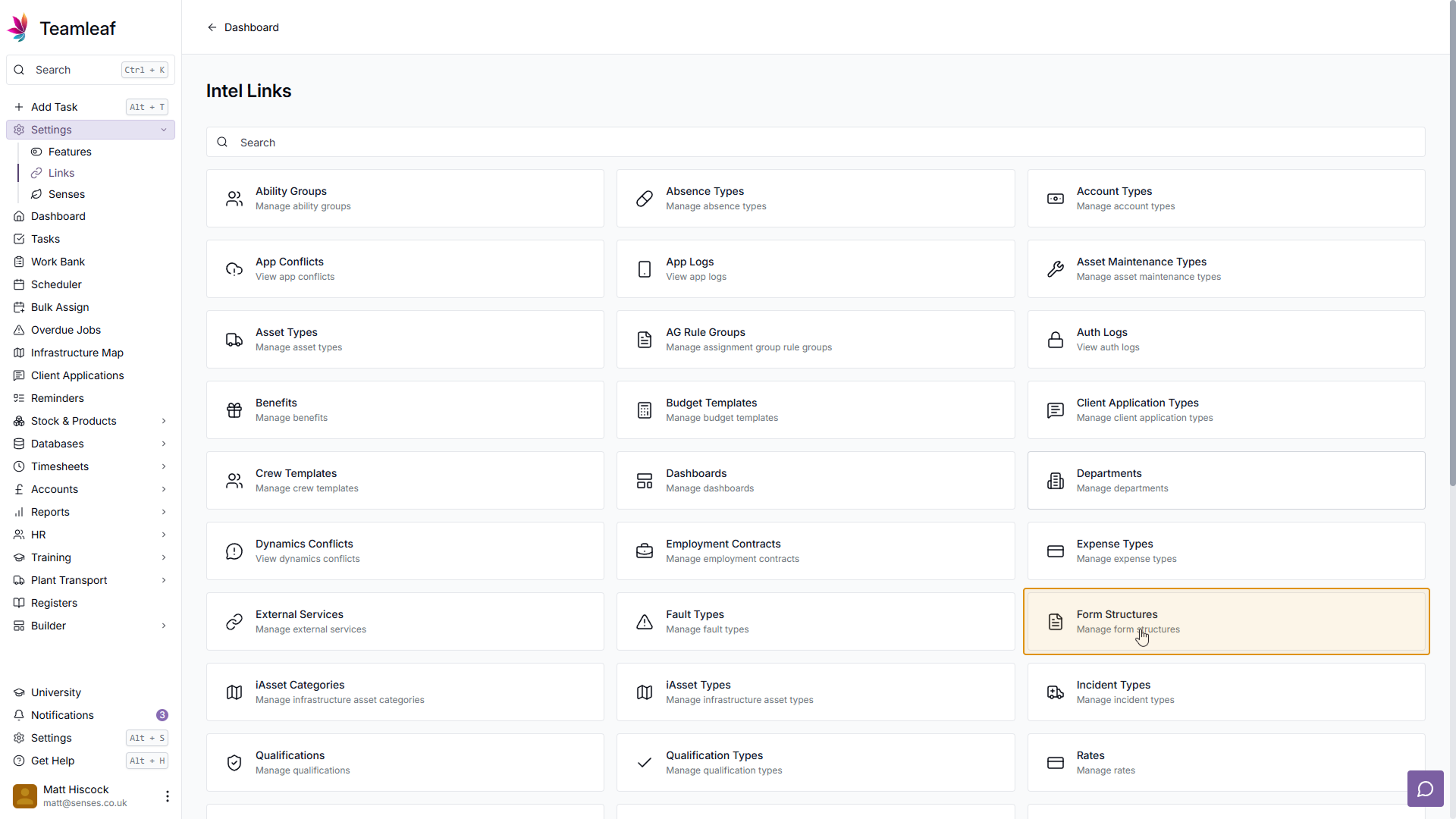
Go to Form Structures
Next, click 'Form Structures' in the grid of options
Step 4
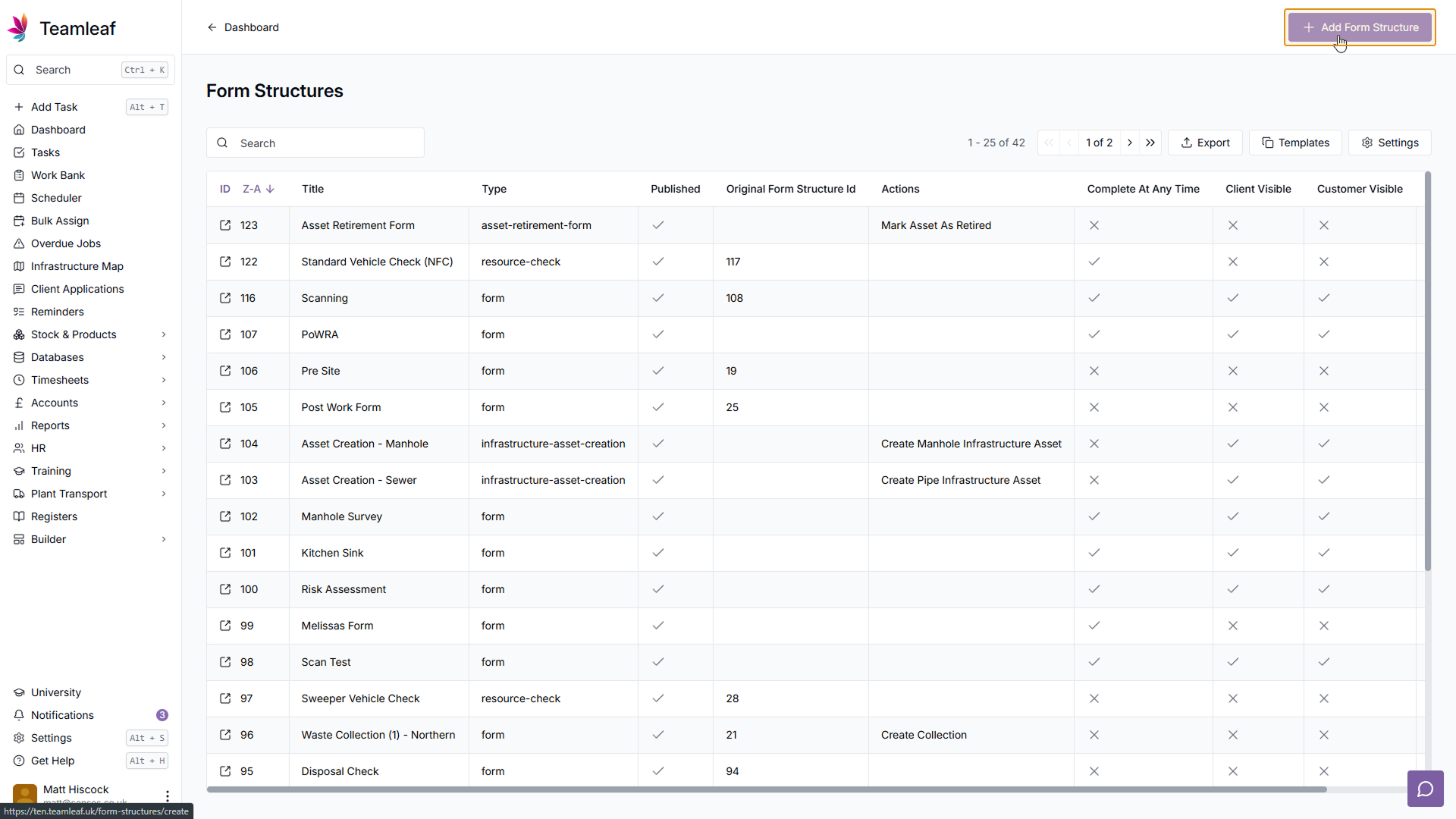
Click 'Add Form Structure'
You will now see a table of Form Structures. Click a Form structure to edit it, or (like we will in this example) click 'Add Form Structure' in the top right
Step 5
Create Form Structure Page
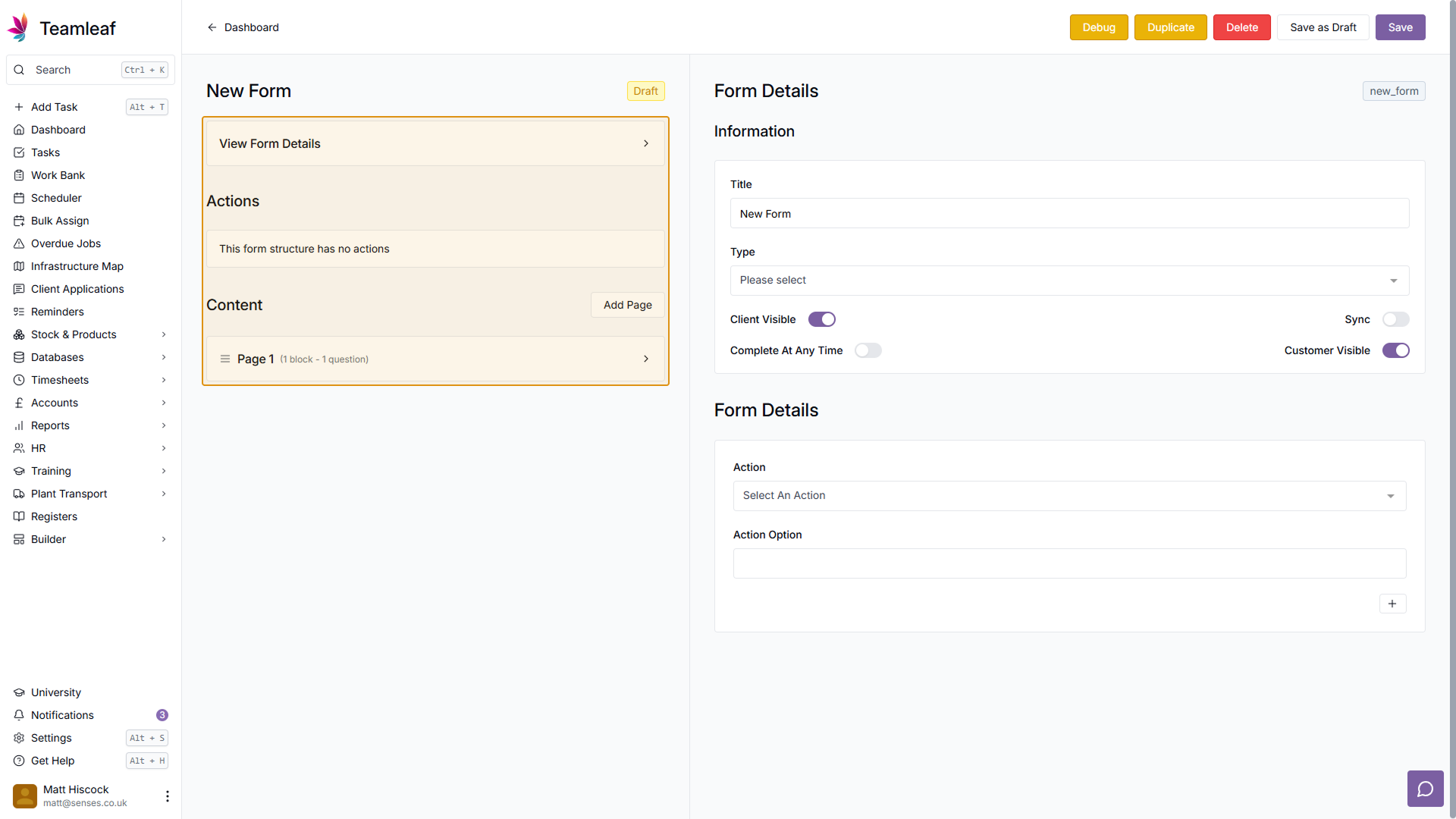
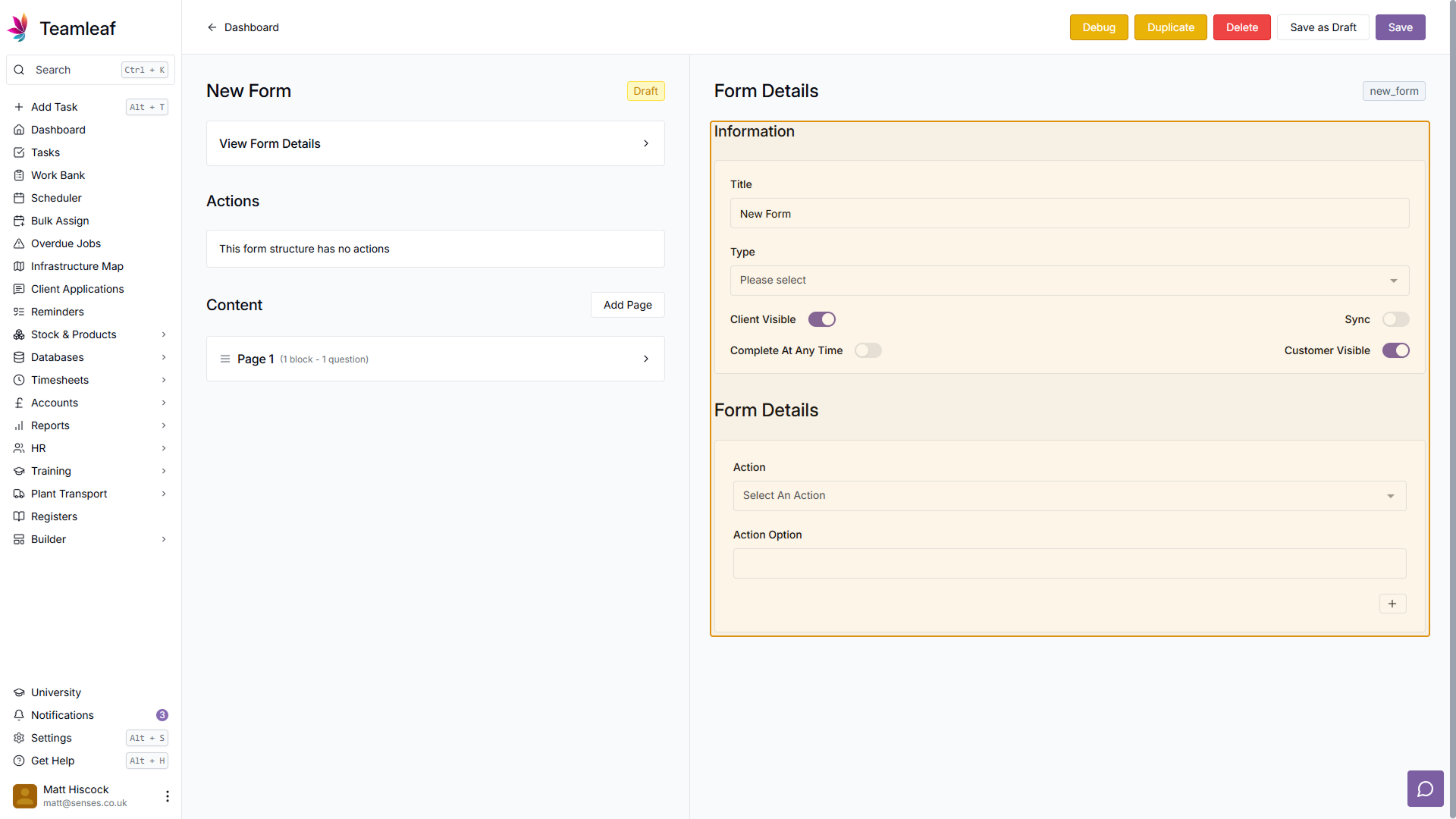
You will now be on the Form Structure creation page. On the left side, you have an overview of your form, and this is how you can navigate and change different things on your Form Structure. On the right side is the form where you can change information
Step 6
Add Form Name
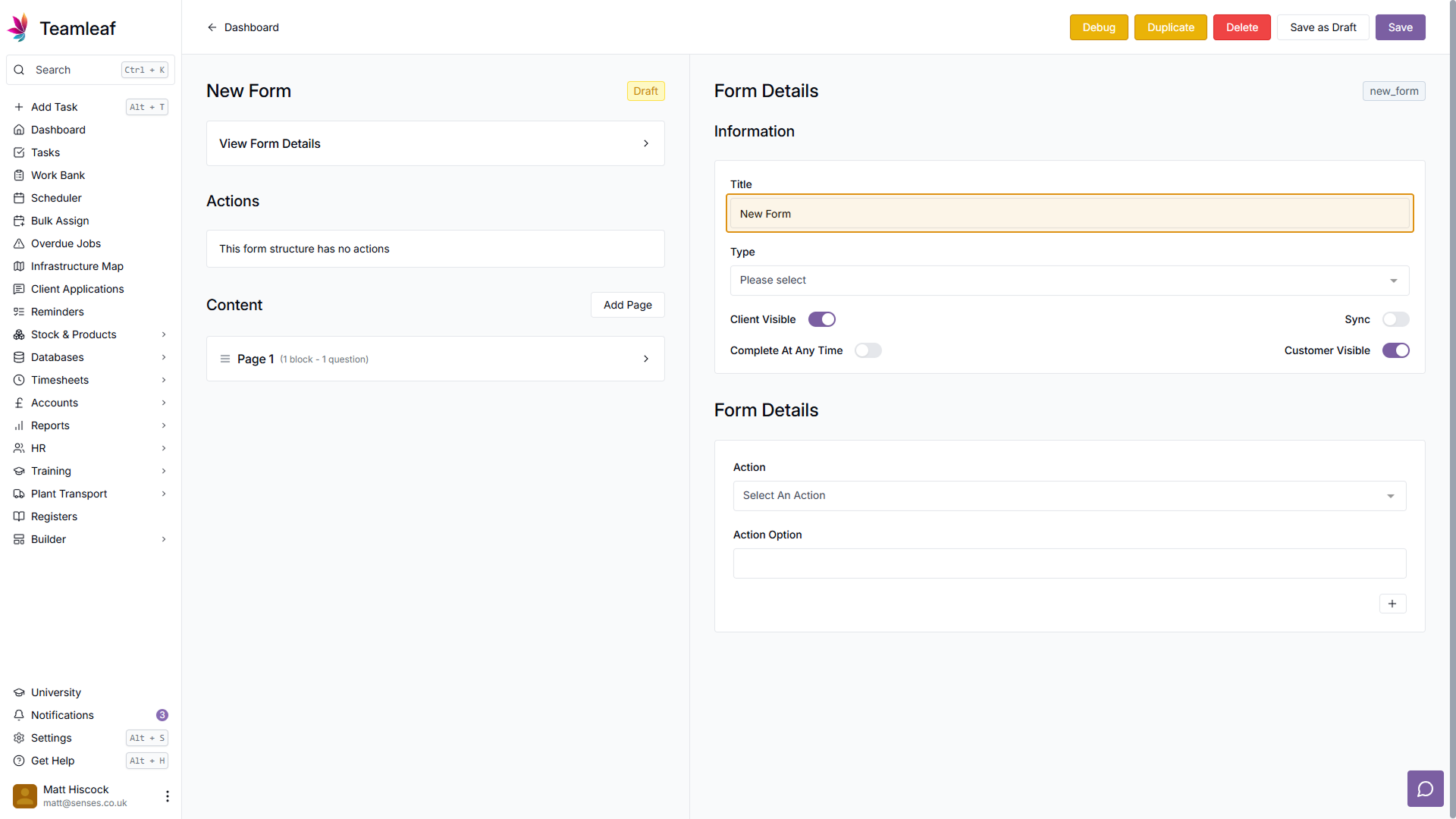
When you first open the Form, you will see the Form details on the right side - if you wish to go back to form details at any point, click 'View Form Details' at the top of the left side. From here, add a Title to name your form
Step 7
Set Form Type
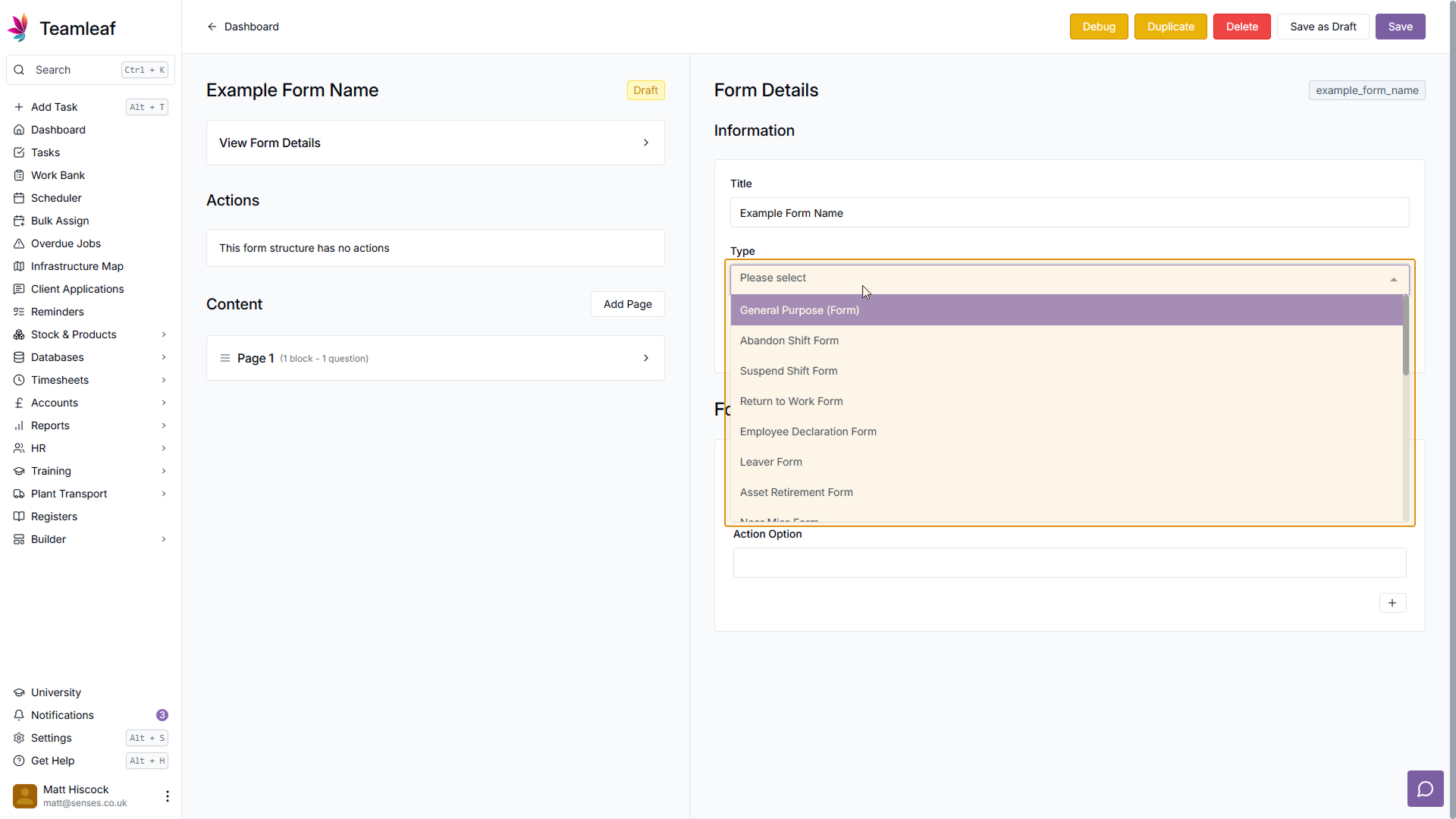
Next, select a Form Type from the dropdown menu
Step 8
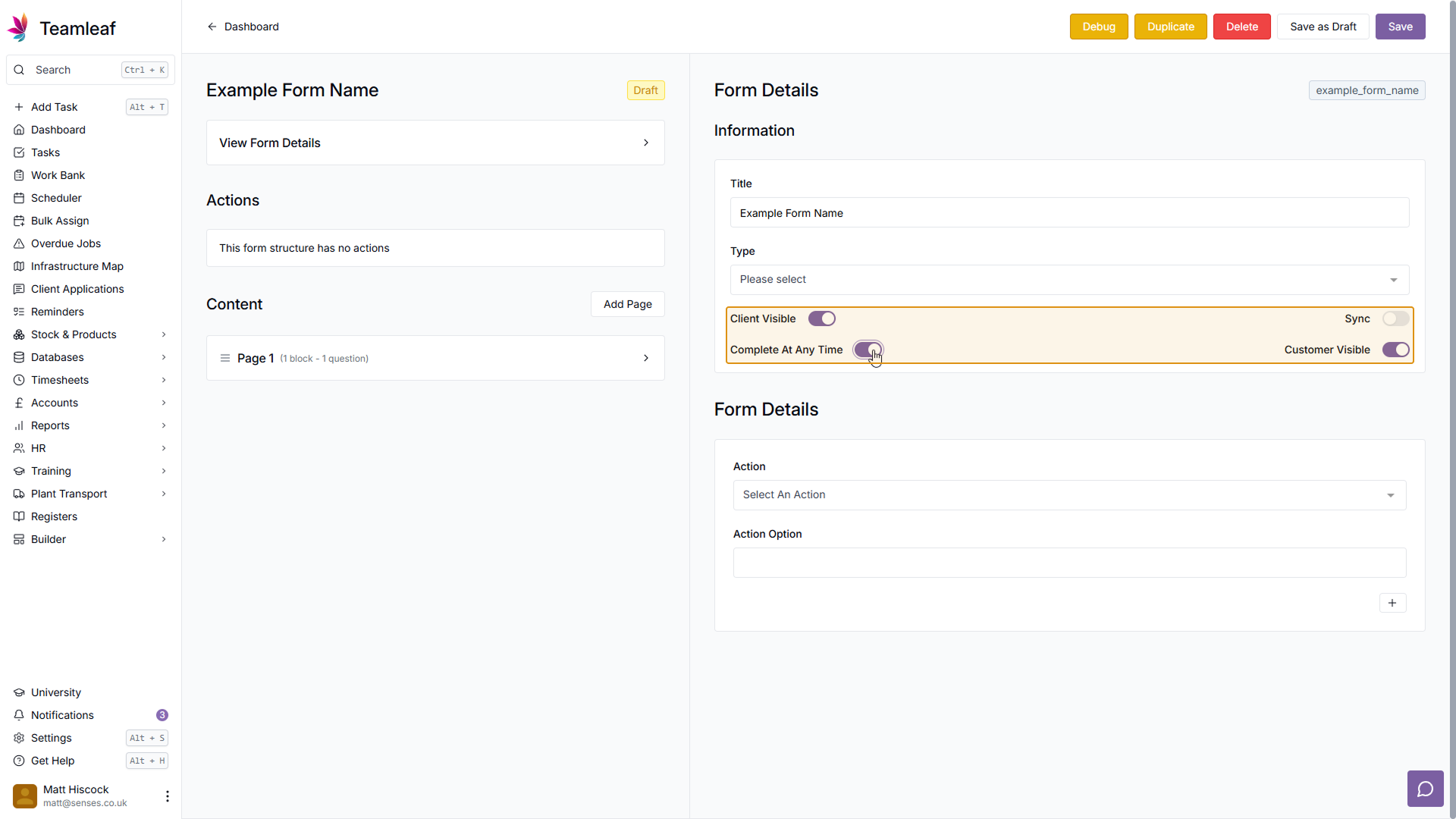
(Optional) Toggle Form Settings
Next, you can toggle Client Visibility, Customer Visibility, Sync, and Complete at any time - depending on your preferences for this form
Step 9
(Optional) Add Form Action
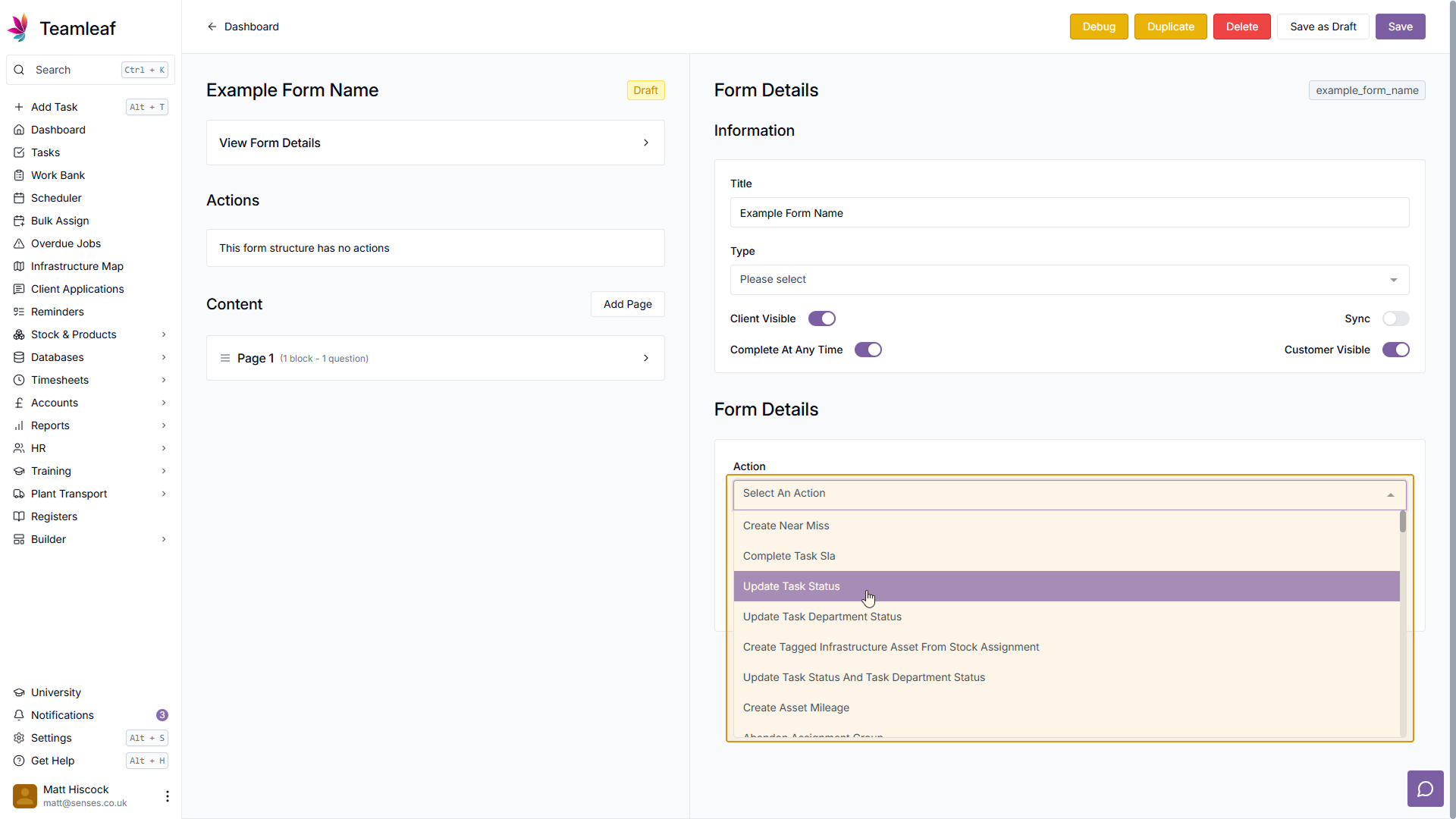
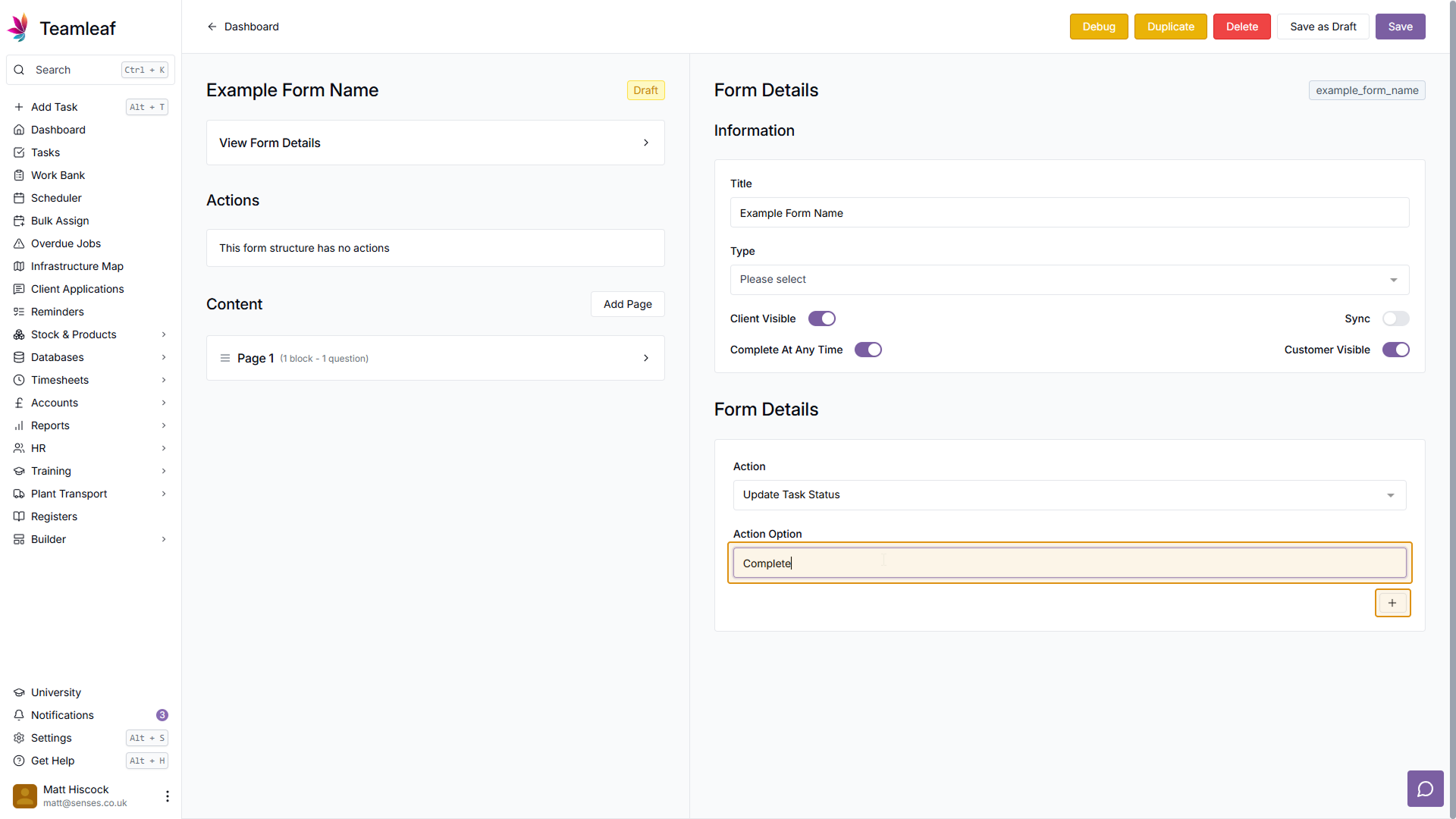
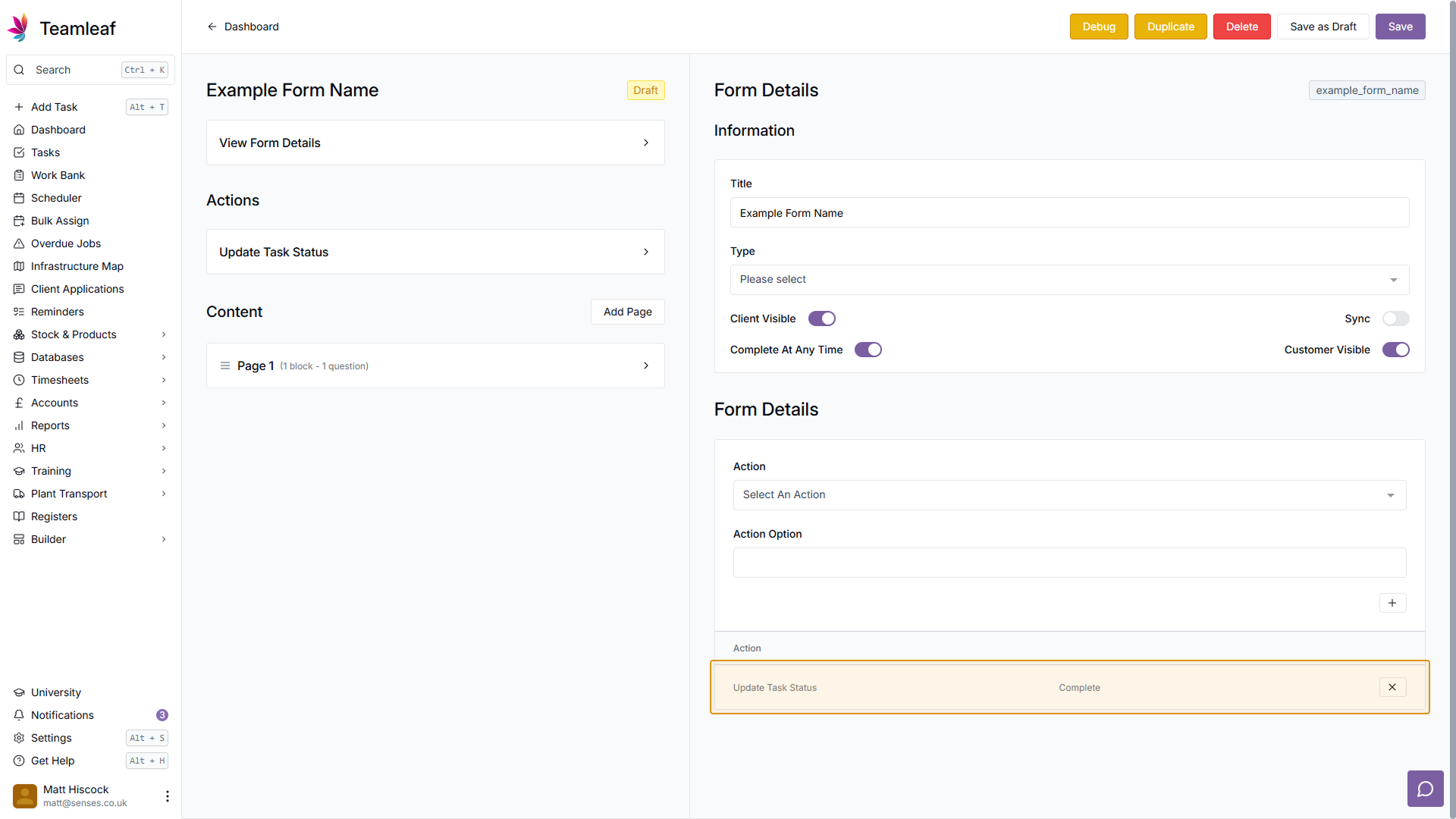
If you wish, you can set up actions to trigger when this form is completed. To do this, first select what action you would like to occur when the form is completed, then use the 'Action Option' field to add data to be used with that action. In my example, I've set the Task Status to be updated to 'Complete' when the Form is complete. Once you're happy with your action, click the plus button in the bottom right - if you wish to remove this action after adding it, click the 'X' button next to the added action
Step 10
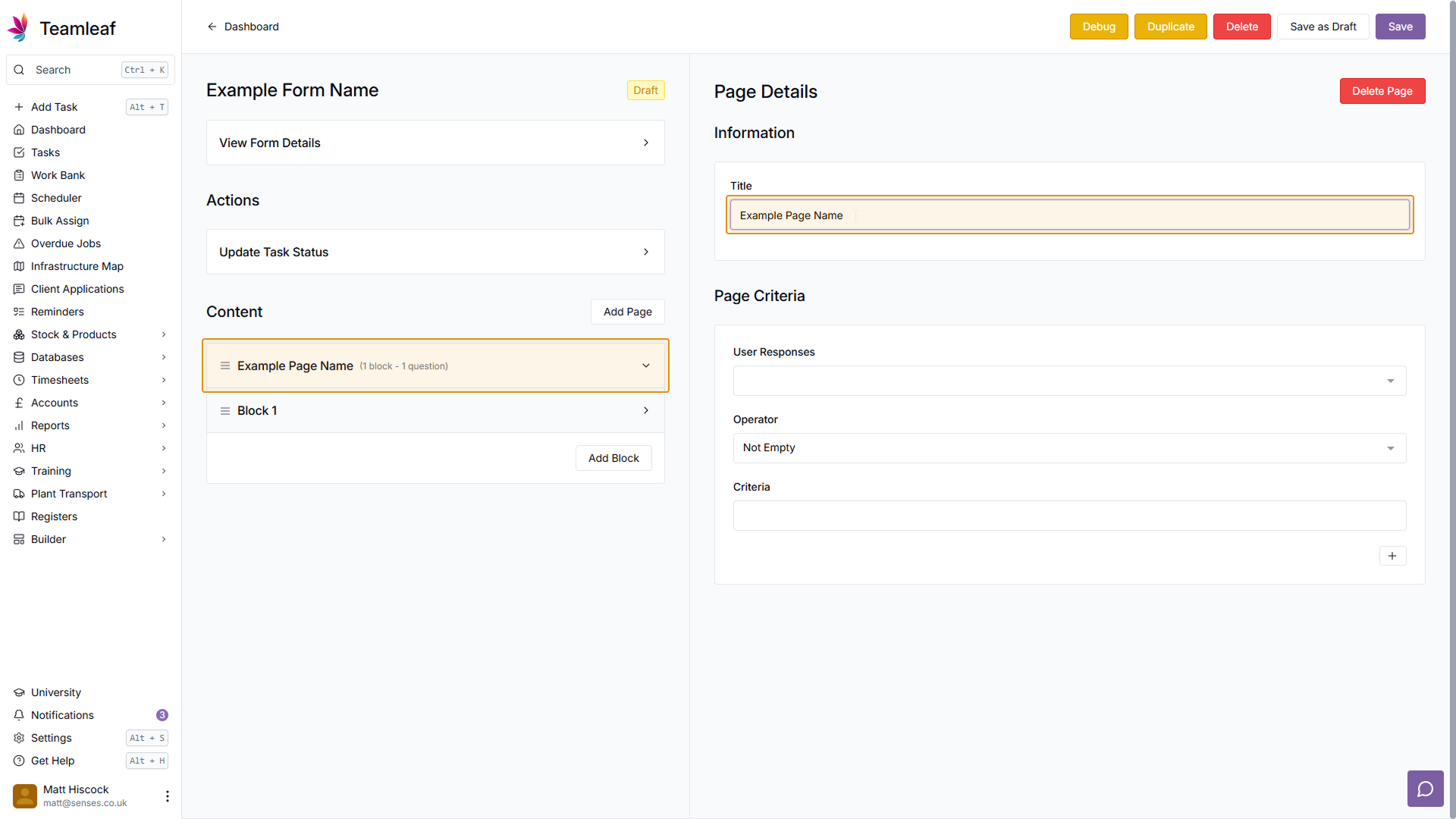
Add Page name
Now that you've set up your Form options, you can set up a page. Forms can have several pages, or just one, depending on your needs. Click 'Page 1' on the left side, then type in the title field to rename your page.
Step 11
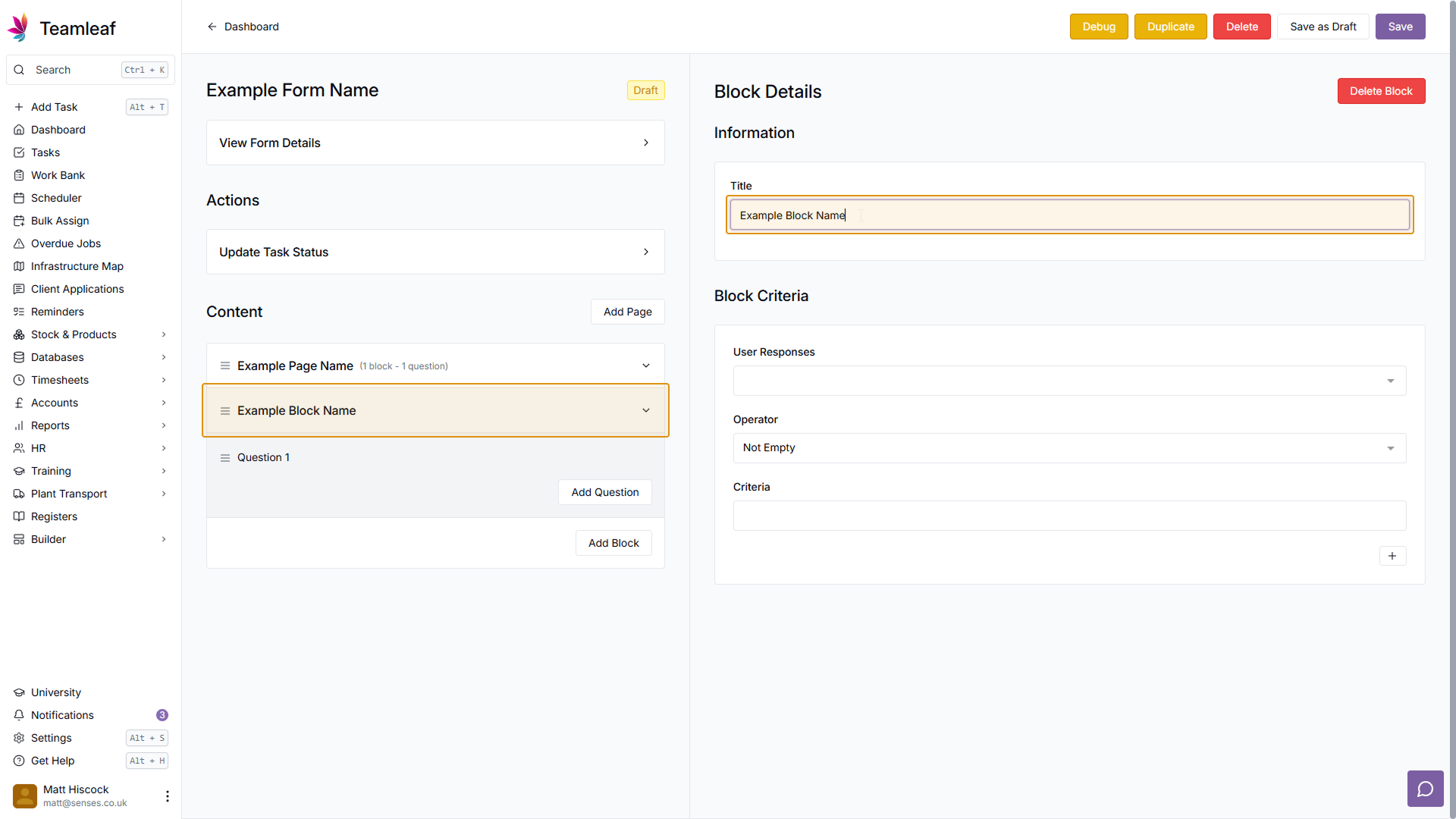
Add Block Name
Now you can set up a Block. Pages can have several blocks, or just one depending on your needs. Click 'Block 1' on the left side, then use the title field to rename your page.
Step 12
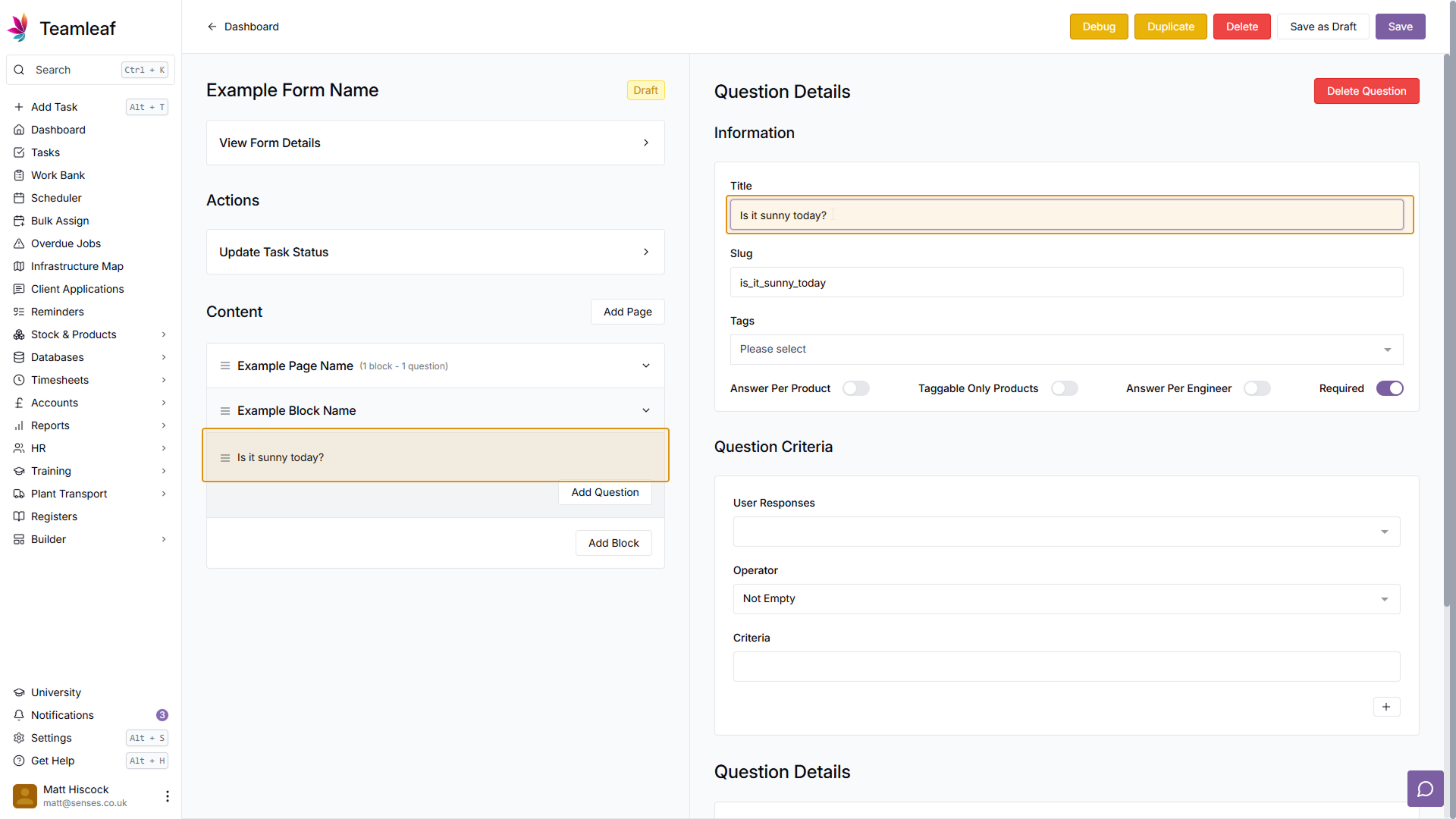
Add Question
Now you've set up a block, you can start adding questions to that block. You can have several questions or just one question in each block - depending on your needs. To start, click 'Question 1' on the left side, then use the title field to add your first question
Step 13
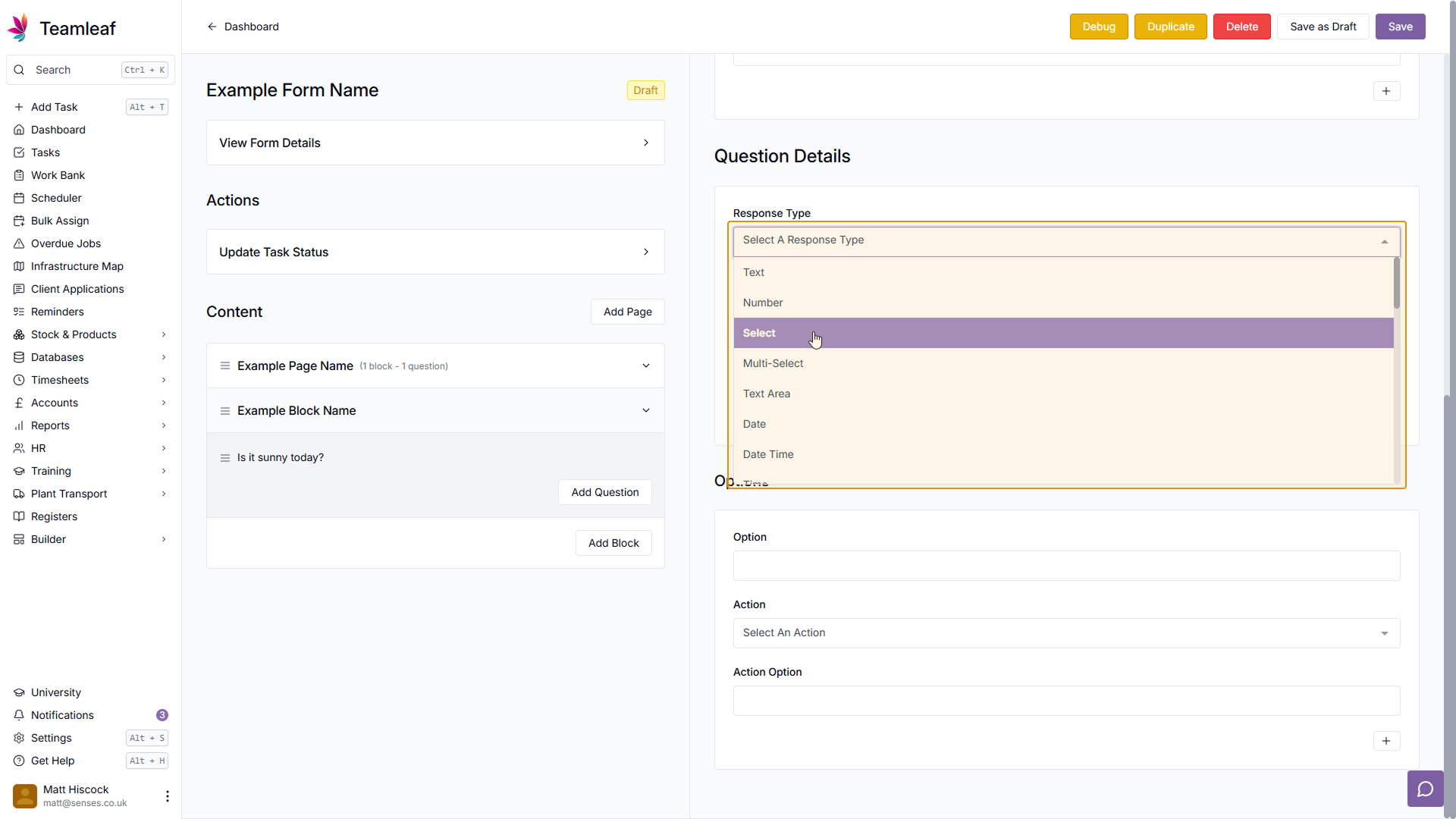
Select Response Type
Next, scroll down to 'Question Details' and select a response type from the dropdown menu. Depending on how you want people to add data, you may select a 'Text' response so users can type in data, 'Select' to let users pick one option of a number of fixed options, or many more depending on your needs. For this example, I'll use a select response
Step 14
Add Options (if required)
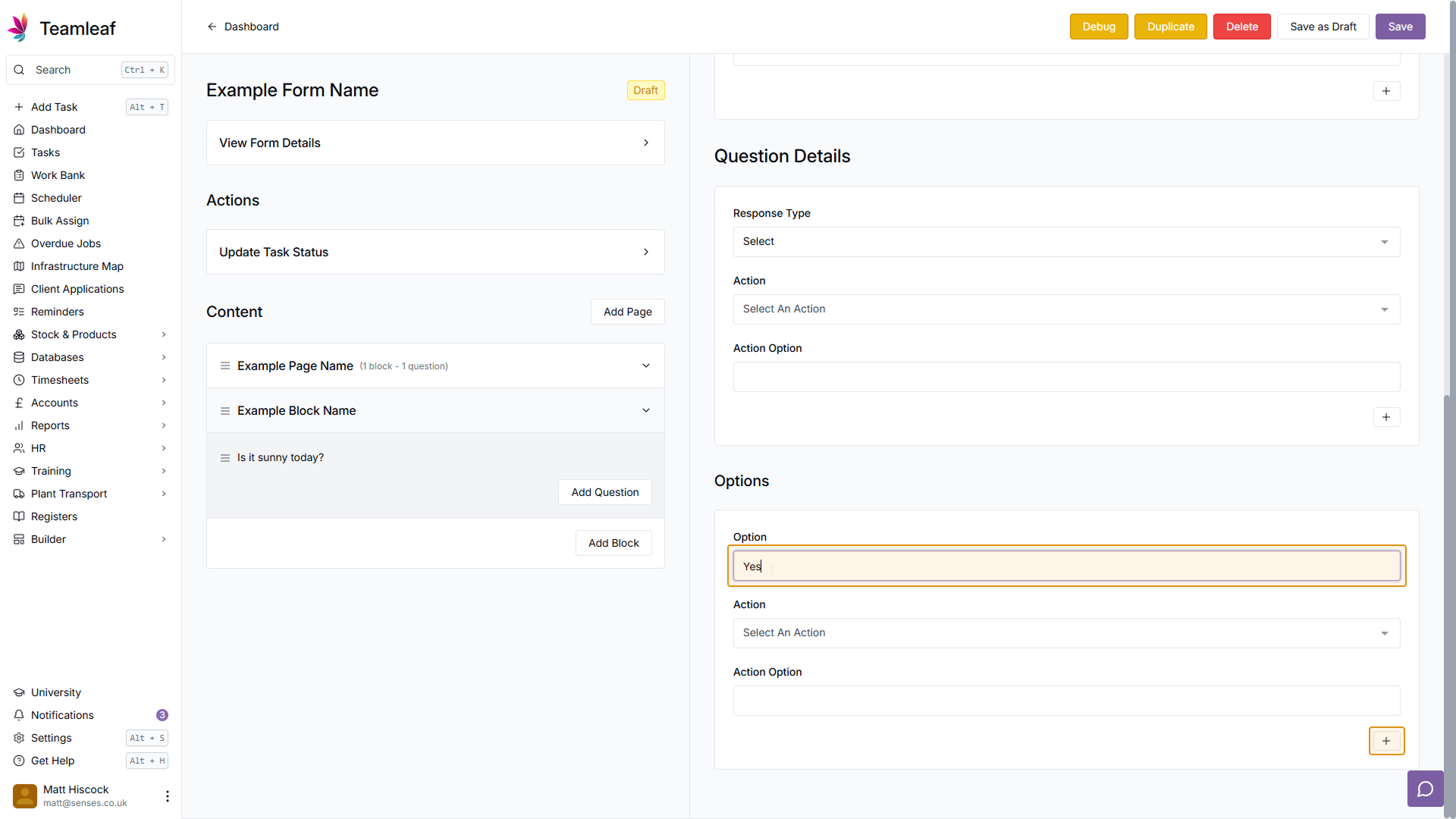
If your response type requires it, you can now scroll down to the 'Options' section to add options for your question. To do this, type in an option in the 'Option' field, and click the plus button to add the option
Step 15
(Optional) Add Option with an Action
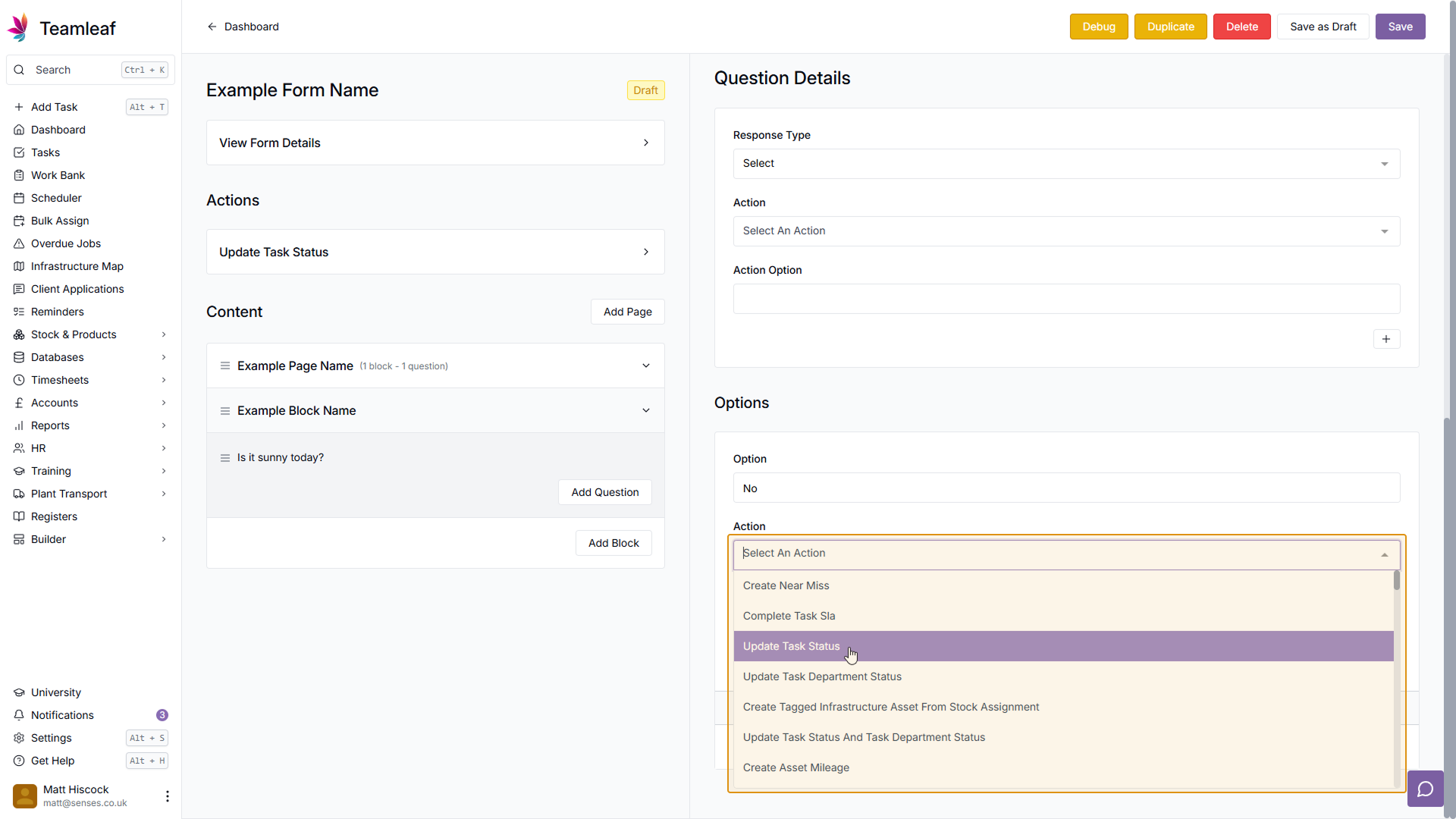
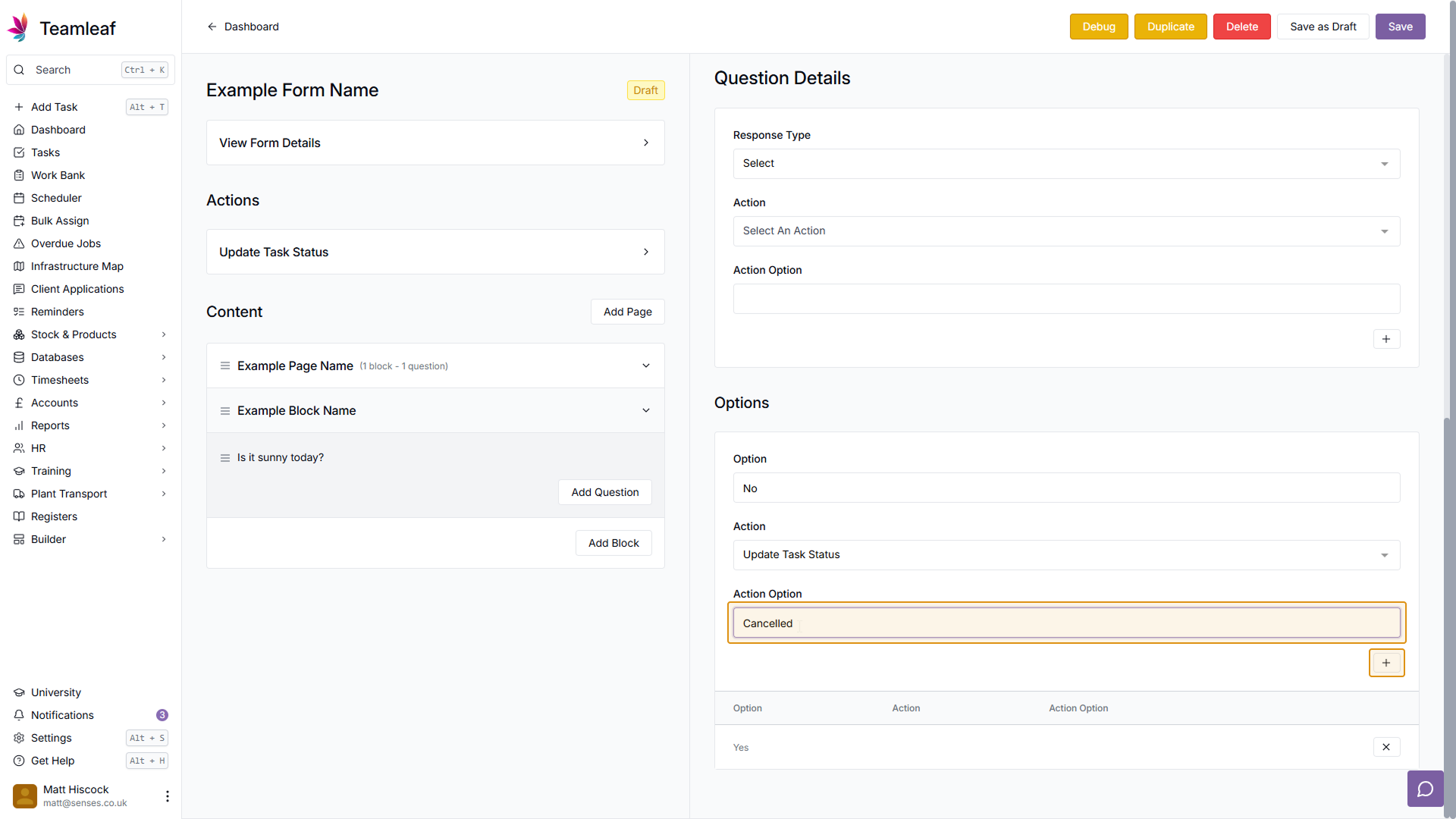
You can set up options to trigger an action if that option is selected. To do this, type your option in the option field, then use the dropdown to select an action. Set an action option to be used with the action, in my example, I've set an action to make the Task Status 'Cancelled' if the 'No' option is selected. Once you're happy with your option and action, click the plus button in the bottom right.
Step 16
Removing an Option
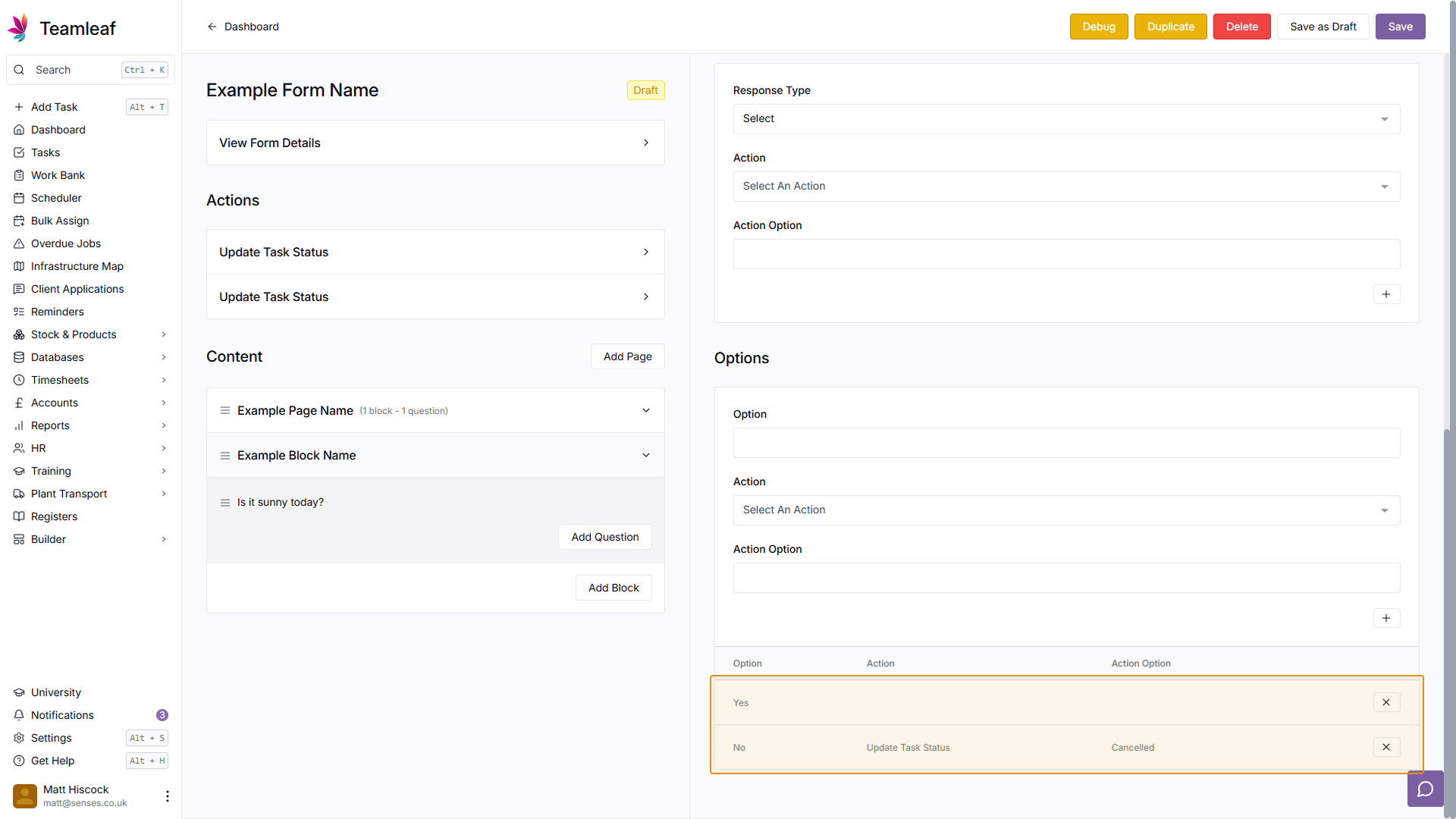
If you wish to remove an option, click the 'X' button next to the options in the table below the options section.
Step 17
(Optional) Add a Question Action
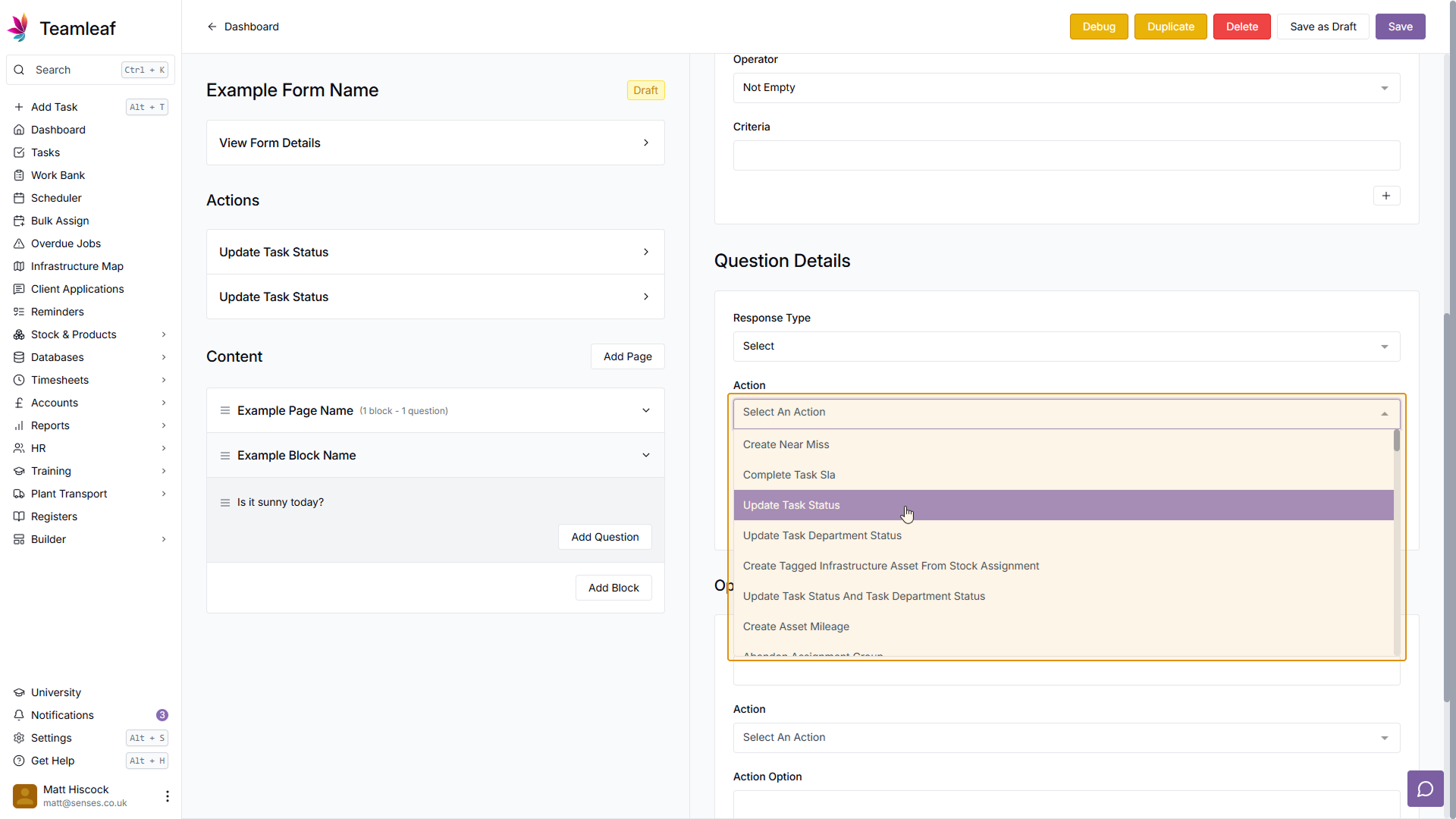
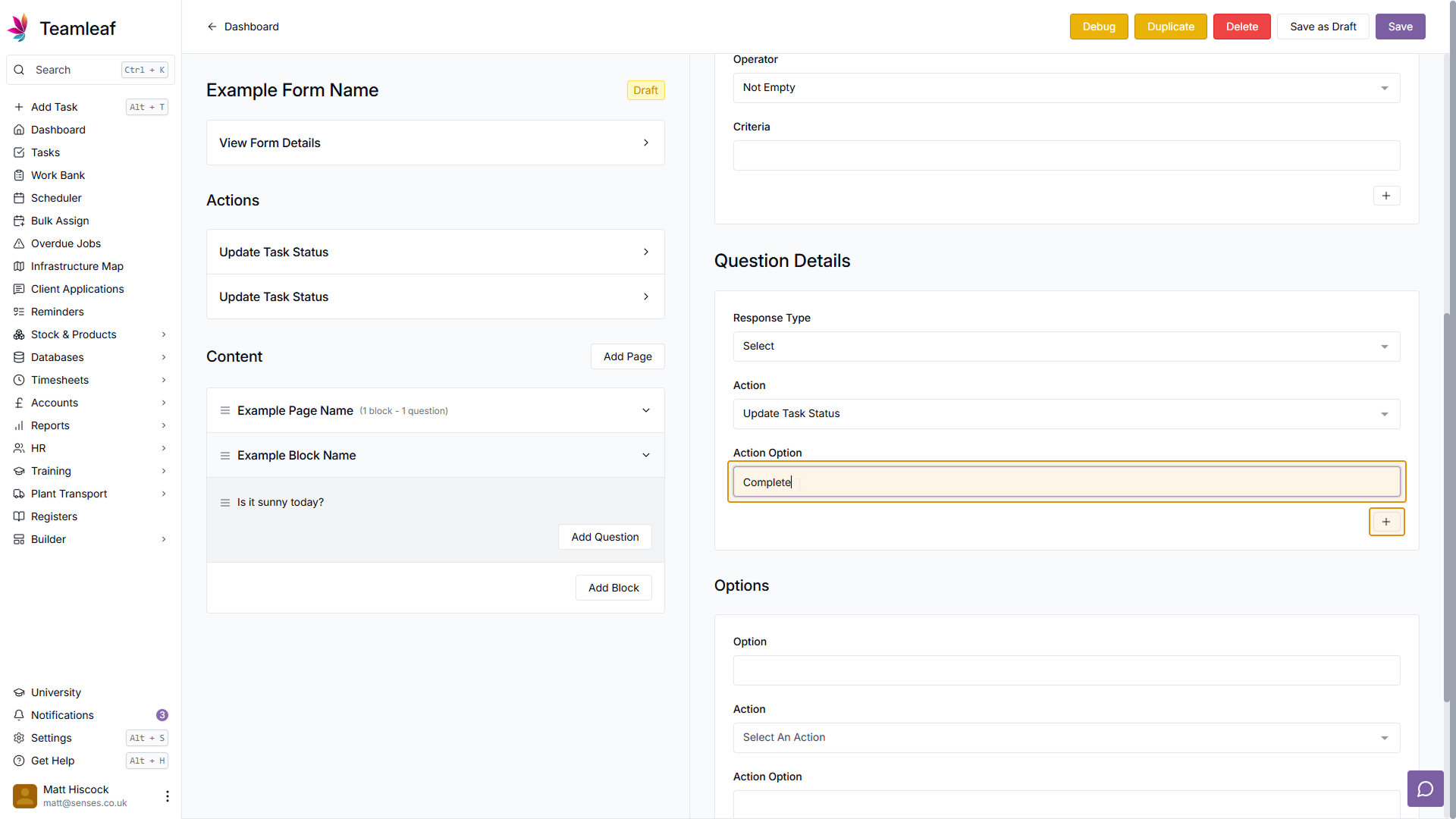
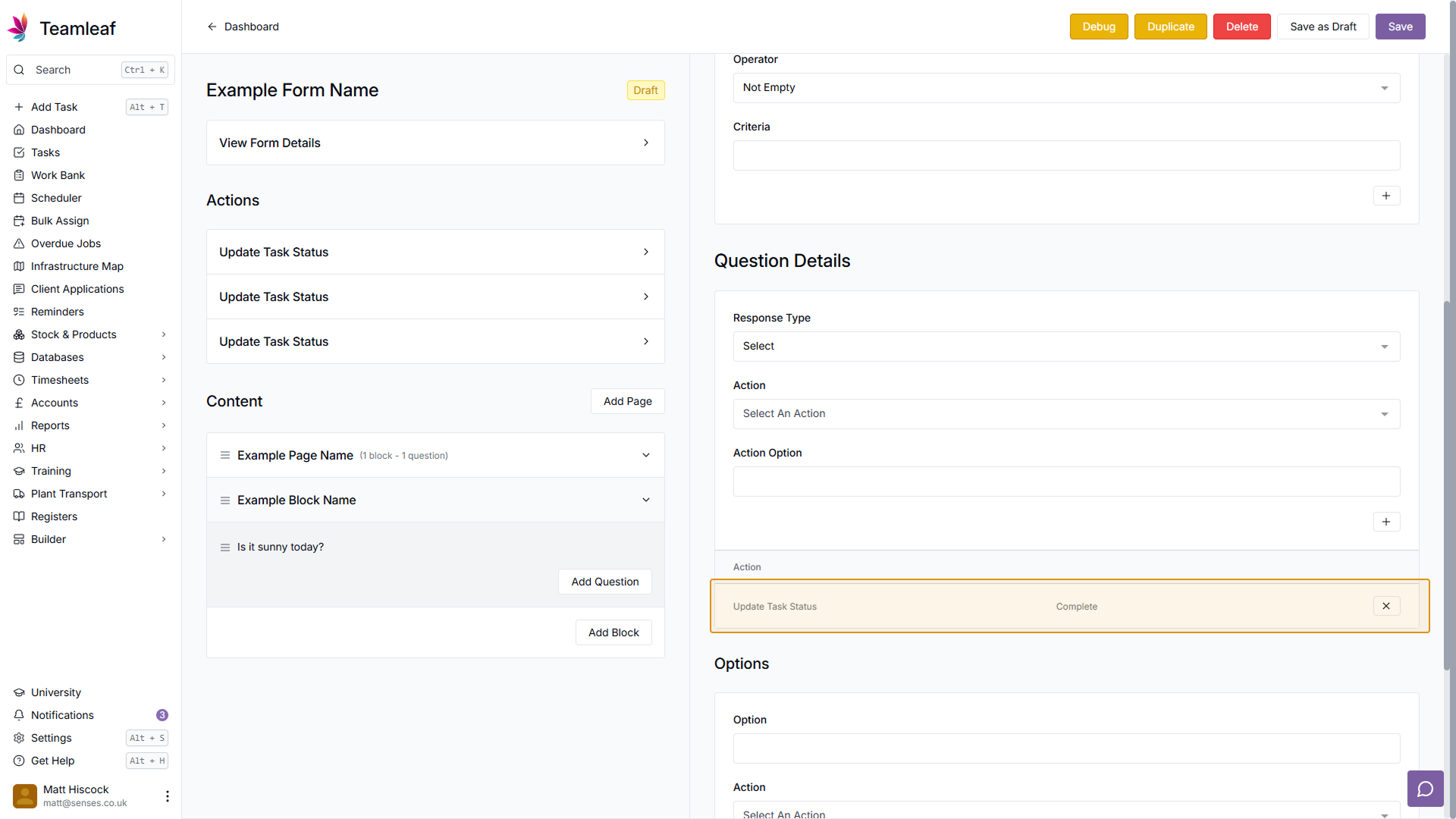
Scroll up to the the Question Details section, and here you can add a question action if you wish. Like the option and form actions, select and option from the dropdown, and add your action option, then click the plus button to add it. Unlike the Option actions, this action will be triggered by answering this question with any option - whereas the option action will only be triggered by that specific option.
Step 18
Add another Question
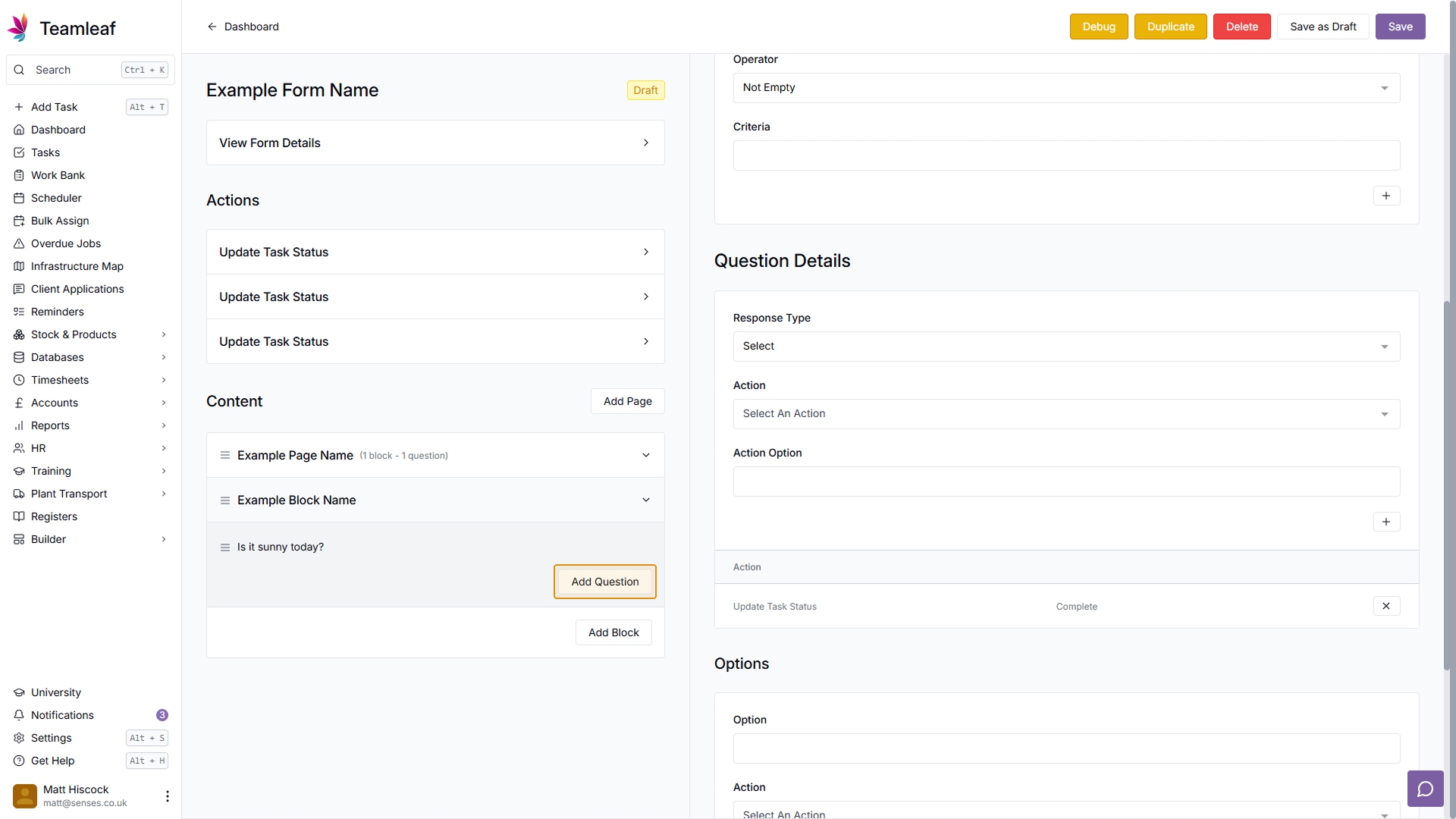
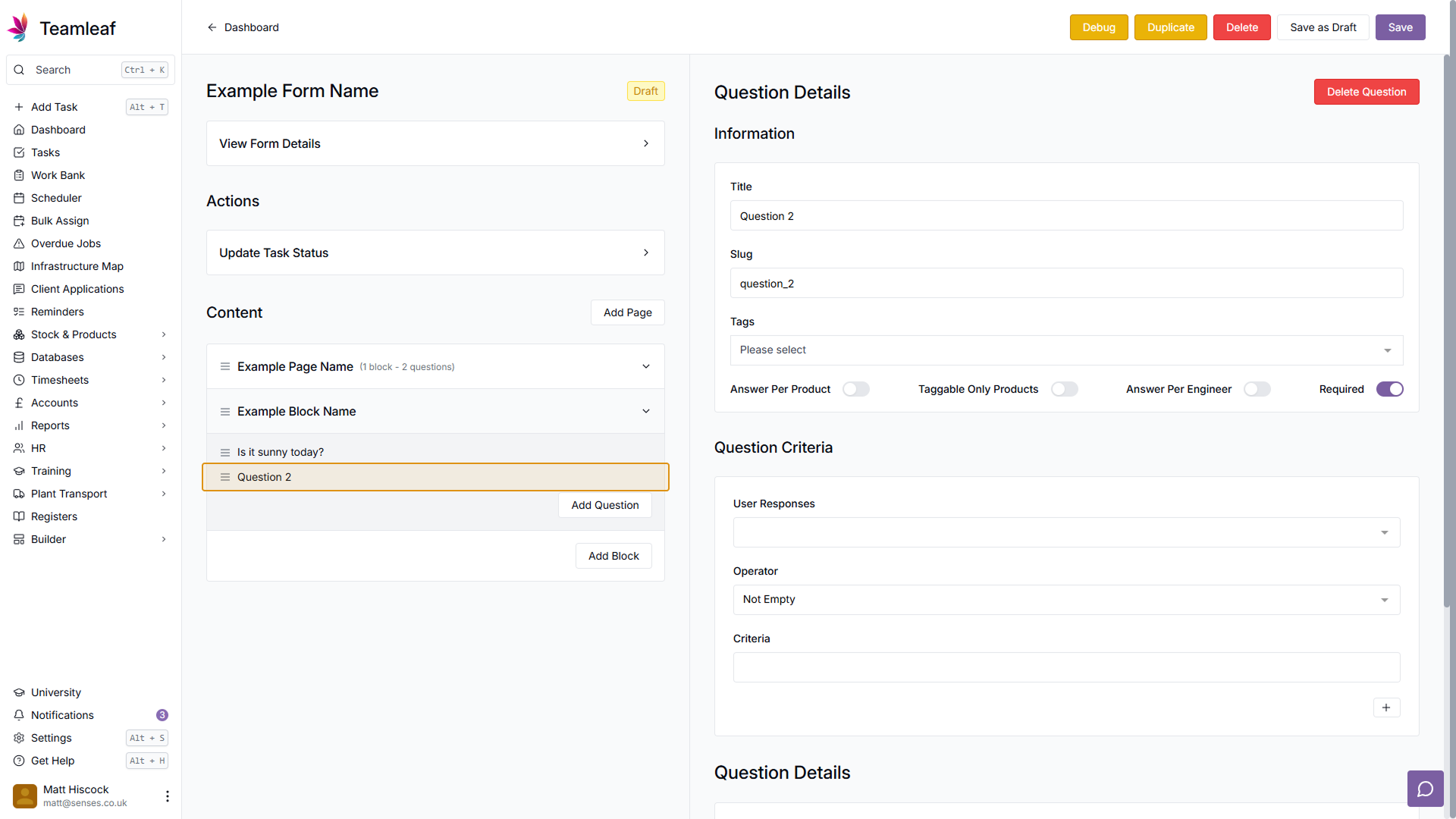
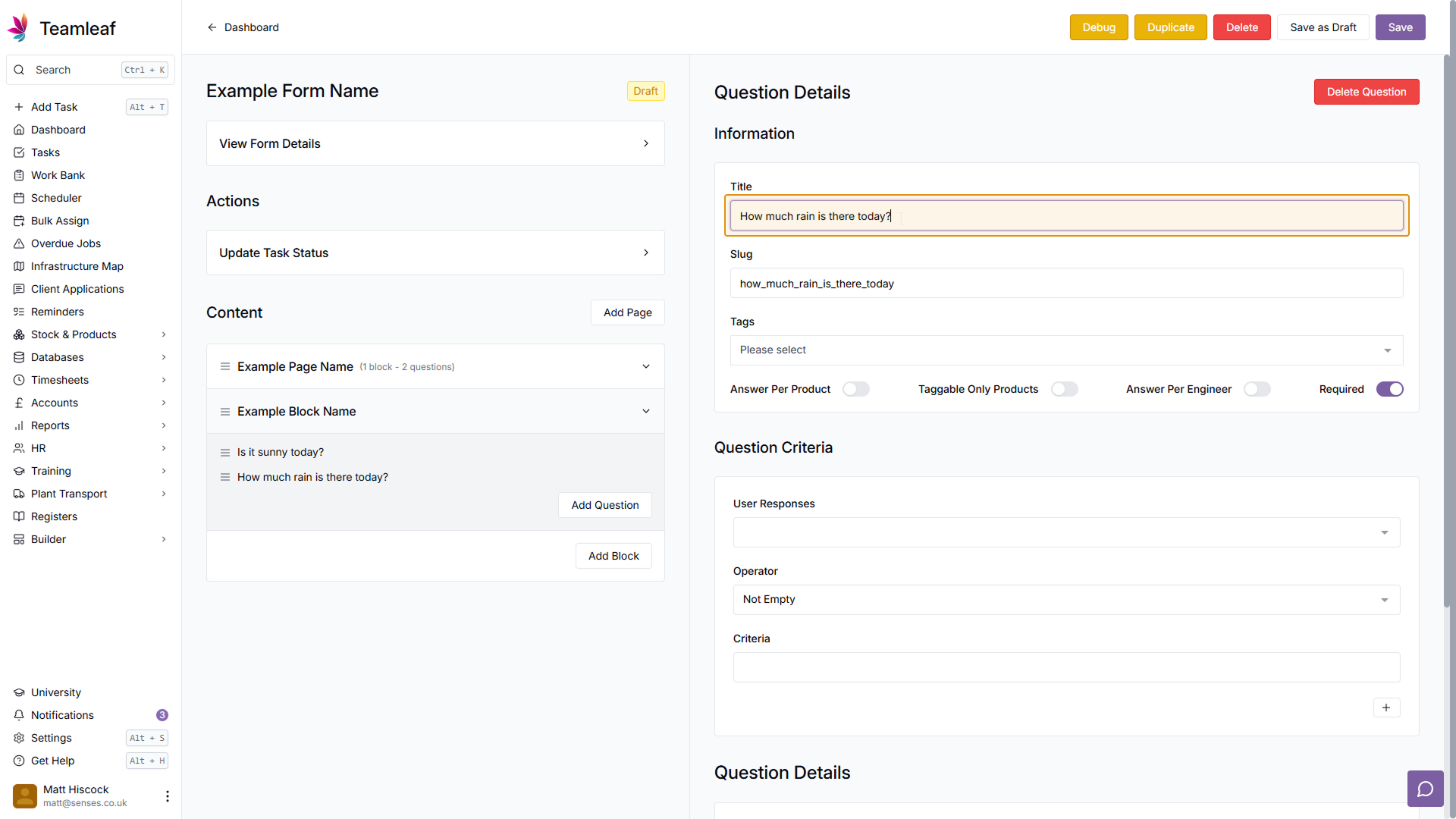
To add another question, click the 'Add Question' button in the block you'd like to add the question to on the left side. This will then be added at the bottom of the block. Click the new question, and like before, use the title field to add your next question
Step 19
(Optional) Add Question Criteria
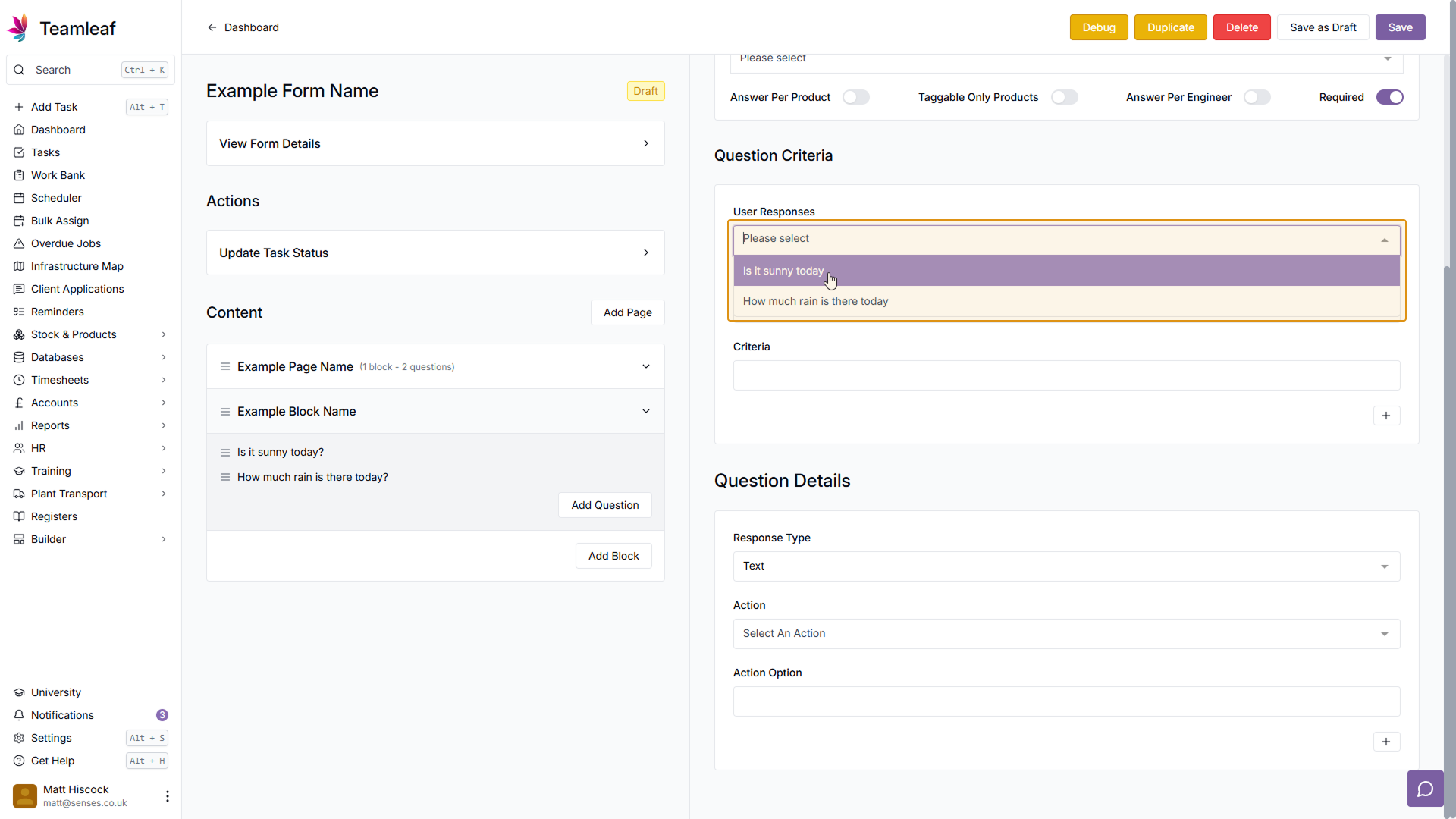
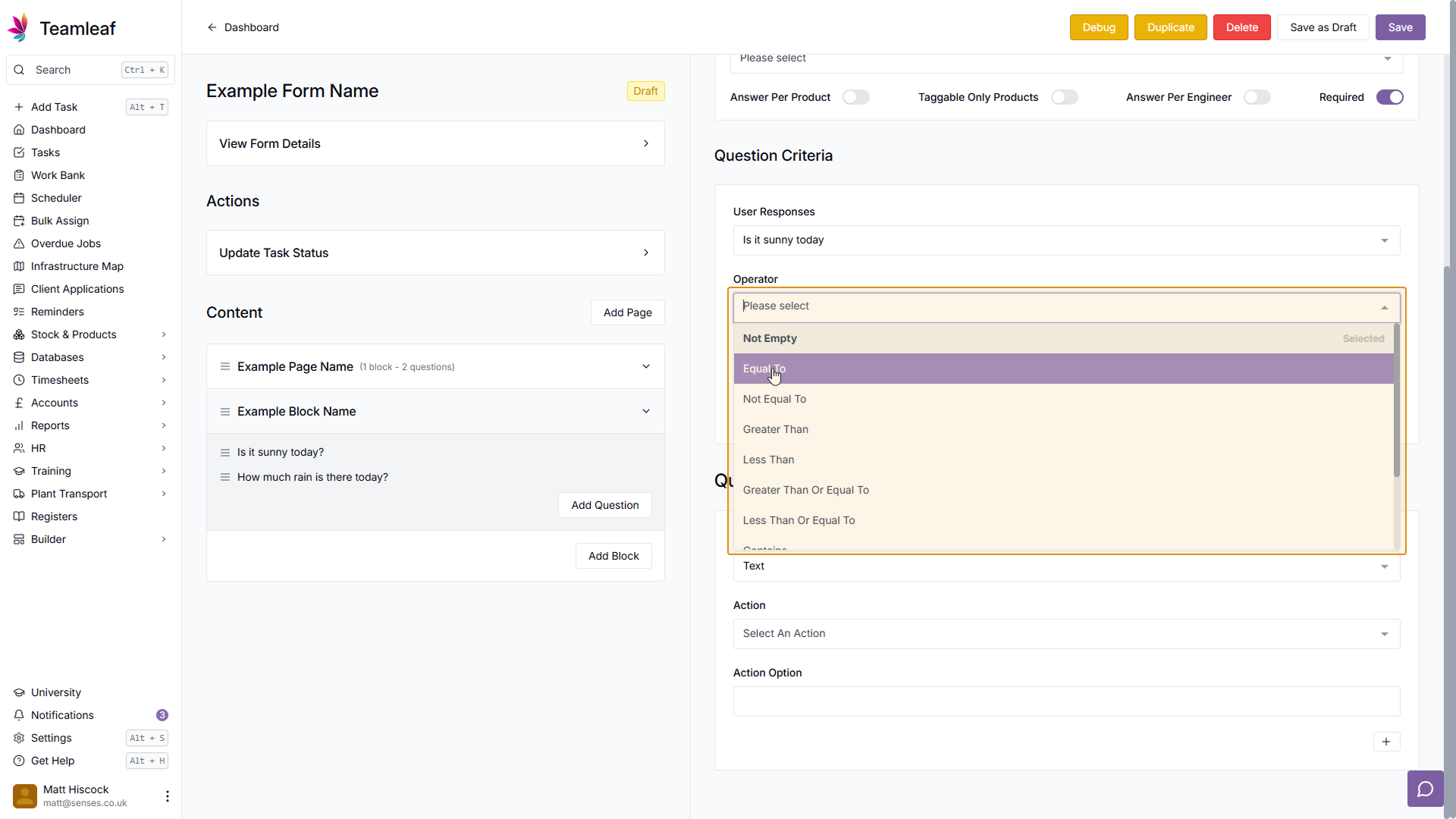
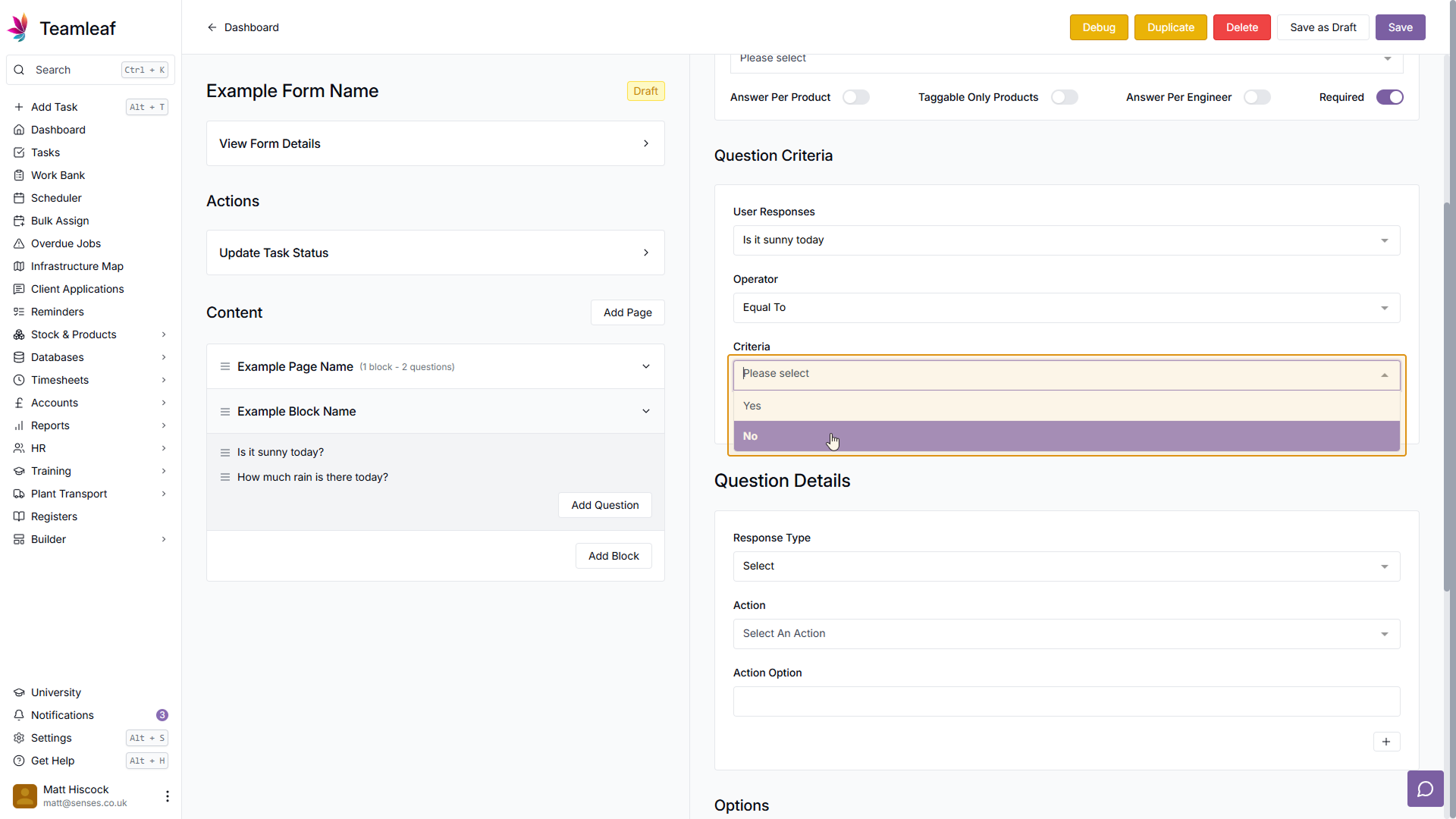
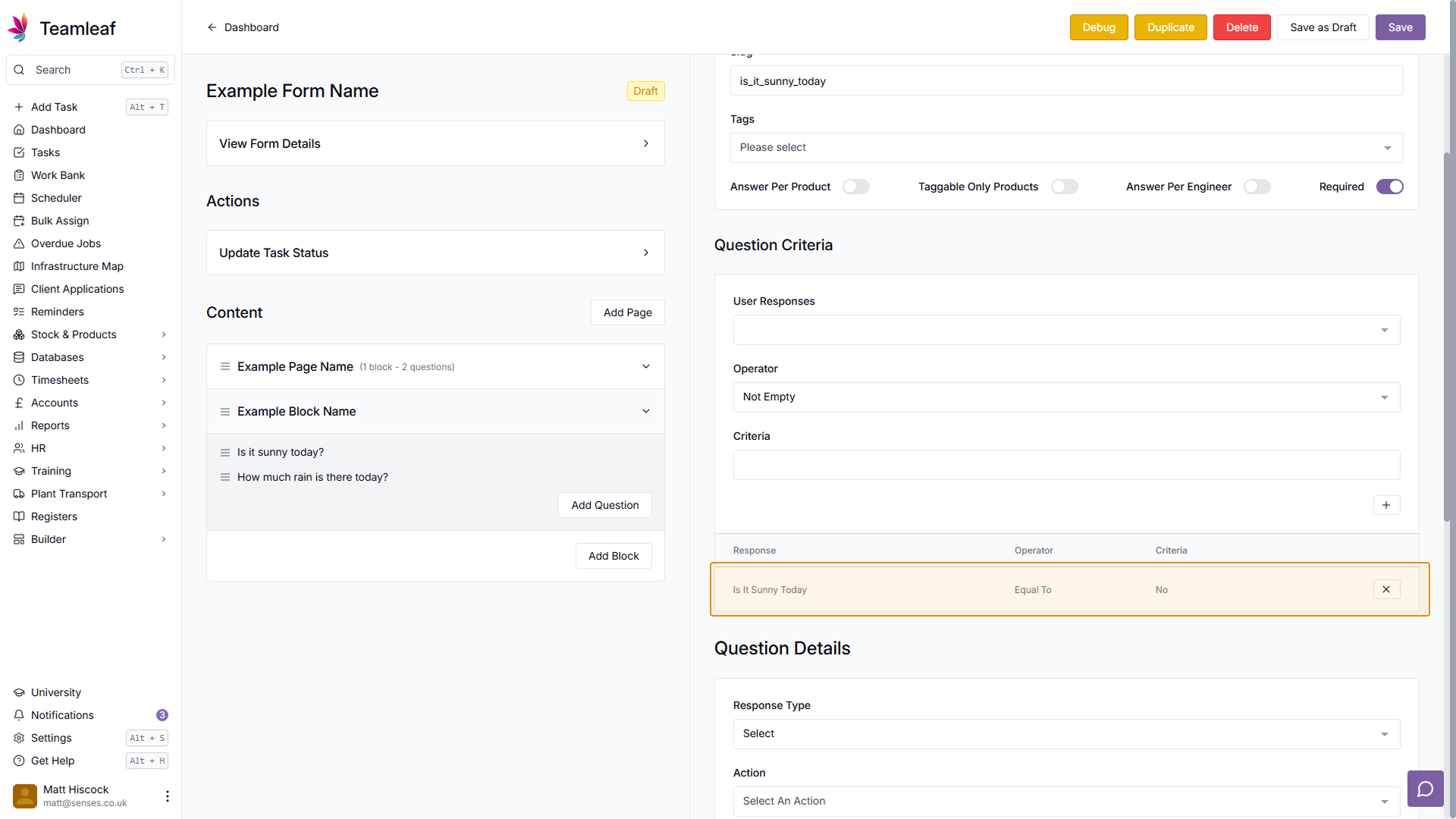
If you wish for this question to only be answered based on another question, you can use the Question Criteria section. To add a criteria, first select which question you'd like it to be dependent on in the 'User Responses' menu, then select an operator, and then a criteria. In my example, the question will only appear when the answer to 'Is it sunny today' is 'Yes'. Once you're happy with your criteria, use the plus button to add it, then fill out the rest of the question as normal.
Step 20
Add another Block
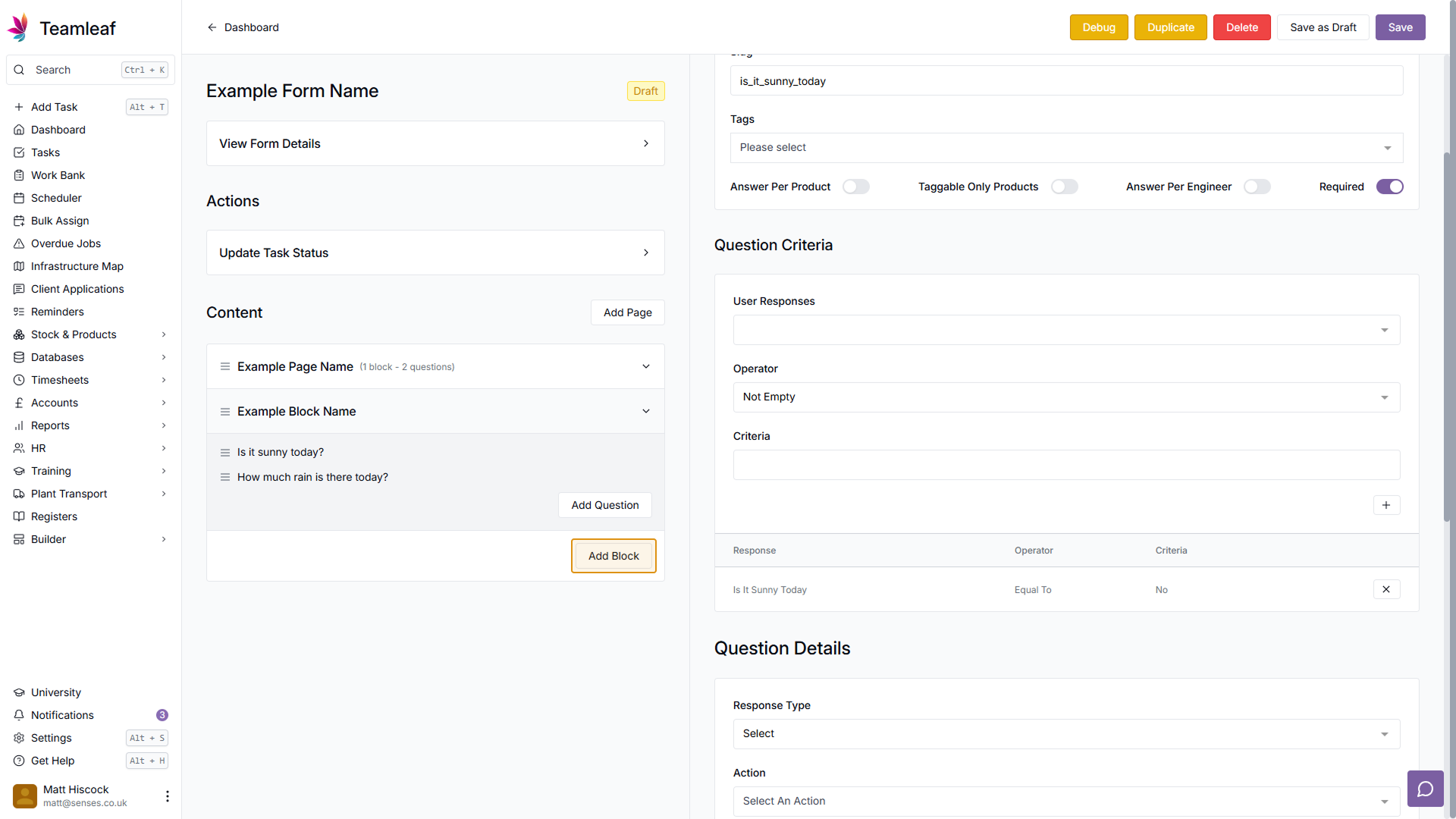
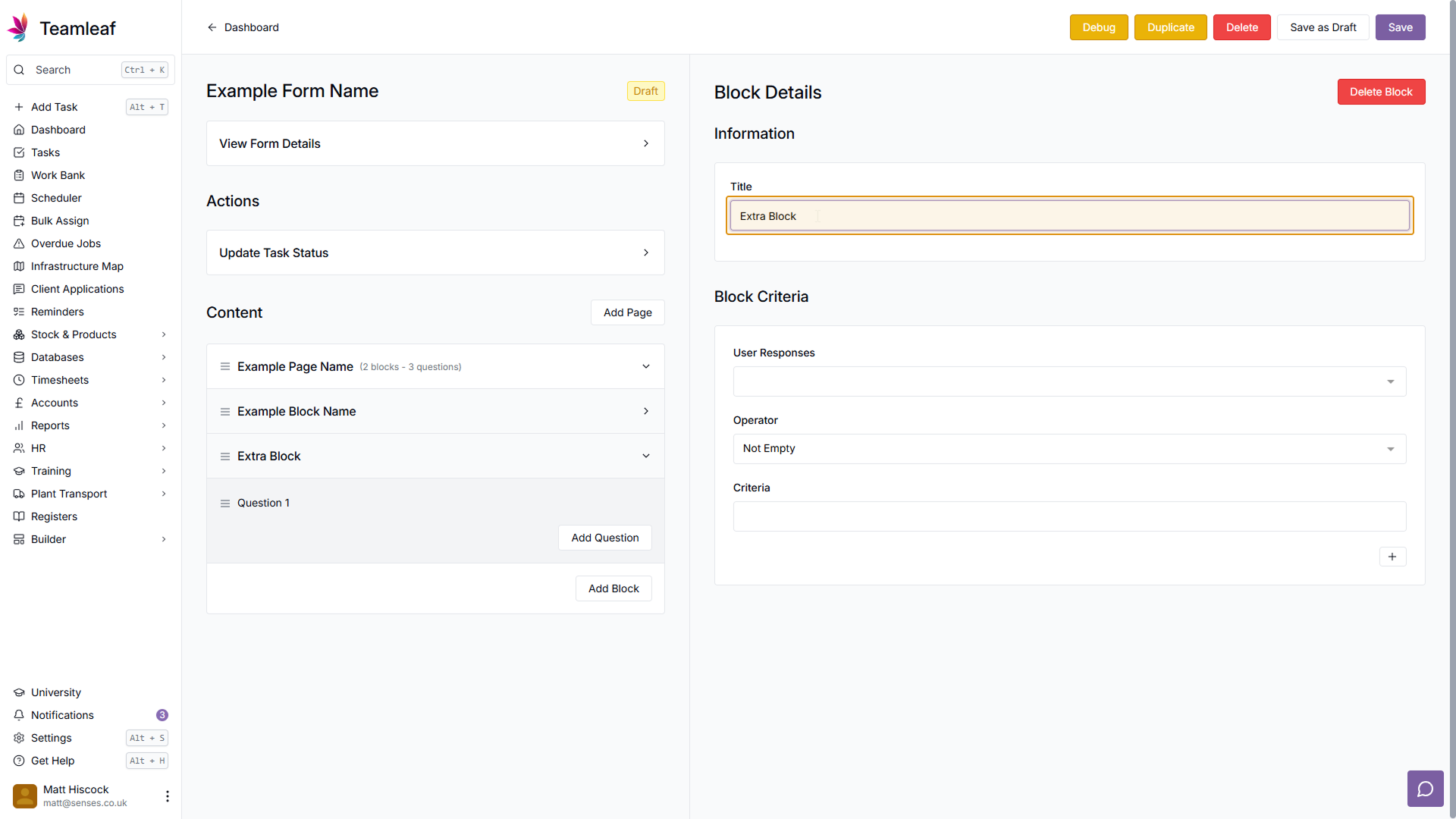
If you wish to add another block, click the 'Add Block' button on the page you'd like to add it to on the left side of the screen. Then click the new block, and use the title section to name it
Step 21
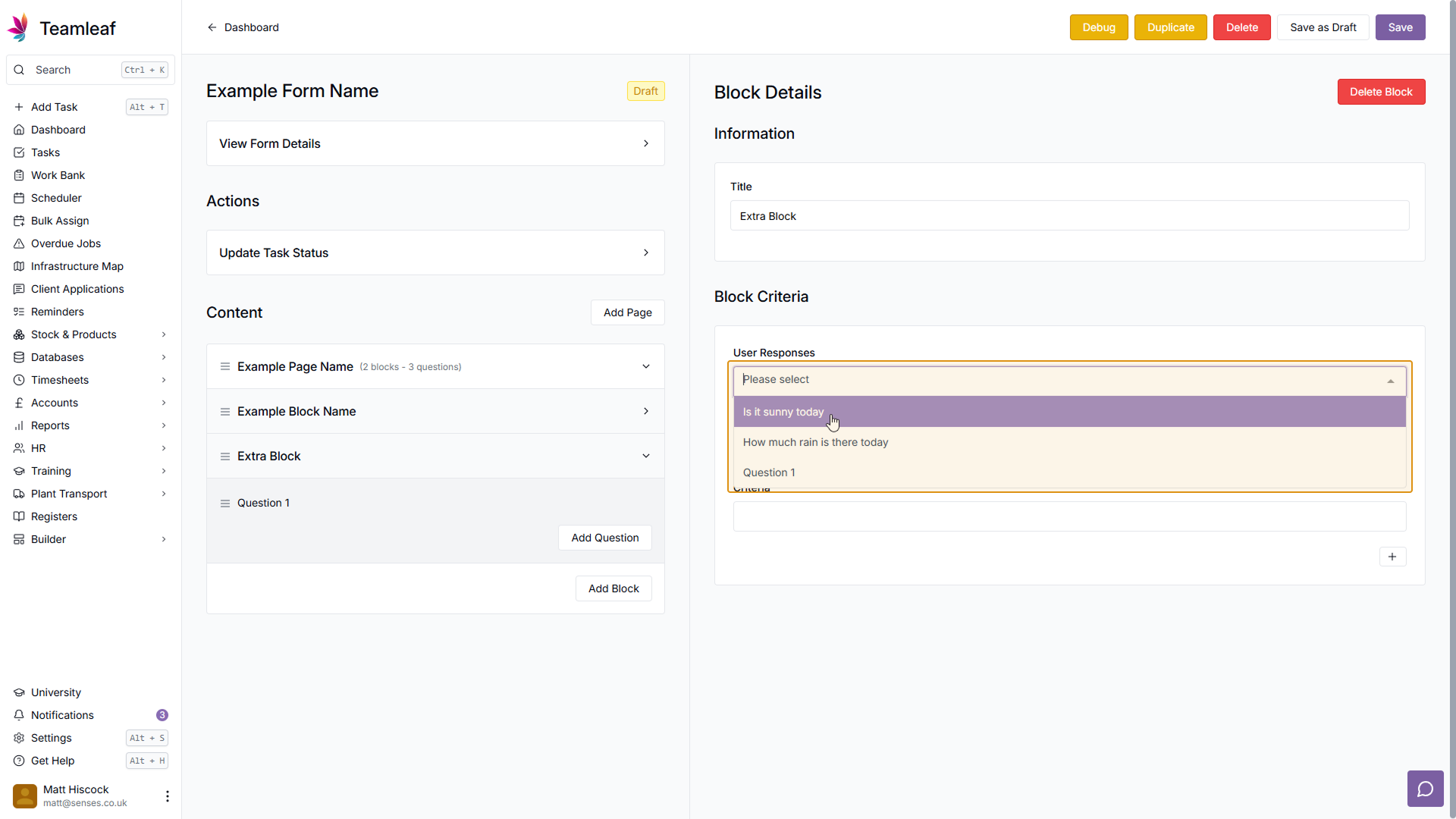
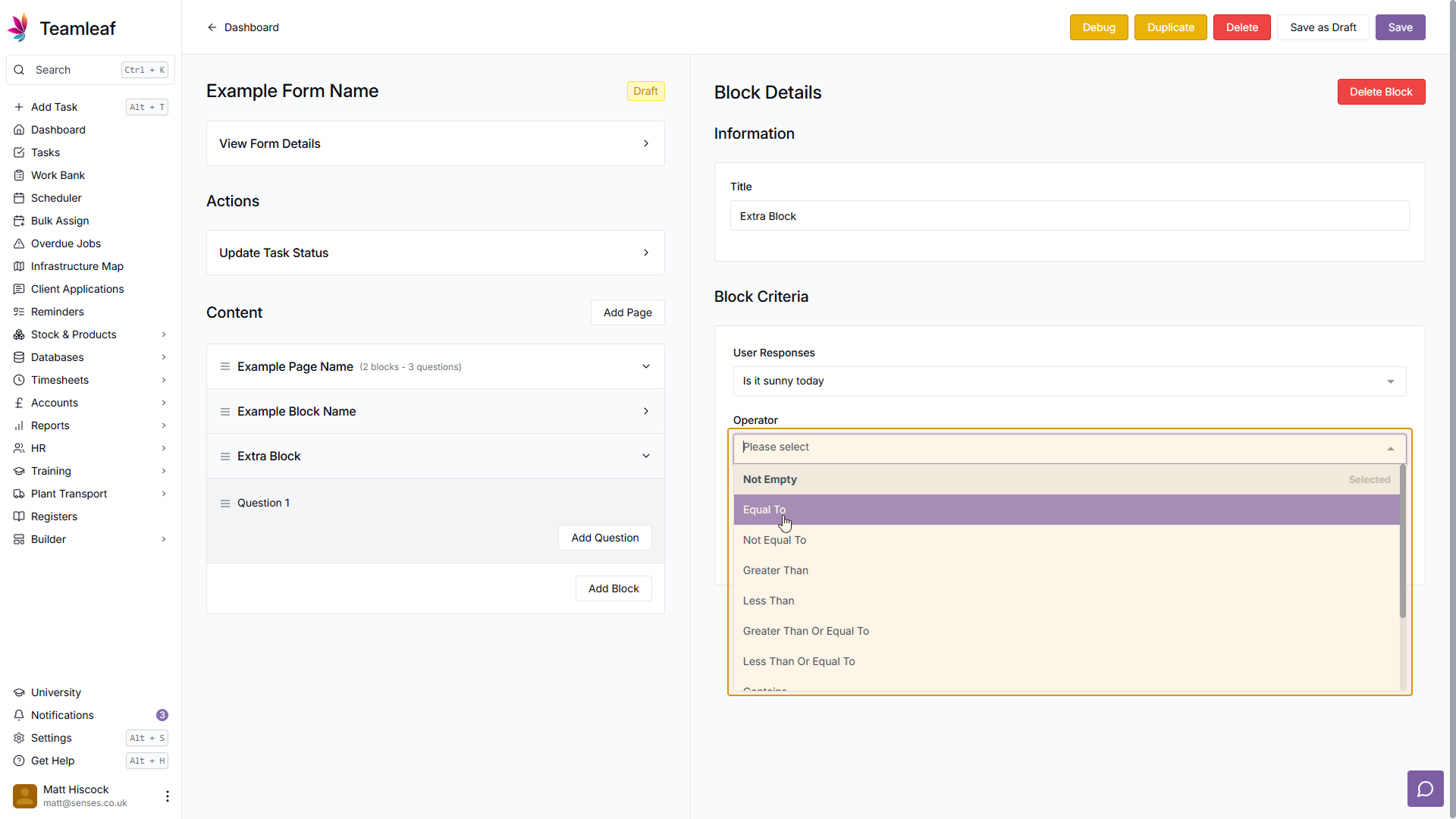
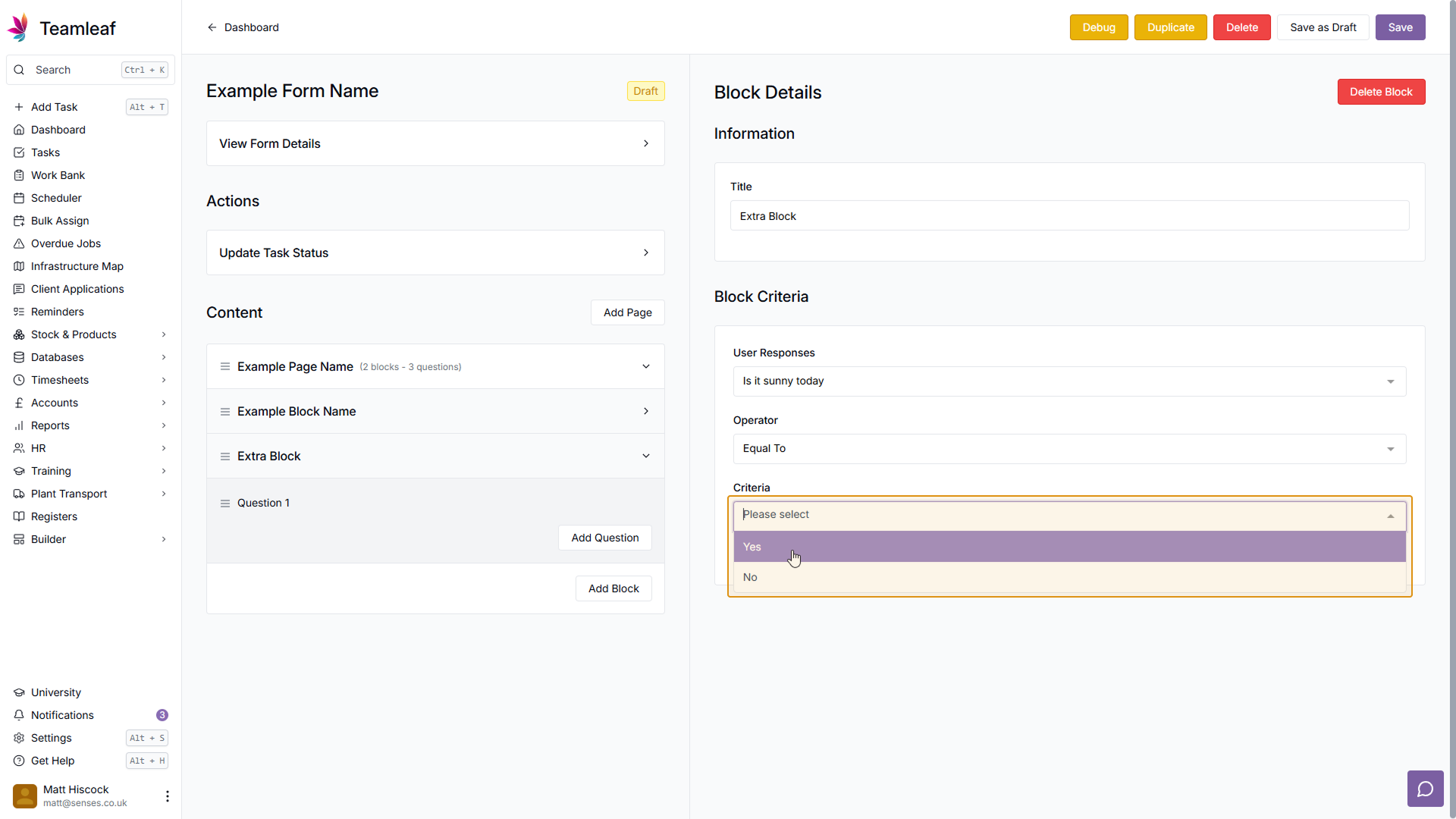
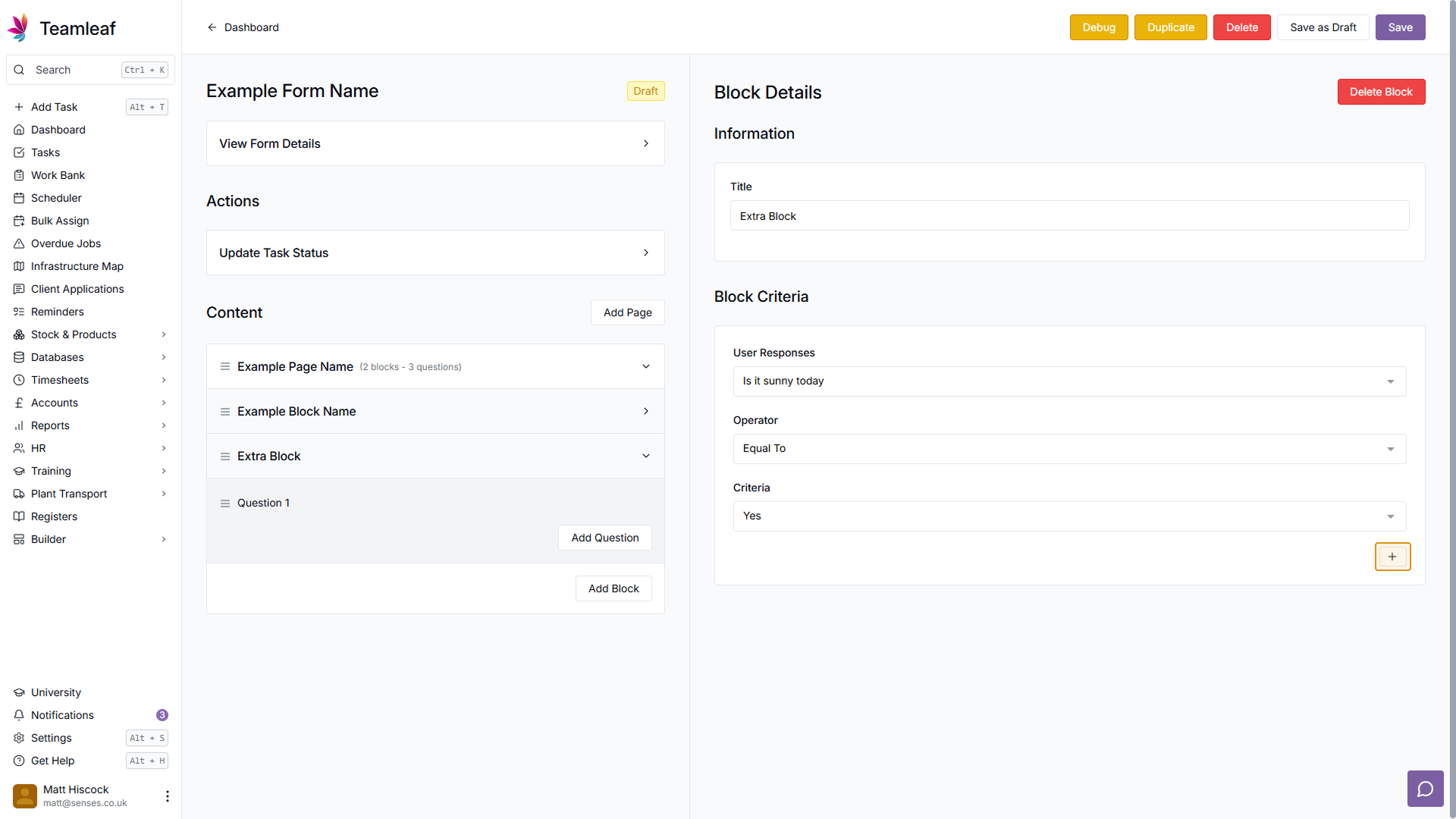
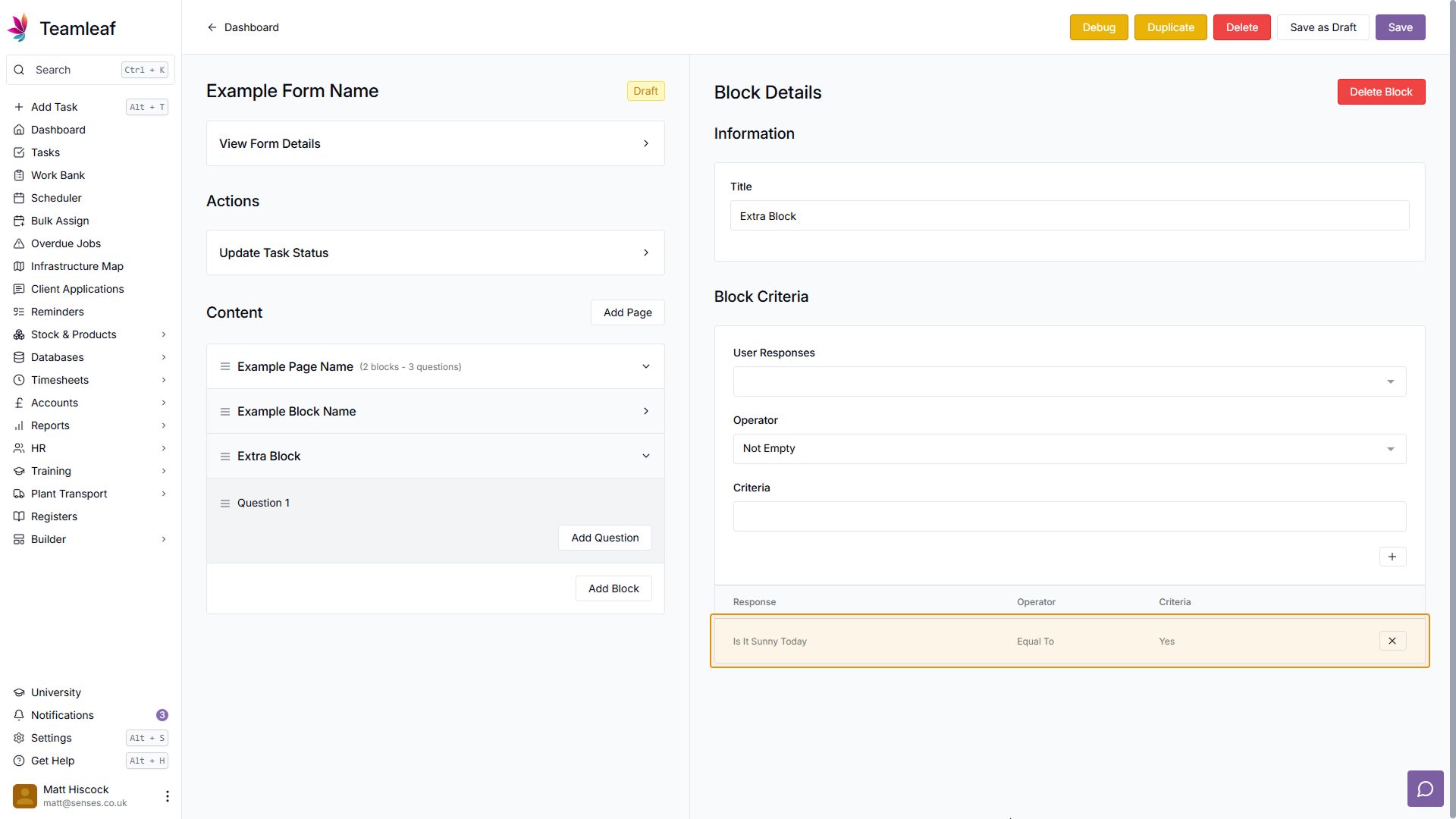
(Optional) Add Block criteria
If you wish for this block to only be shown under certain conditions, you can use Block criteria. Like question criteria, select a question you'd like this to be dependent on from the 'User responses' dropdown, then select an operator and a criteria. In my example, I've made the block only appear if the answer to 'Is it Sunny today' is equal to 'Yes'. Once you're happy with your criteria, click the plus button in the bottom right.
Step 22
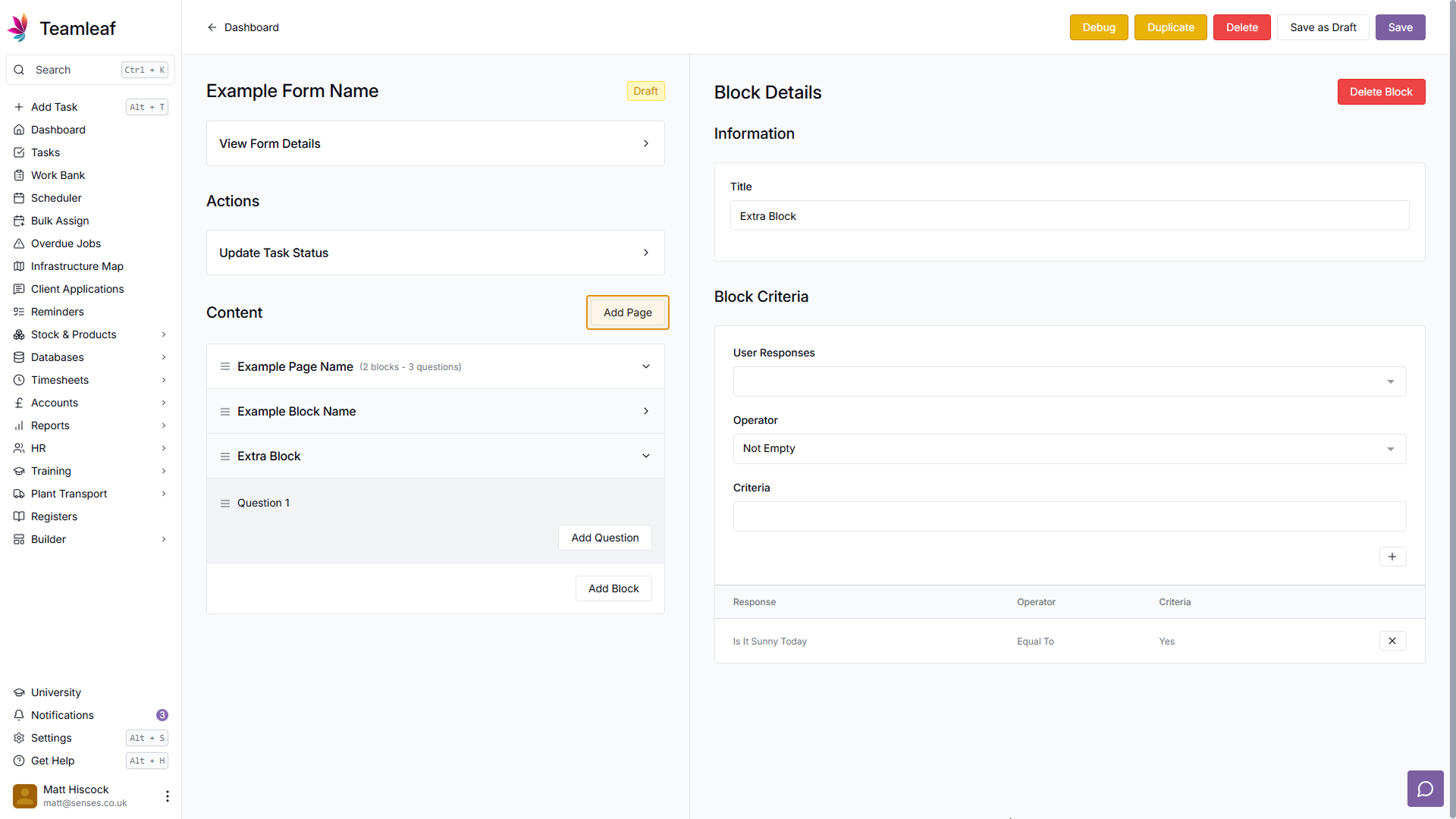
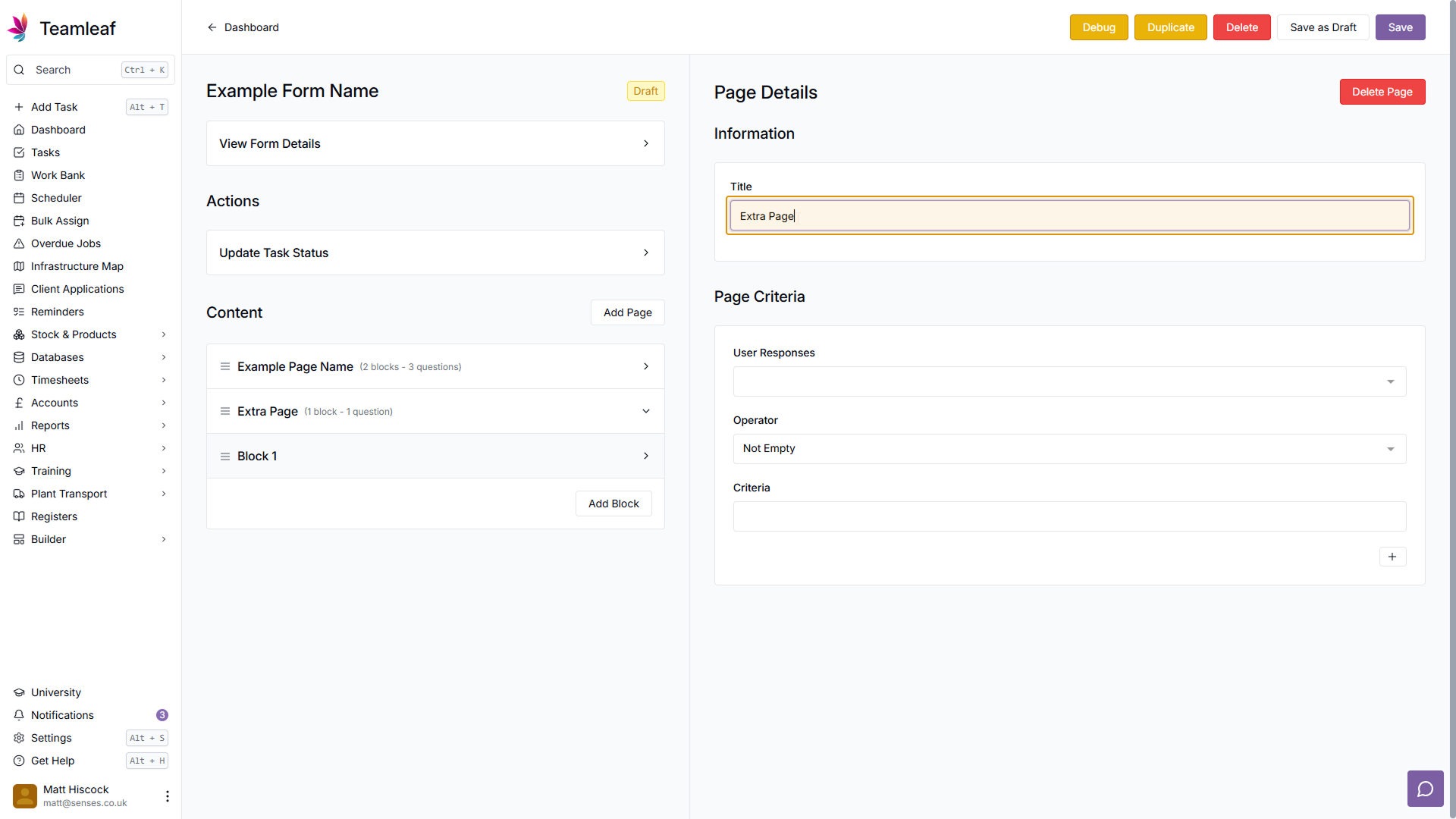
Add another Page
If you wish to add another page, click the 'Add Page' button in the top right of the left side - next to the 'Content' title. Once you've done this, click the new page on the left side, and use the title field to give it a name.
Step 23
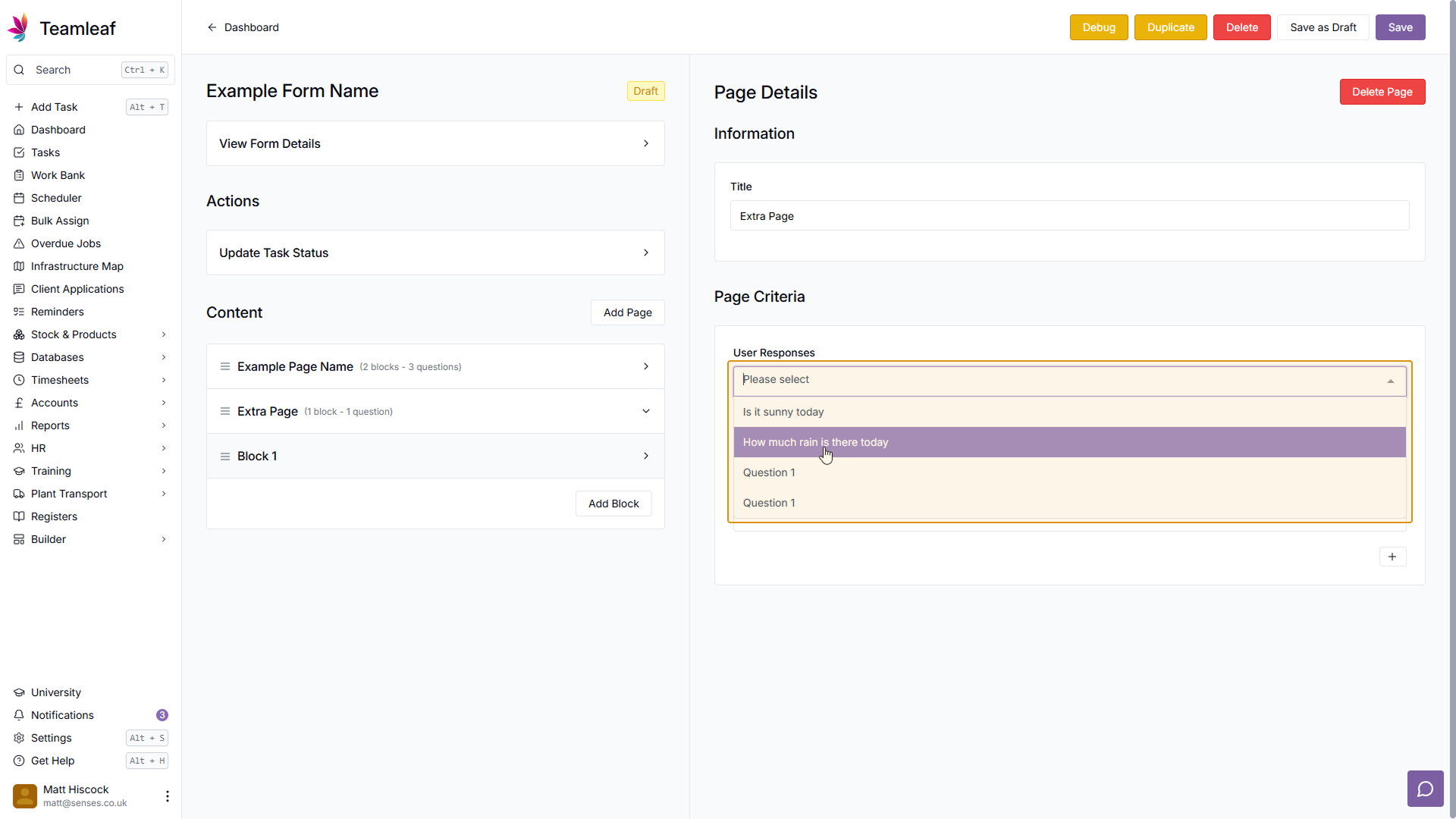
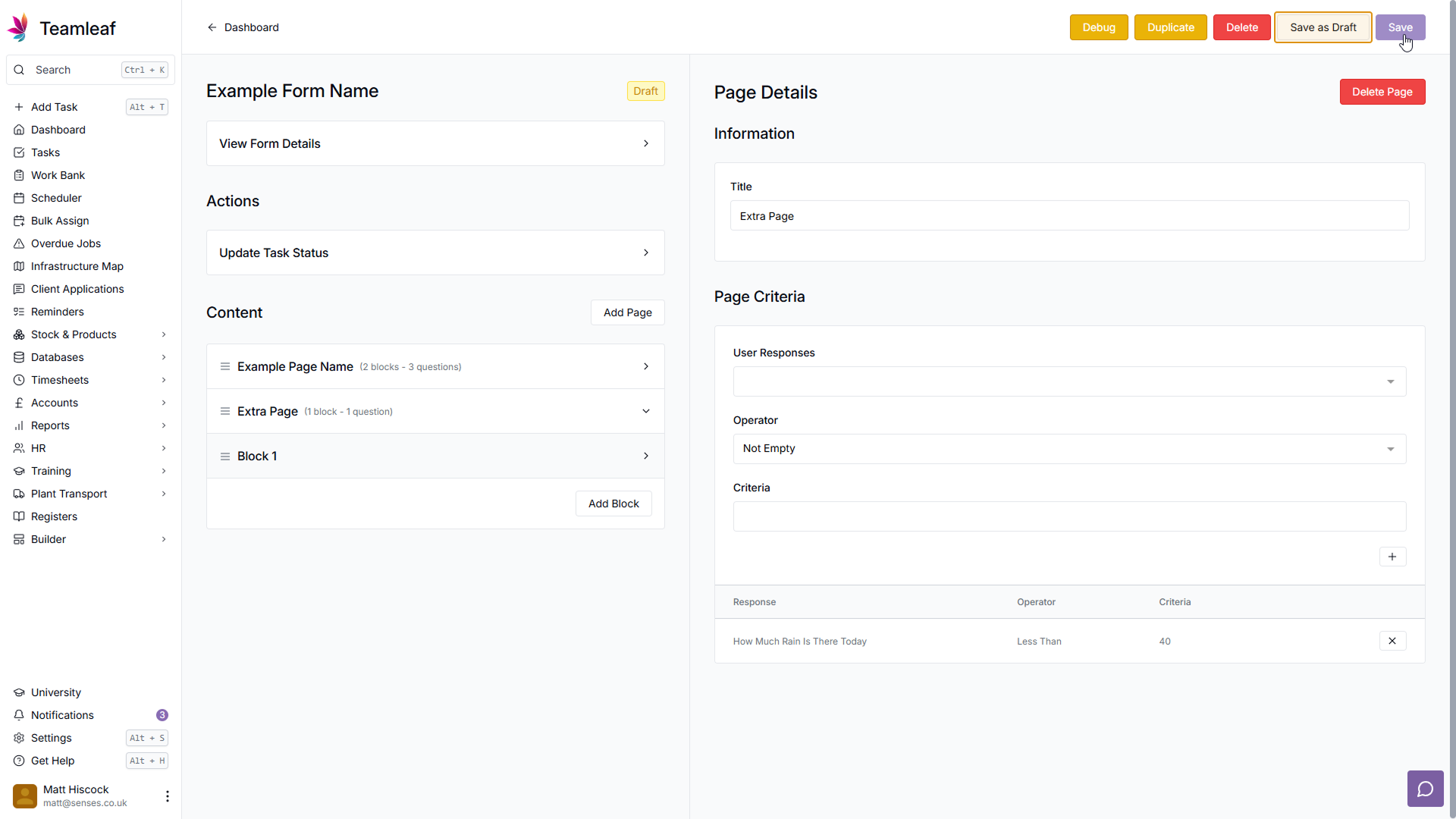
(Optional) Add Page criteria
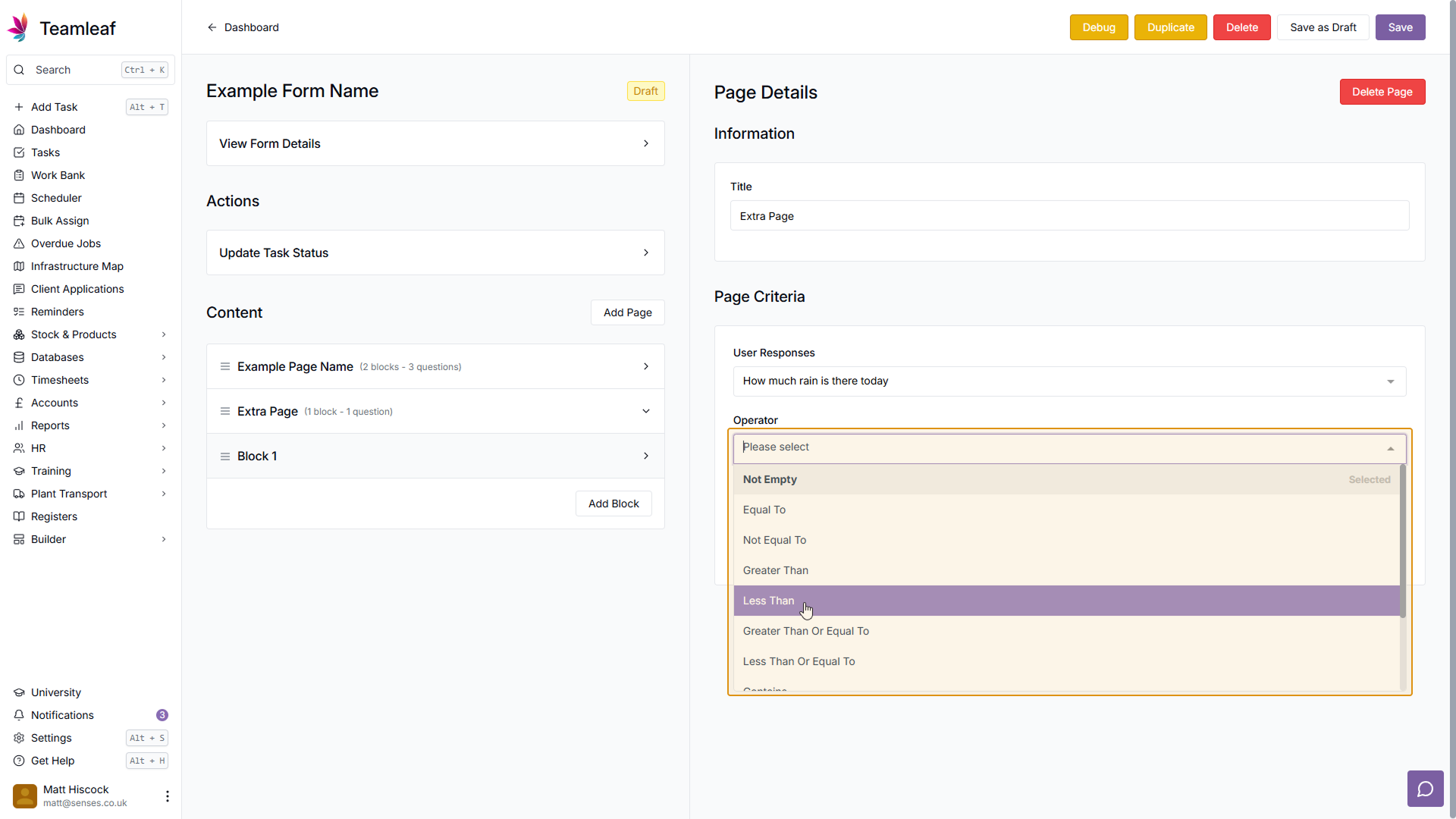
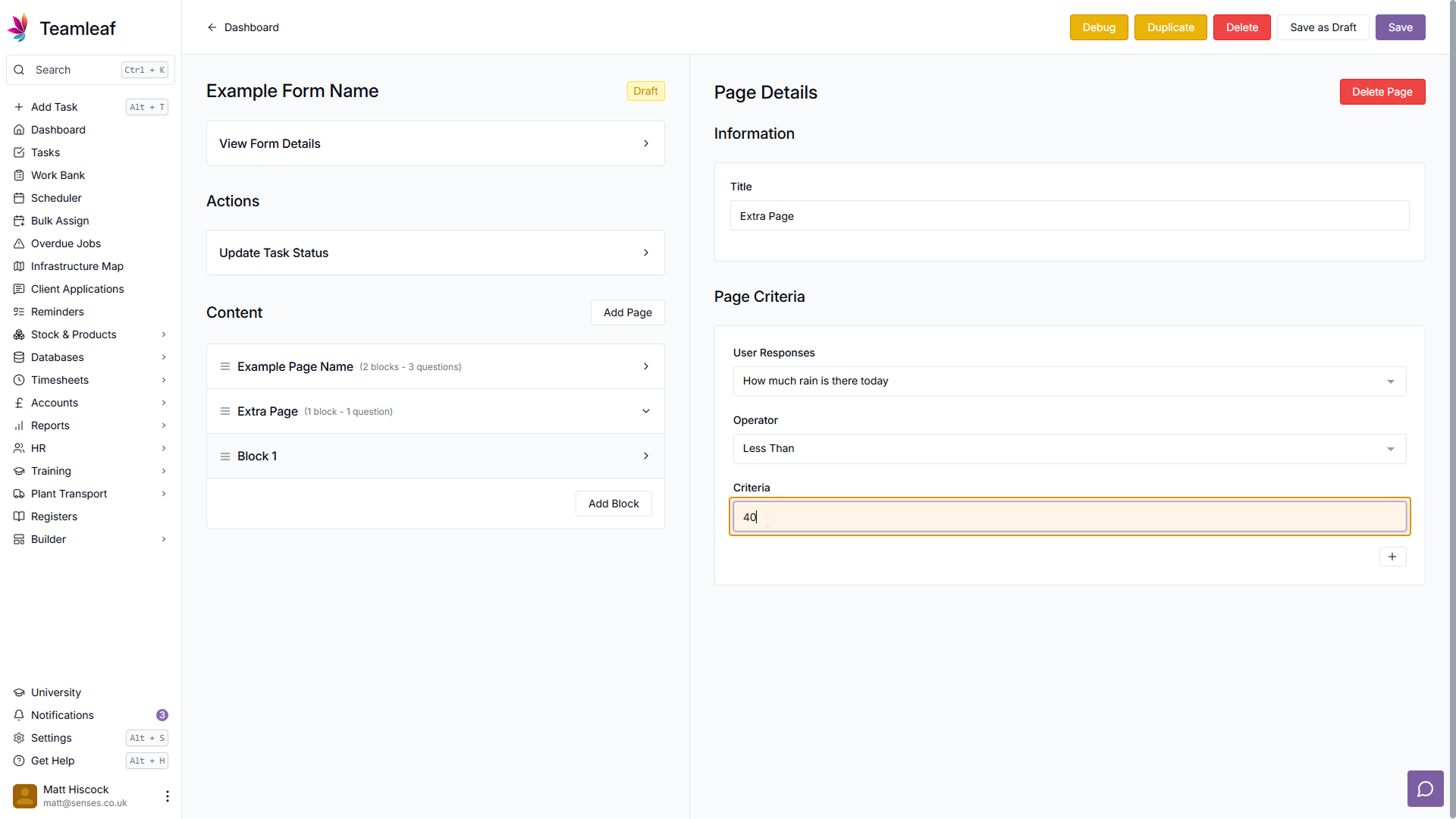
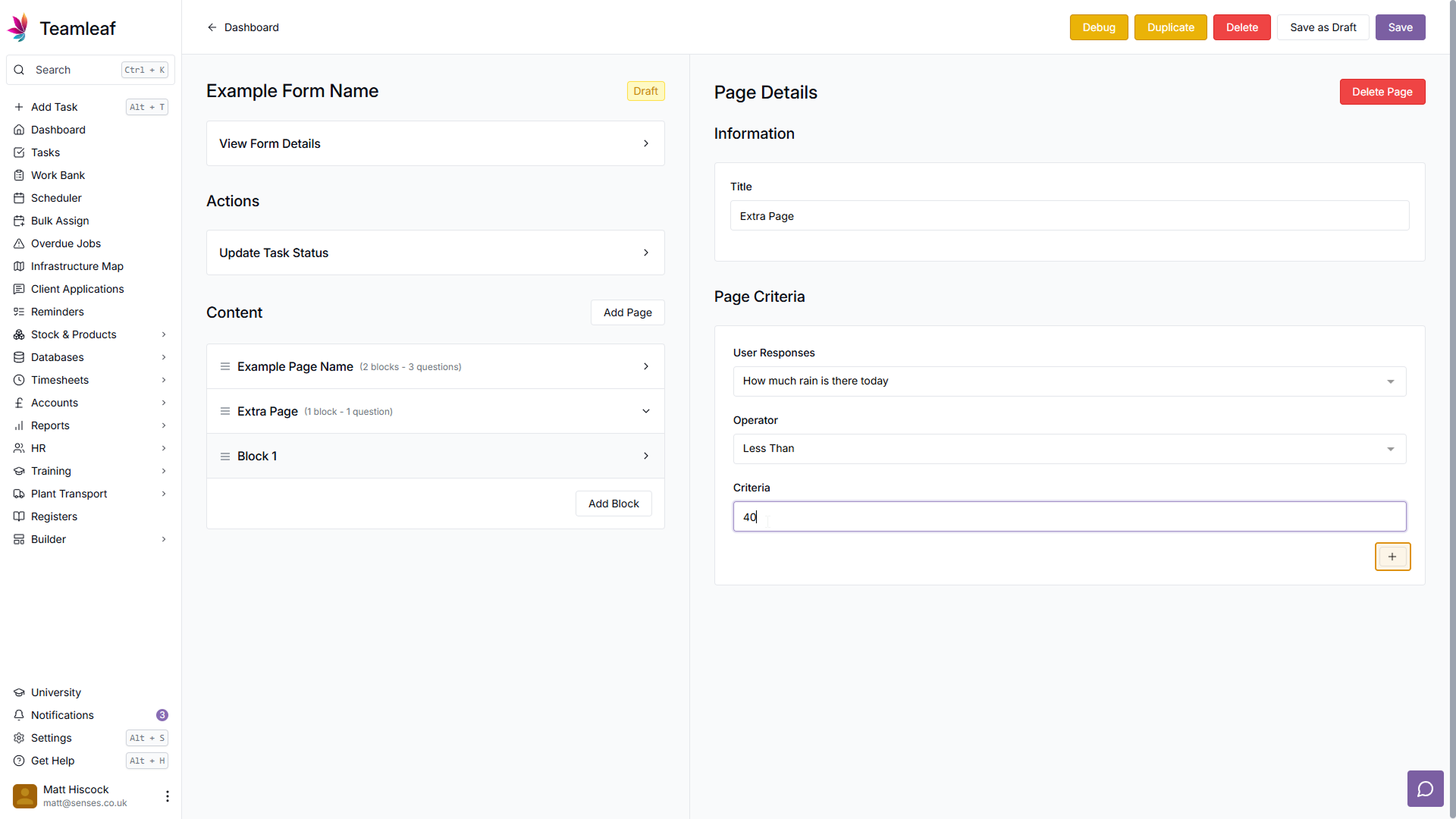
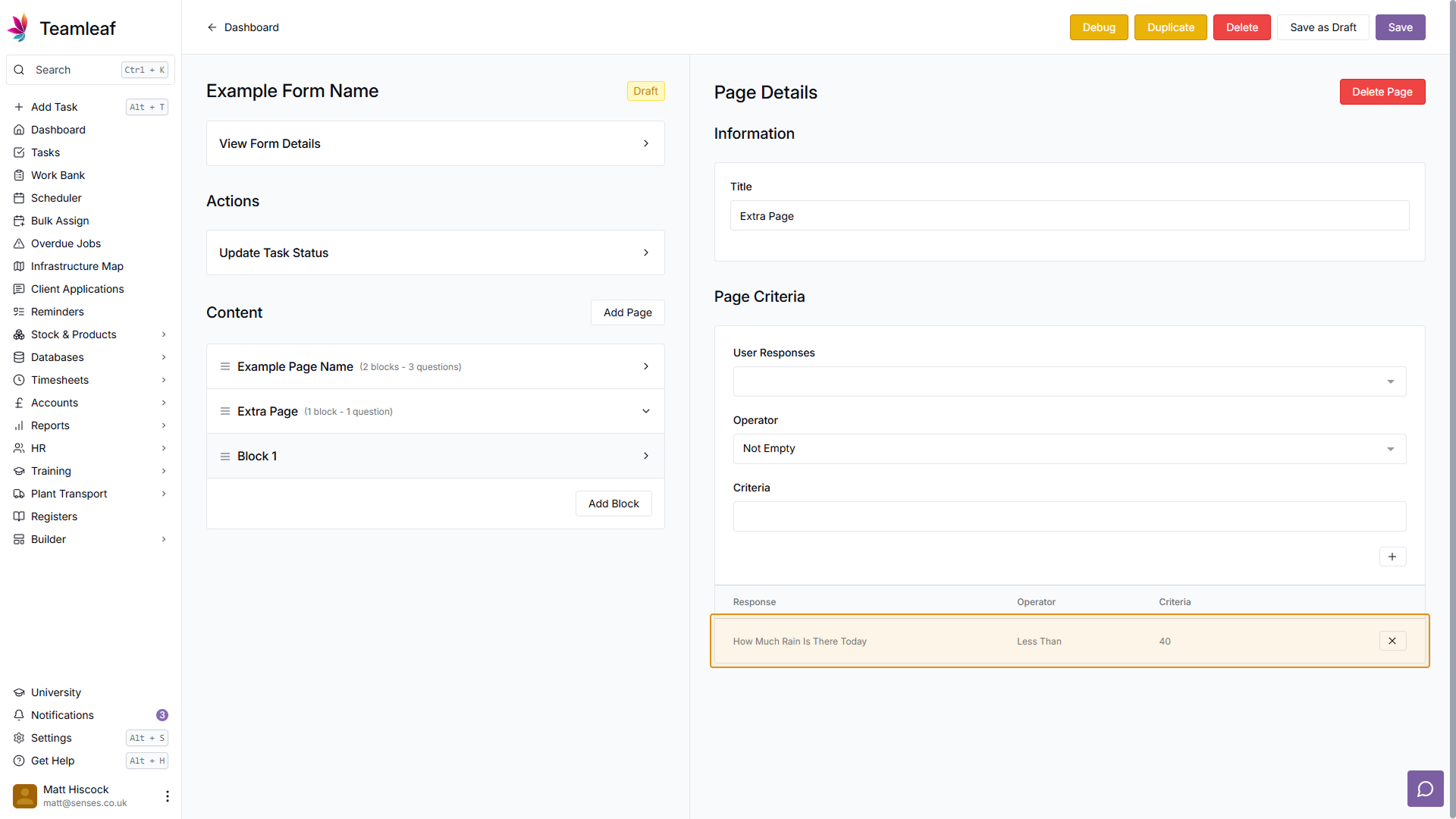
If you wish for this page to only be visible under certain conditions, use page criteria. Select a question for this criteria to be based on from the 'User Responses' dropdown, then select an operator and criteria and click the + button to add it. In my example, I've made the page only appear when the answer to 'How much rain is there today' is less than '40'.
Step 24
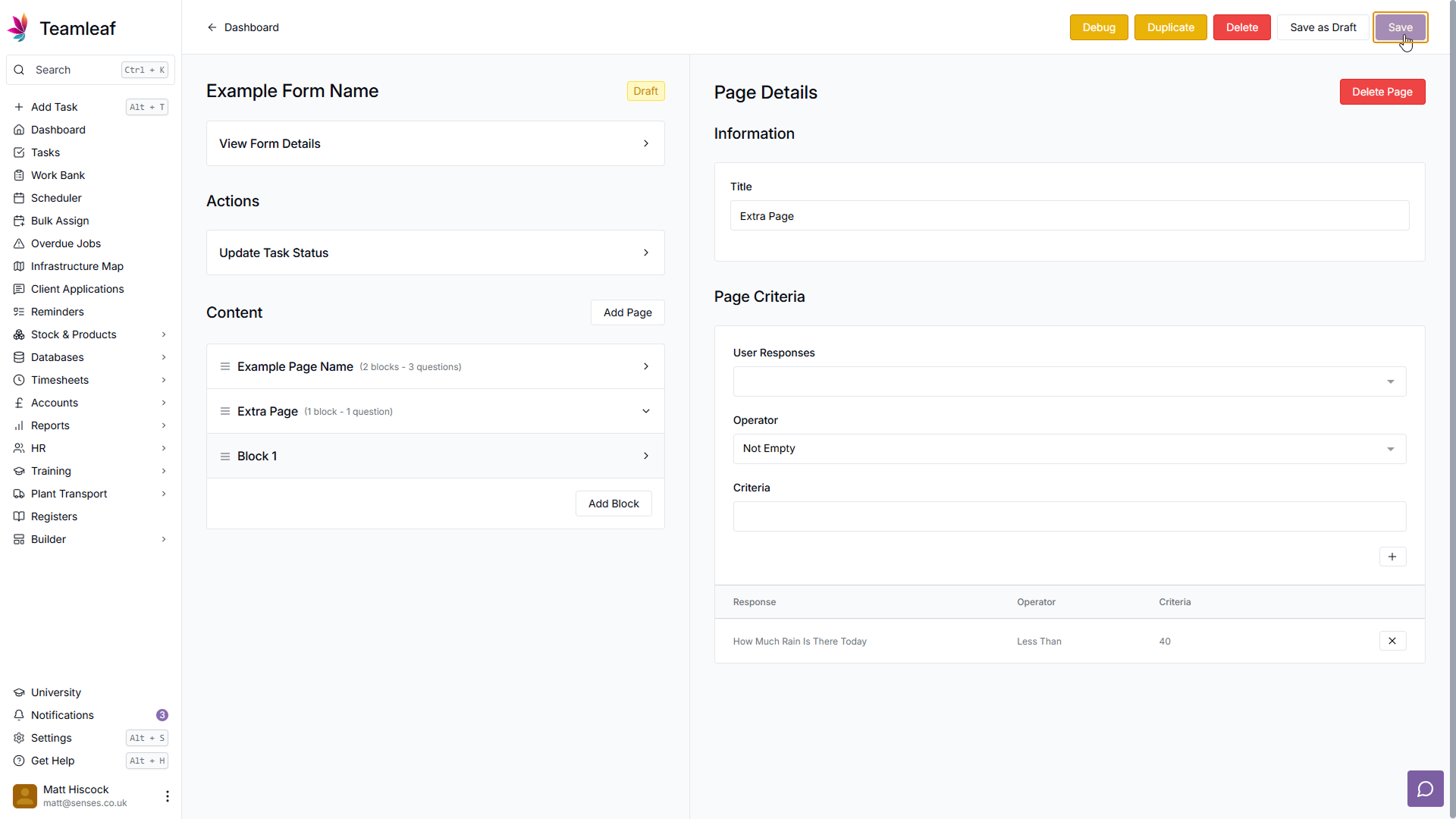
Save the Form Structure
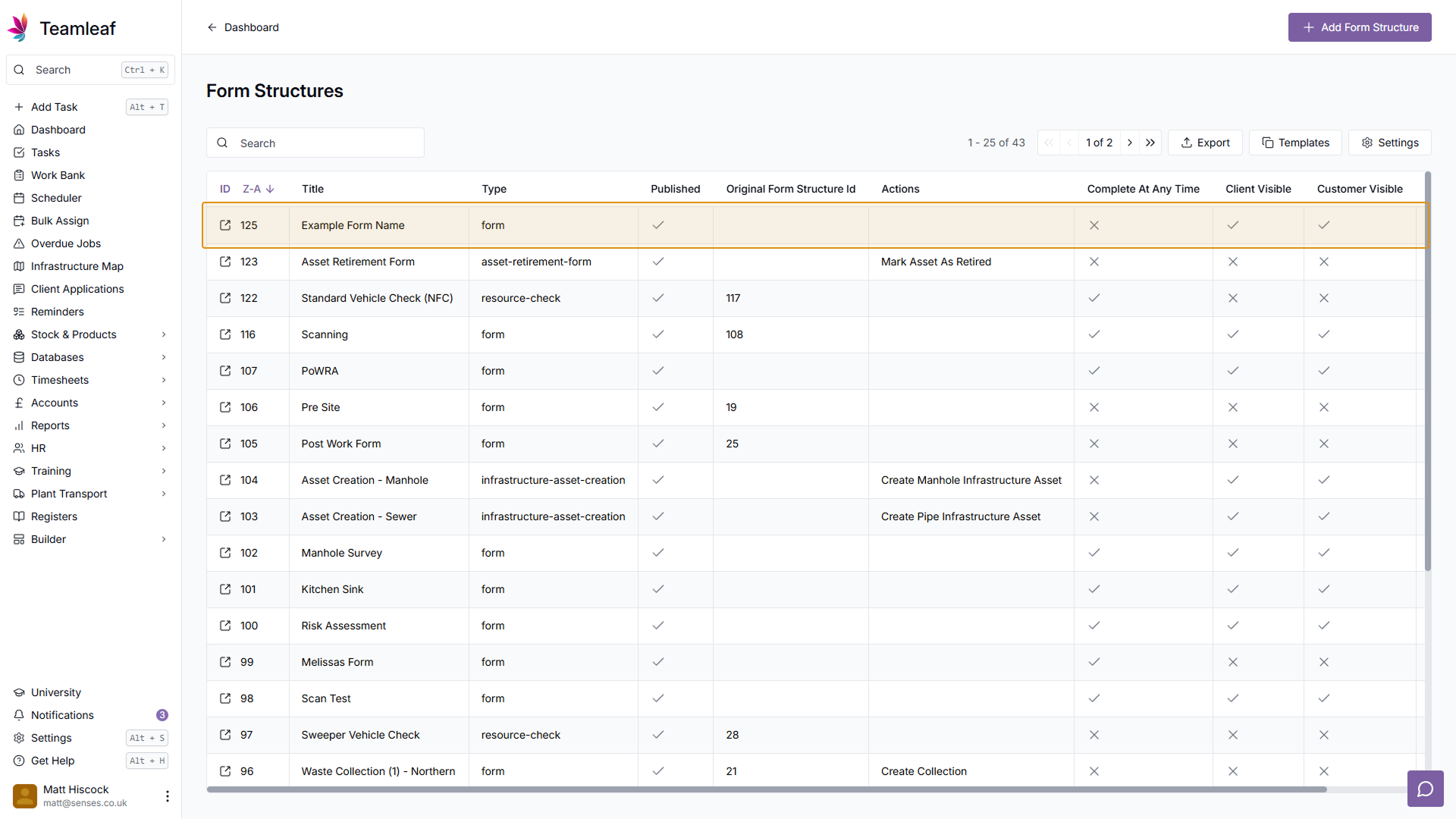
Once you've filled in all the form structure information you'd like to add, you can either click 'Save as Draft' to save the Form Structure without making it useable yet, or click 'Save' to publish it for use. You will then be taken back to the Form Structures table where you will see your new form structure
Related Tutorials
Setup
Adding a Company
Learn how to add a Company to your Teamleaf System
View Tutorials
→
Finance
Setup
Adding and Updating Rates
In this tutorial you will learn how to add new rates, and update existing rates.
View Tutorials
→
Setup
Approving a Company
Understand the Company Approval process in Teamleaf.
View Tutorials
→
Reports
Setup
Creating a Report Layout
Learn how to create a custom Report Layout so you can see your KPIs, your way.
View Tutorials
→
Scheduler
Setup
Customising the Scheduler
In this tutorial you will learn how to customise the scheduler to suit your workflow, allowing you to select your layout and create templates
View Tutorials
→
Setup
Tasks
Customising the Task Table
In this tutorial you will learn how to alter your Task Table settings
View Tutorials
→
Scheduler
Setup
Setting up the Scheduler
In this tutorial you will learn how to set up the Scheduler. You will learn how to filter and add the Users and Assets you want to see, and how you can see those crews easily on the scheduler
View Tutorials
→