Creating a Recurring Shift
In this tutorial you will learn how to set up a Recurring Shift Template in Teamleaf
Step-by-Step Guide
Shifts
Step 1
Go to Task
To start, go to 'Tasks' on the left sidebar, then select a Task in the task list that you'd like to add a recurring shift to
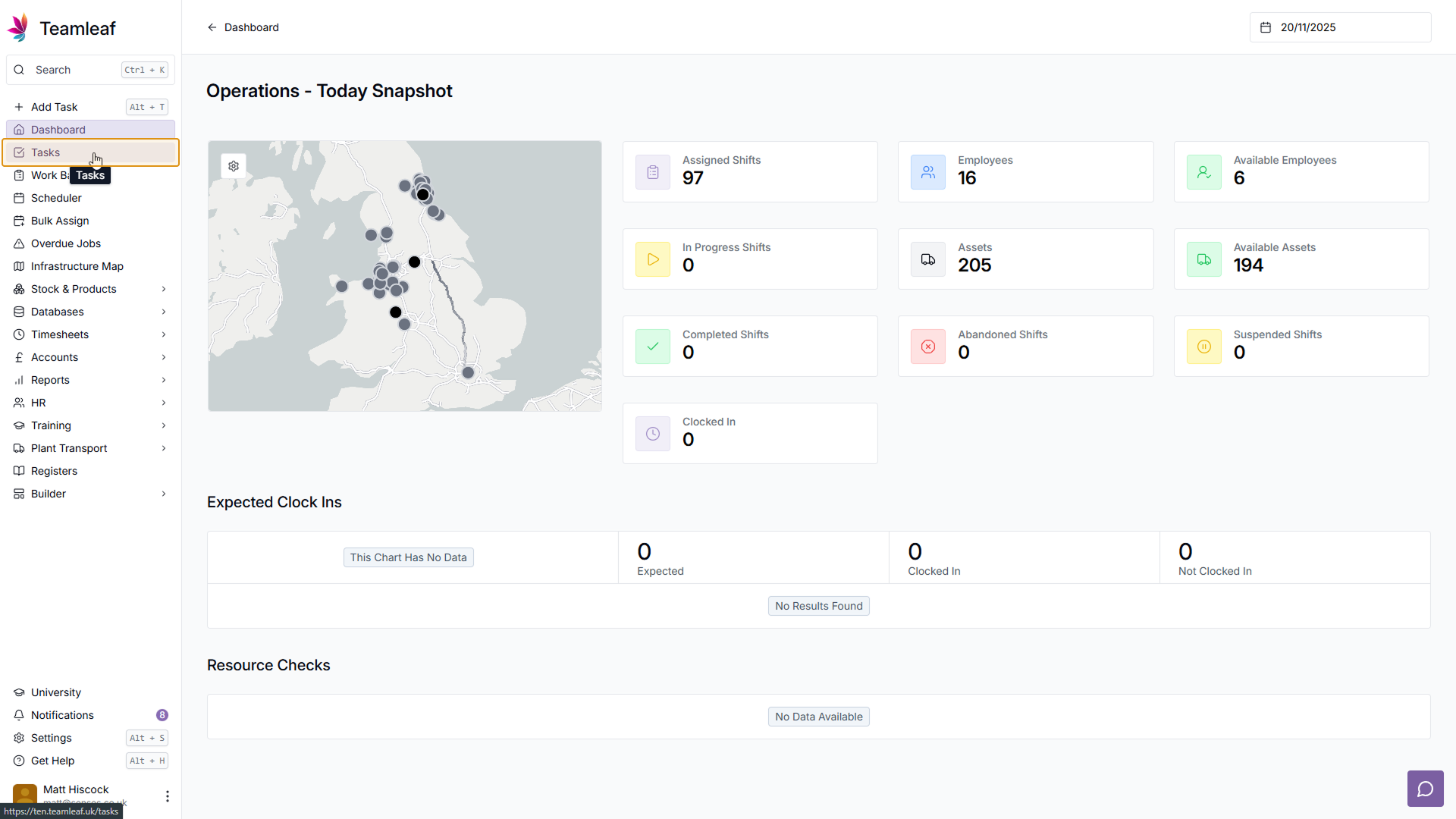
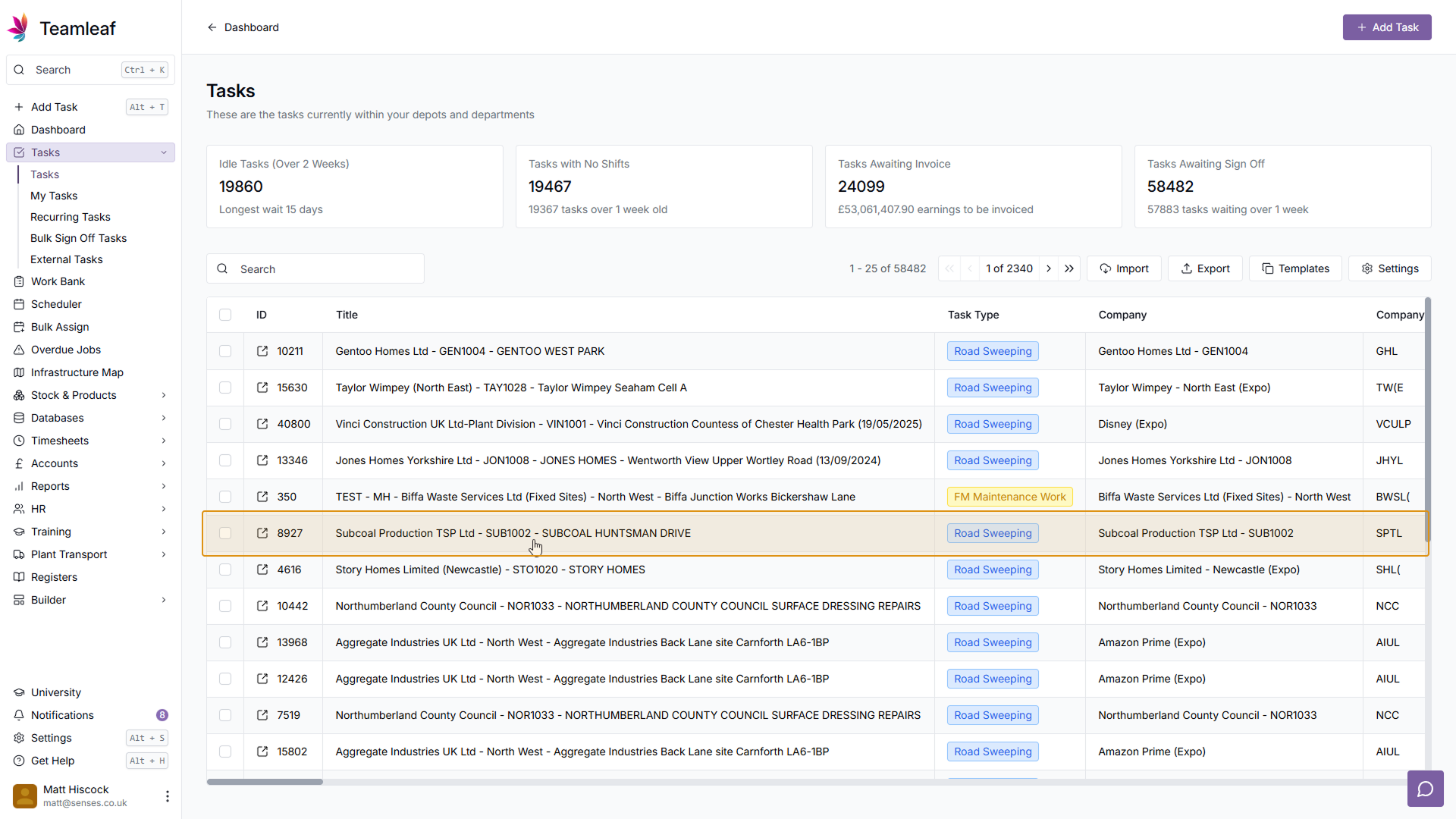
Step 2
Go to 'Shifts & Work Bank'
Next, in the left sidebar click 'Shifts & Work Bank'
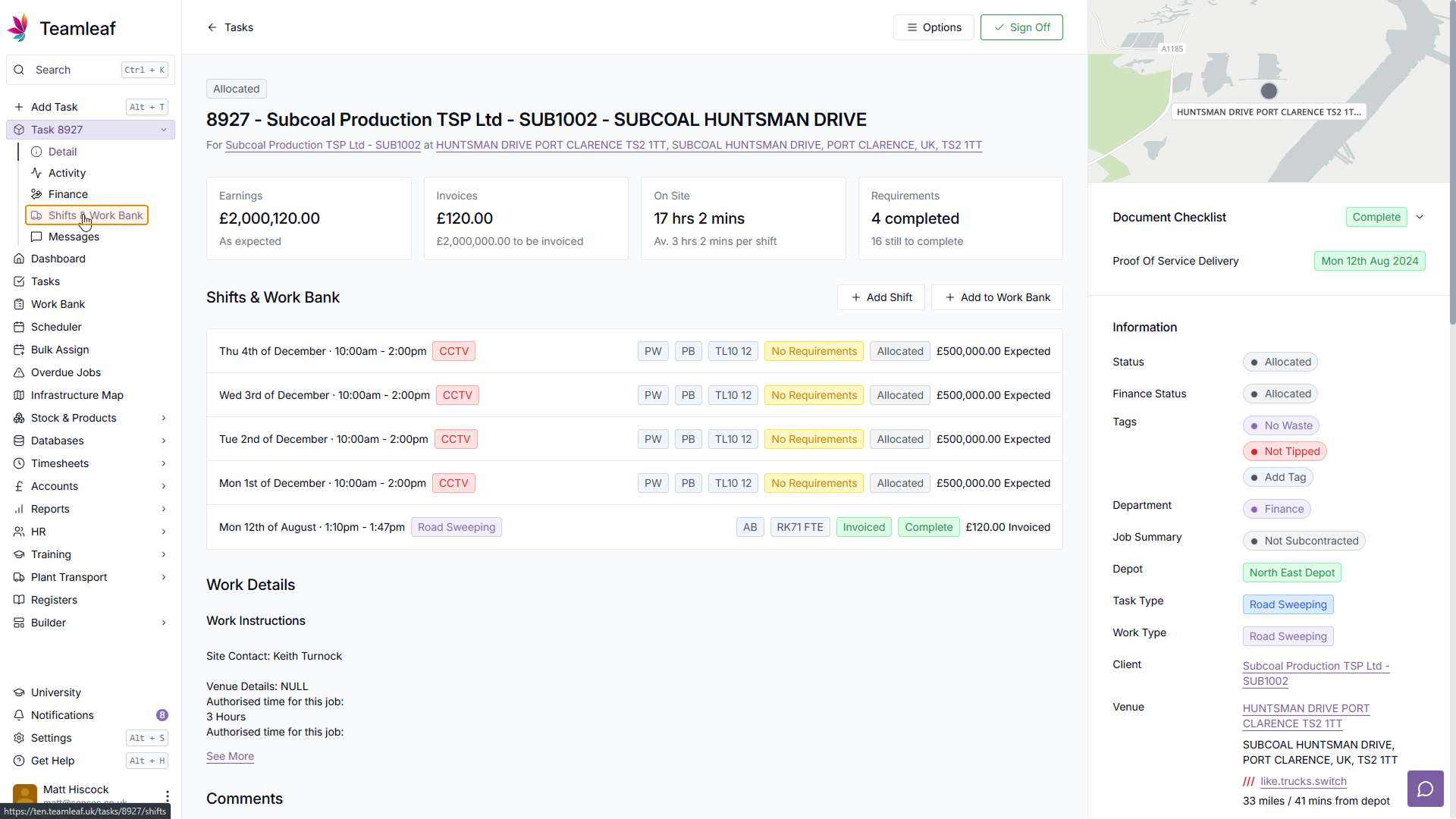
Step 3
Add Recurring Shift
In the 'Recurring Shifts' section of the page, click the 'Add' button
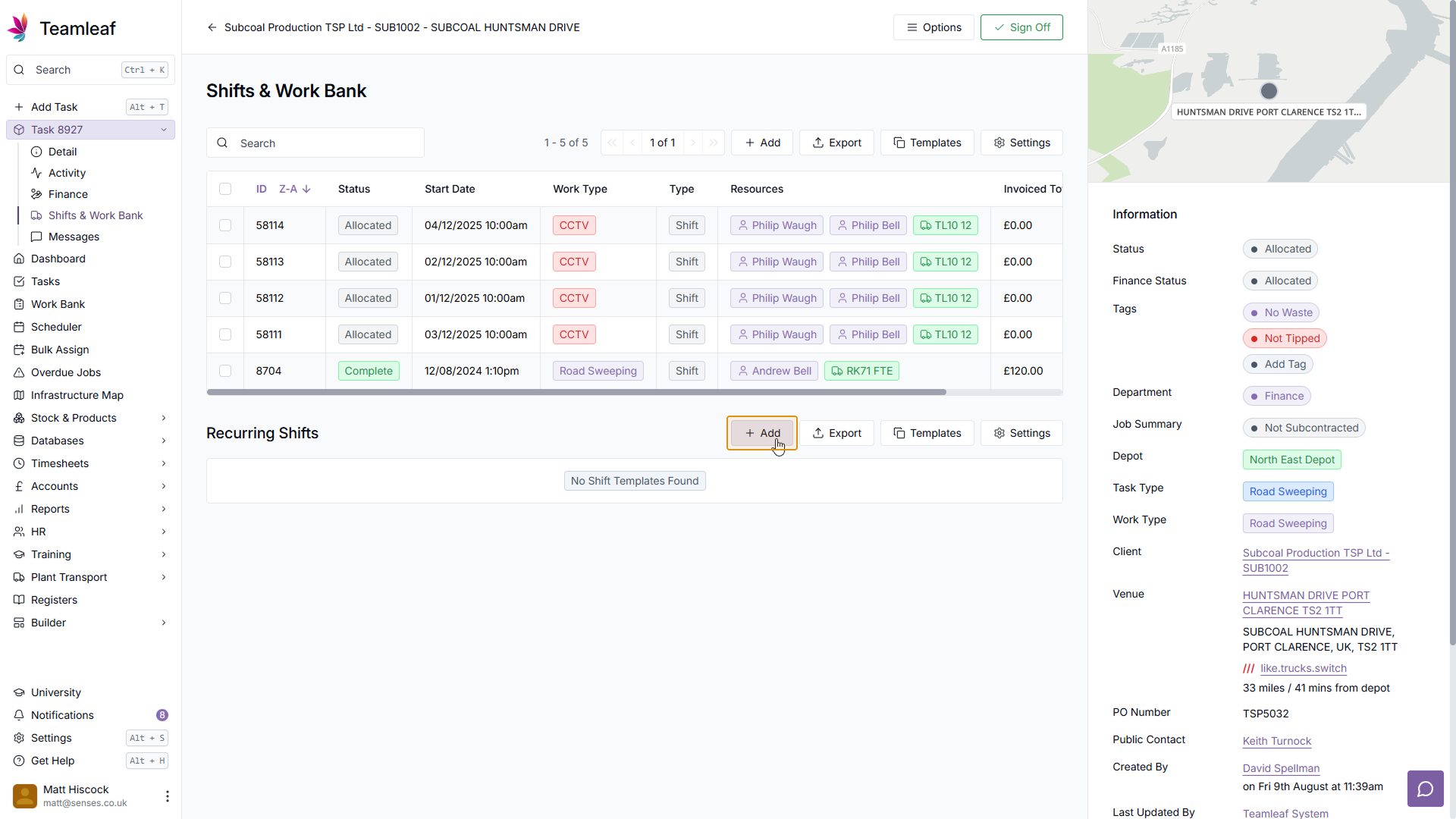
Step 4
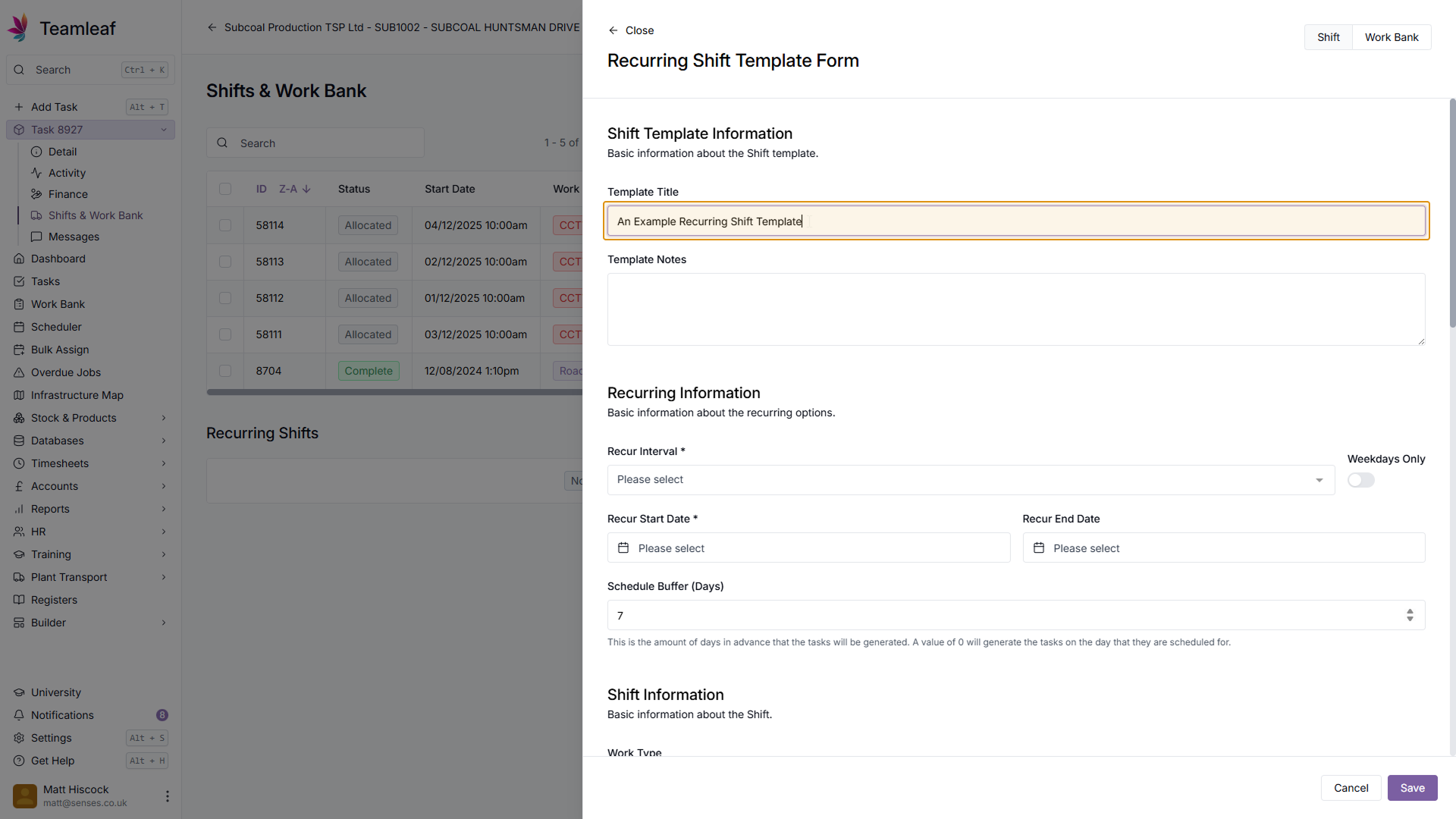
Add Template Title
Next, add a Title for your Recurring Shift Template
Step 5
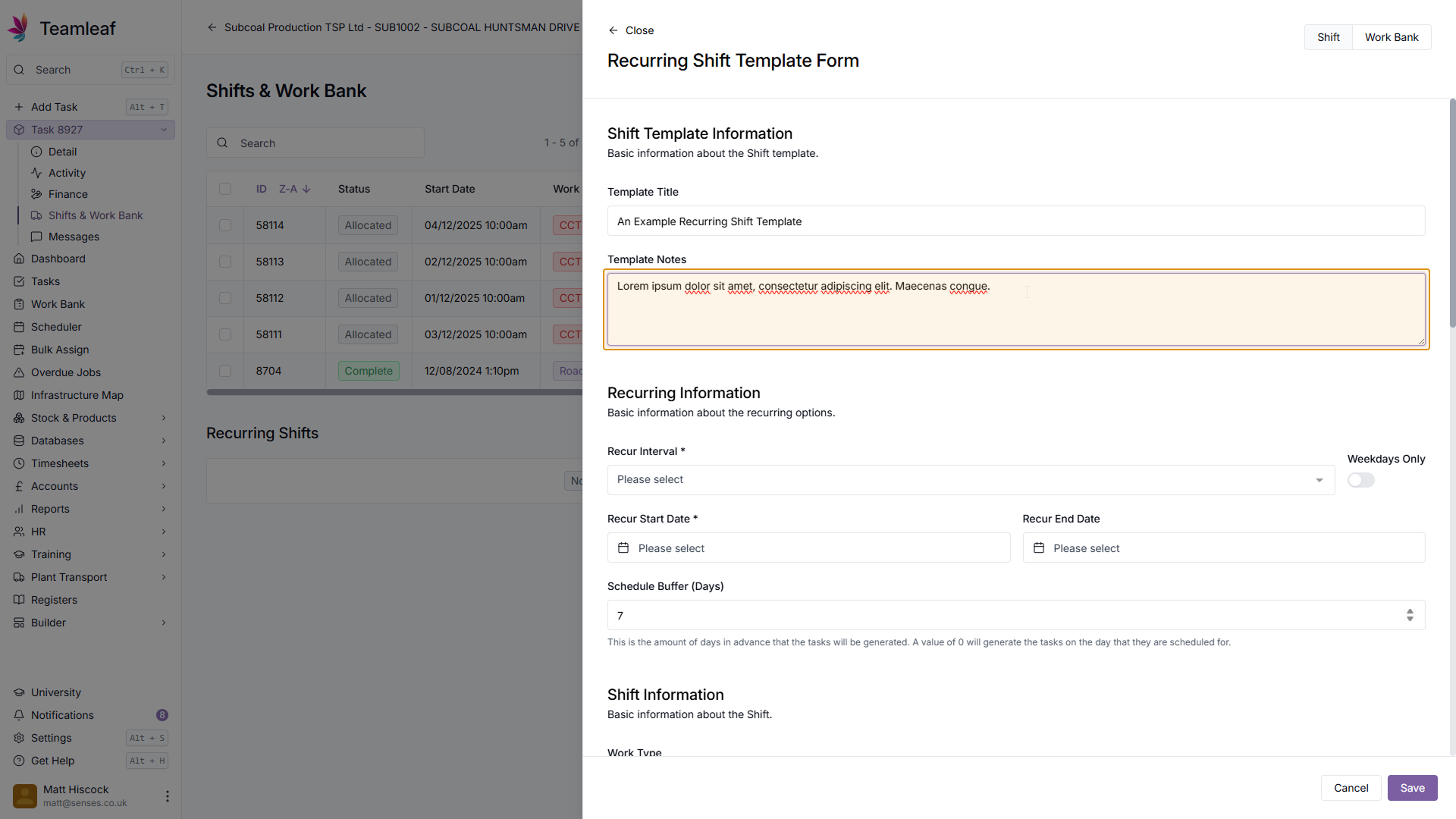
(Optional) Add Template Notes
If you wish, you can provide more information about this template in the Template Notes section
Step 6
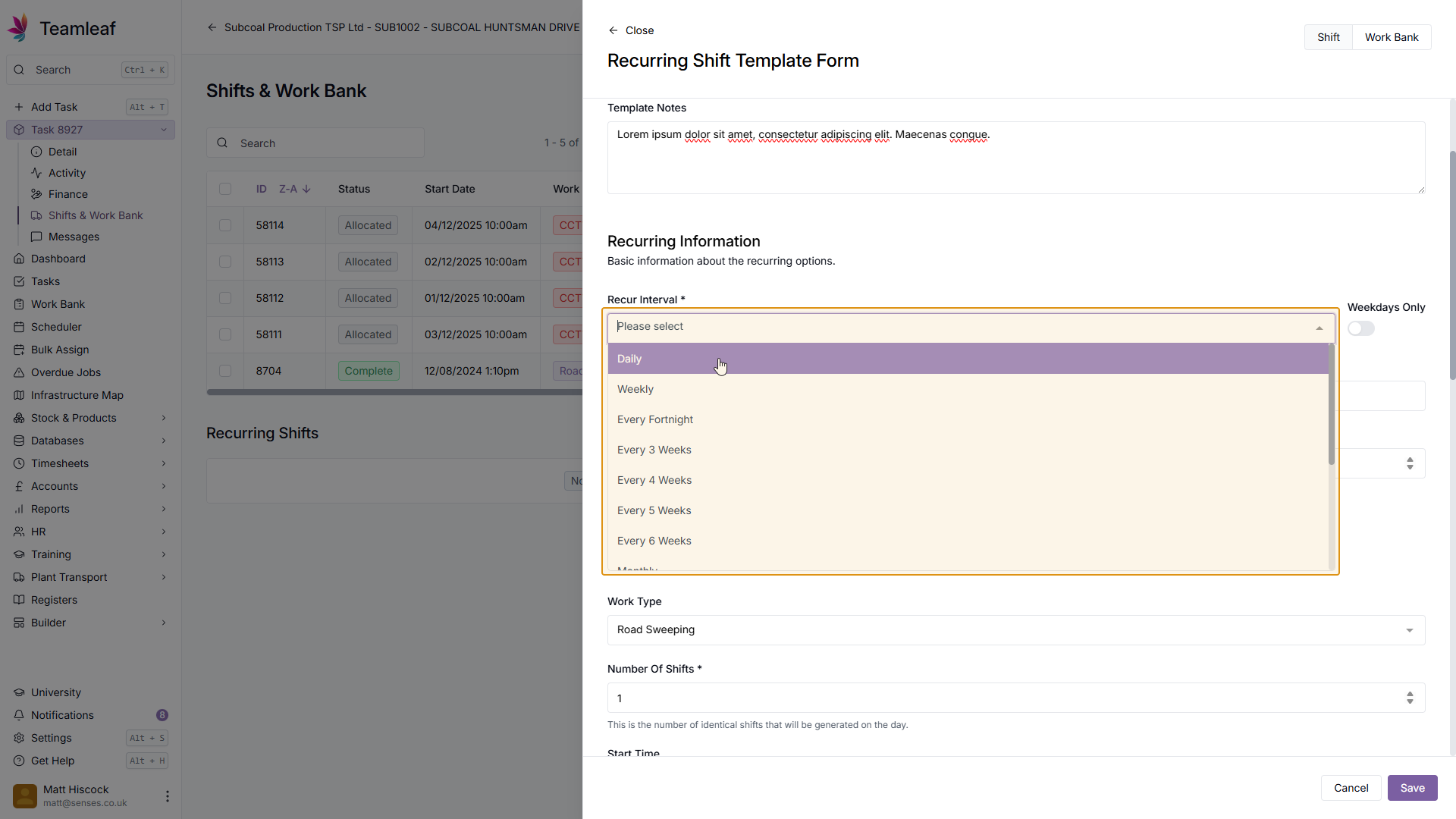
Set Recur Interval
Next, select how often you'd like this recurring shift to occur
Step 7
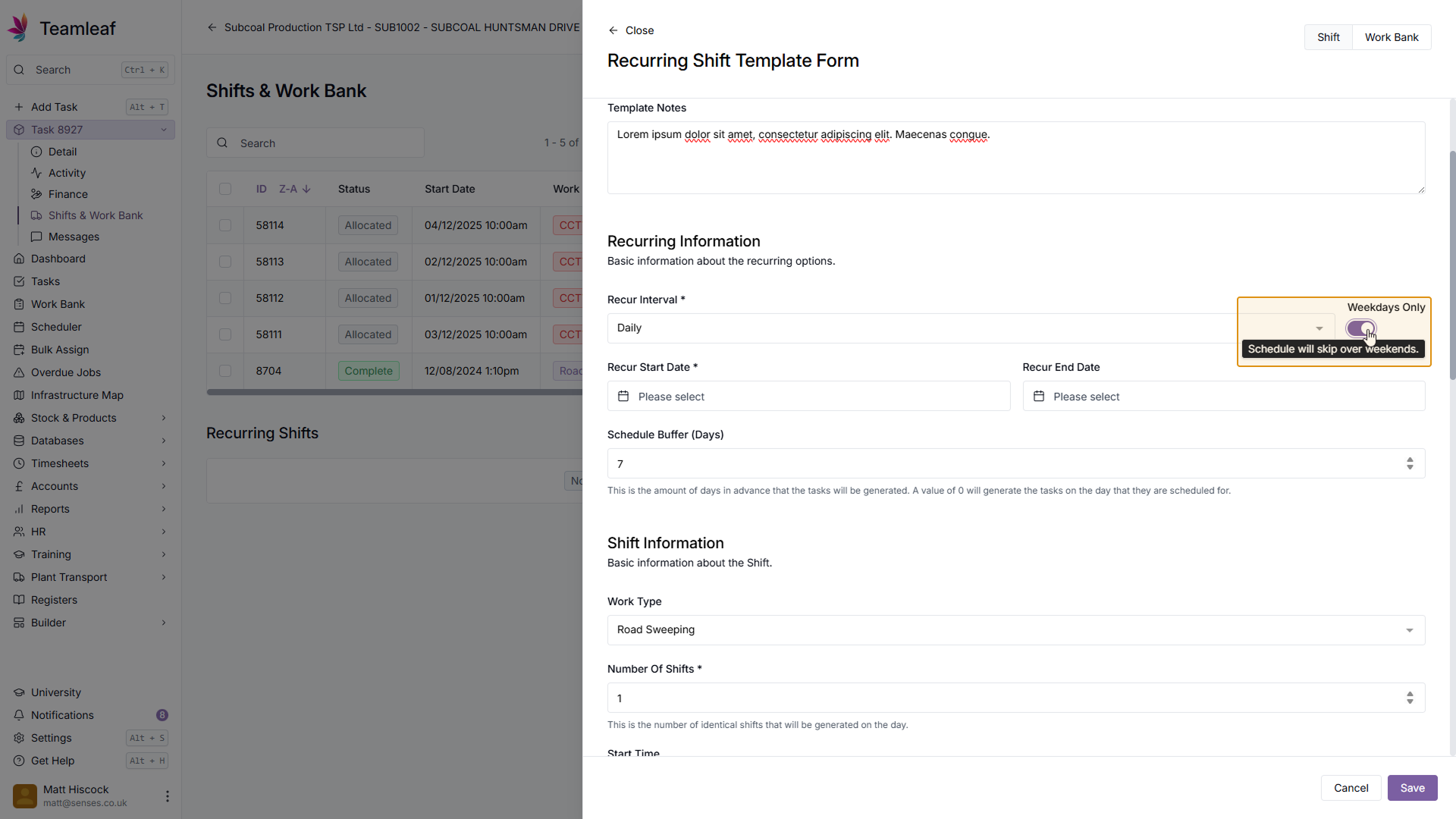
Select Weekday toggle
By default, the 'Weekdays Only' toggle will be disabled, meaning shifts can happen any day of the week. Enable it to allow for weekdays only
Step 8
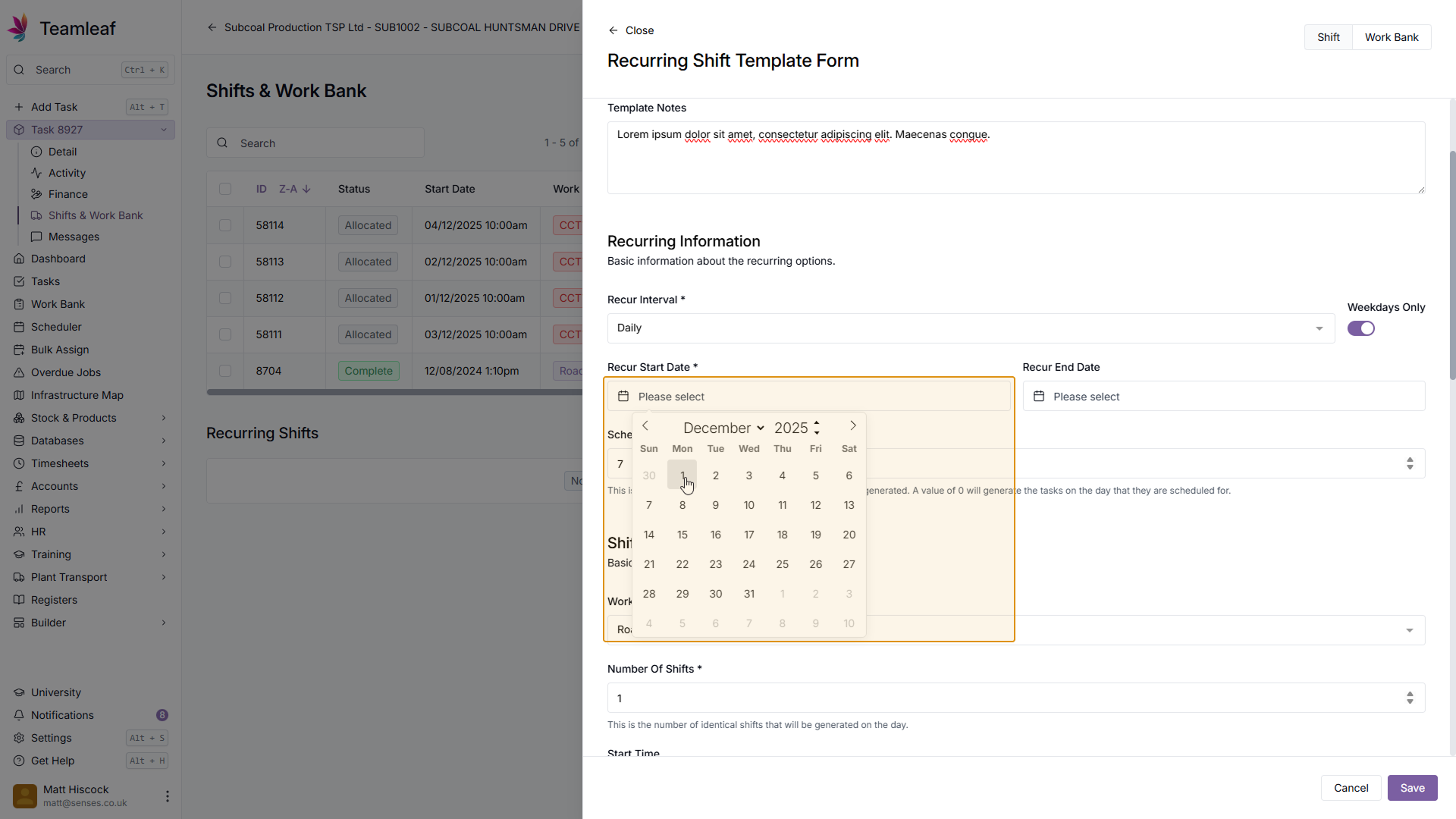
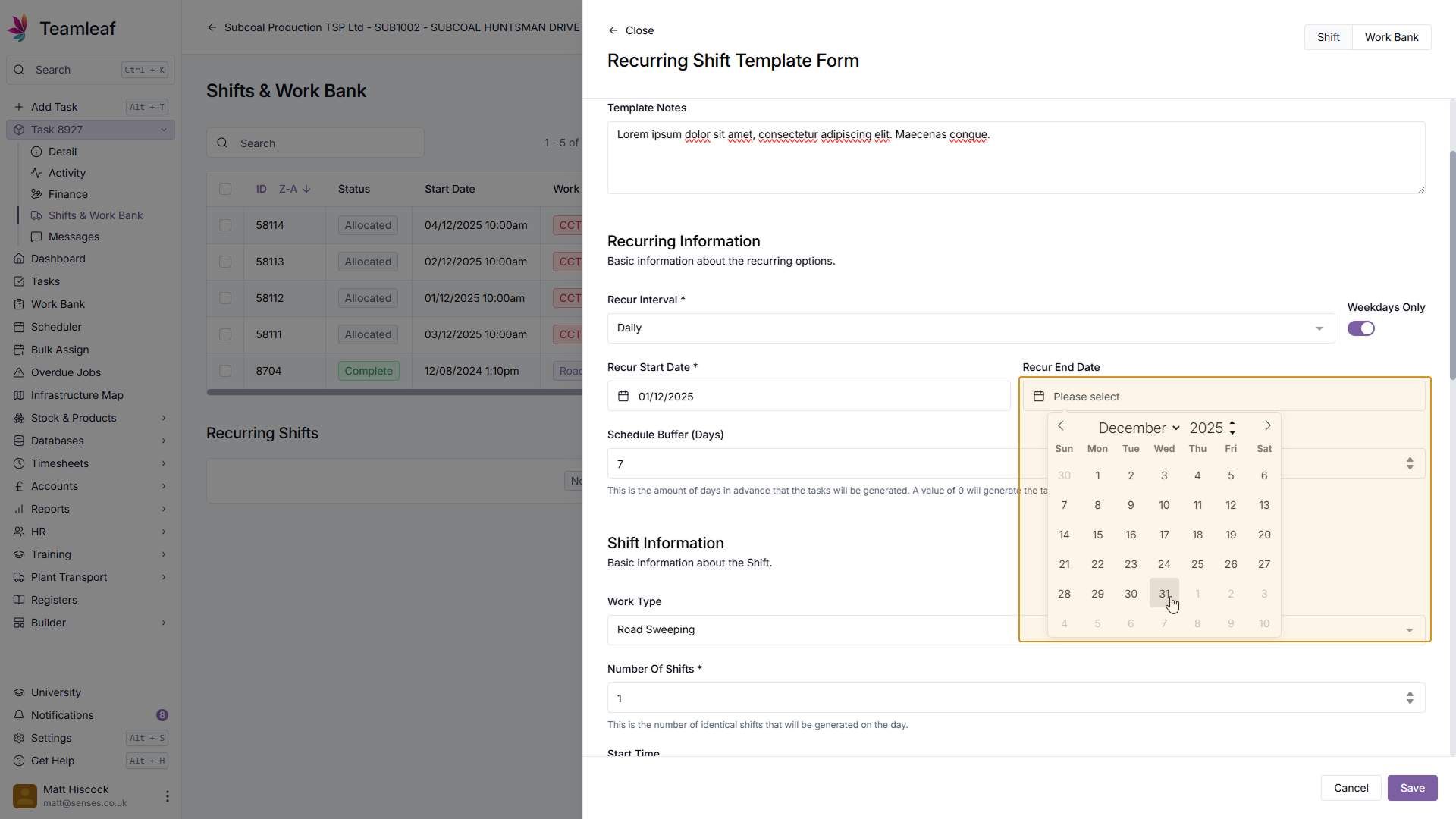
Select Recur Start and End Date
Next, select when you'd like this recurring shift to start, and when/if you'd like it to end. To make this recurring shift template go on indefinitely, don't add an end date.
Step 9
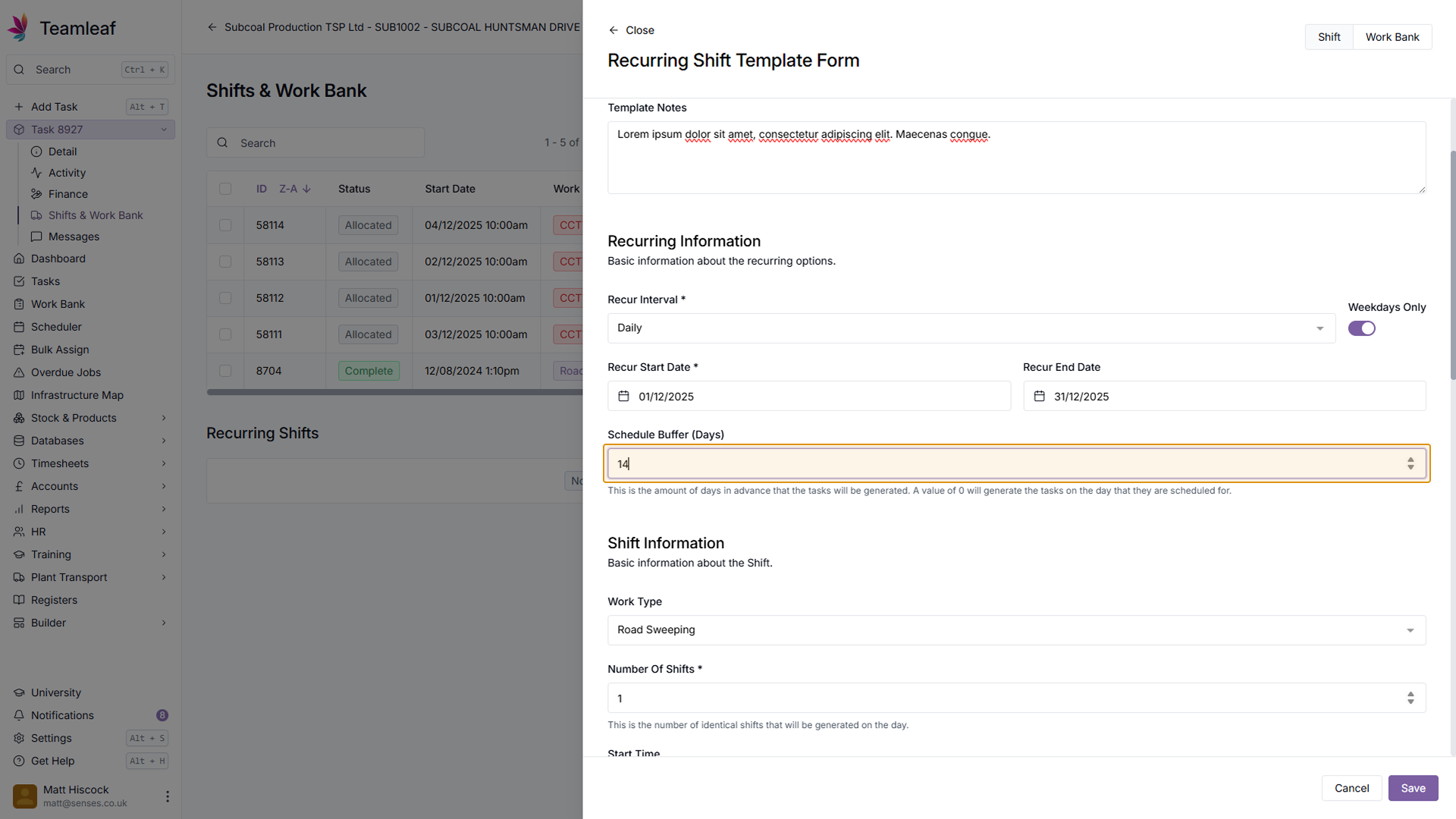
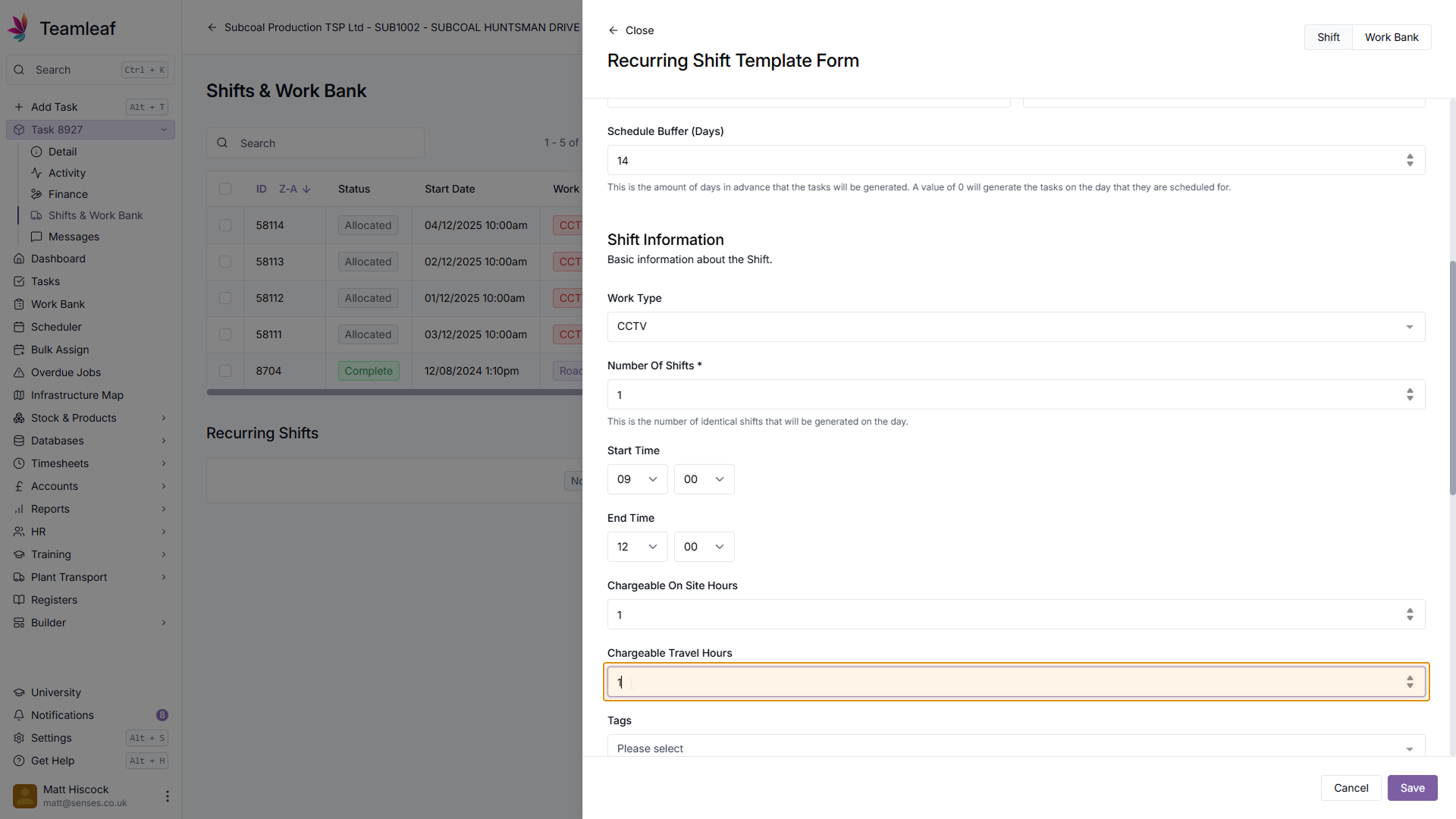
Select Schedule Buffer
Next, select the schedule buffer for this Recurring Shift. This will determine how many days in advance of a shift that shifts in this schedule will be created.
Step 10
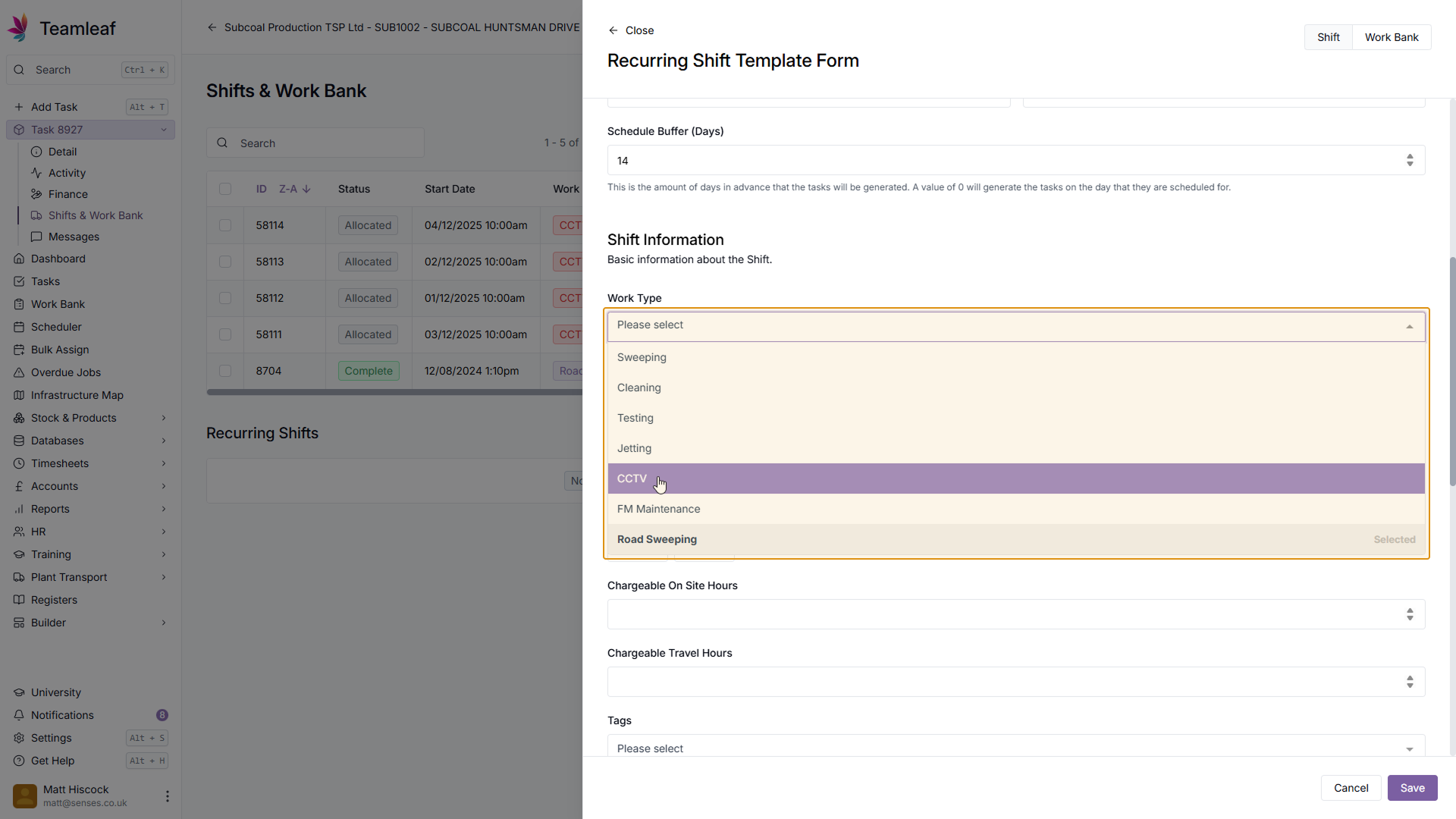
Select Work Type
Next, select the work type for shifts in this recurring shift template
Step 11
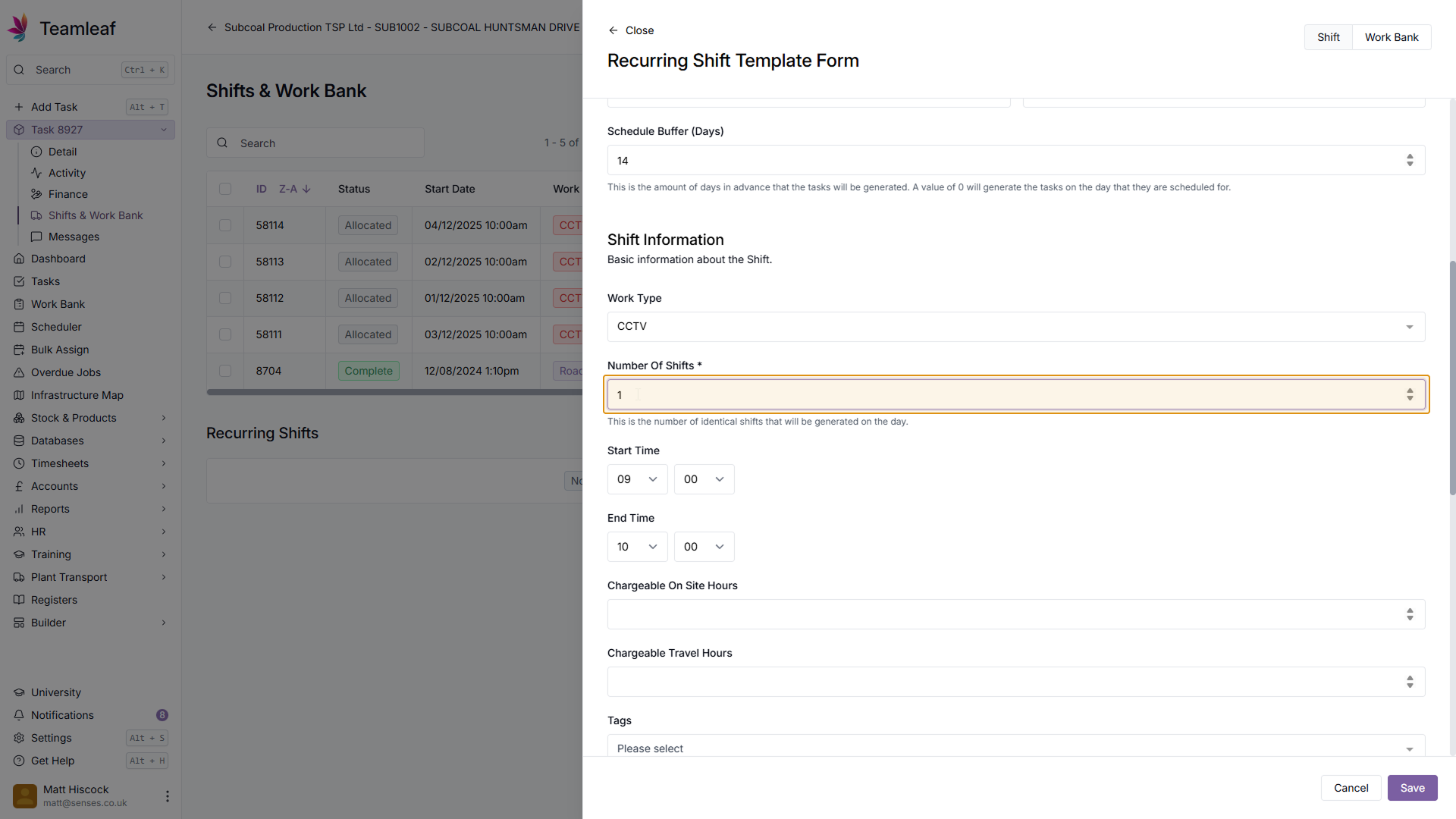
Select number of shifts
Next select the number of shifts, which determines how many shifts will be created each day on this recurring shift template. By default, 1 will be created.
Step 12
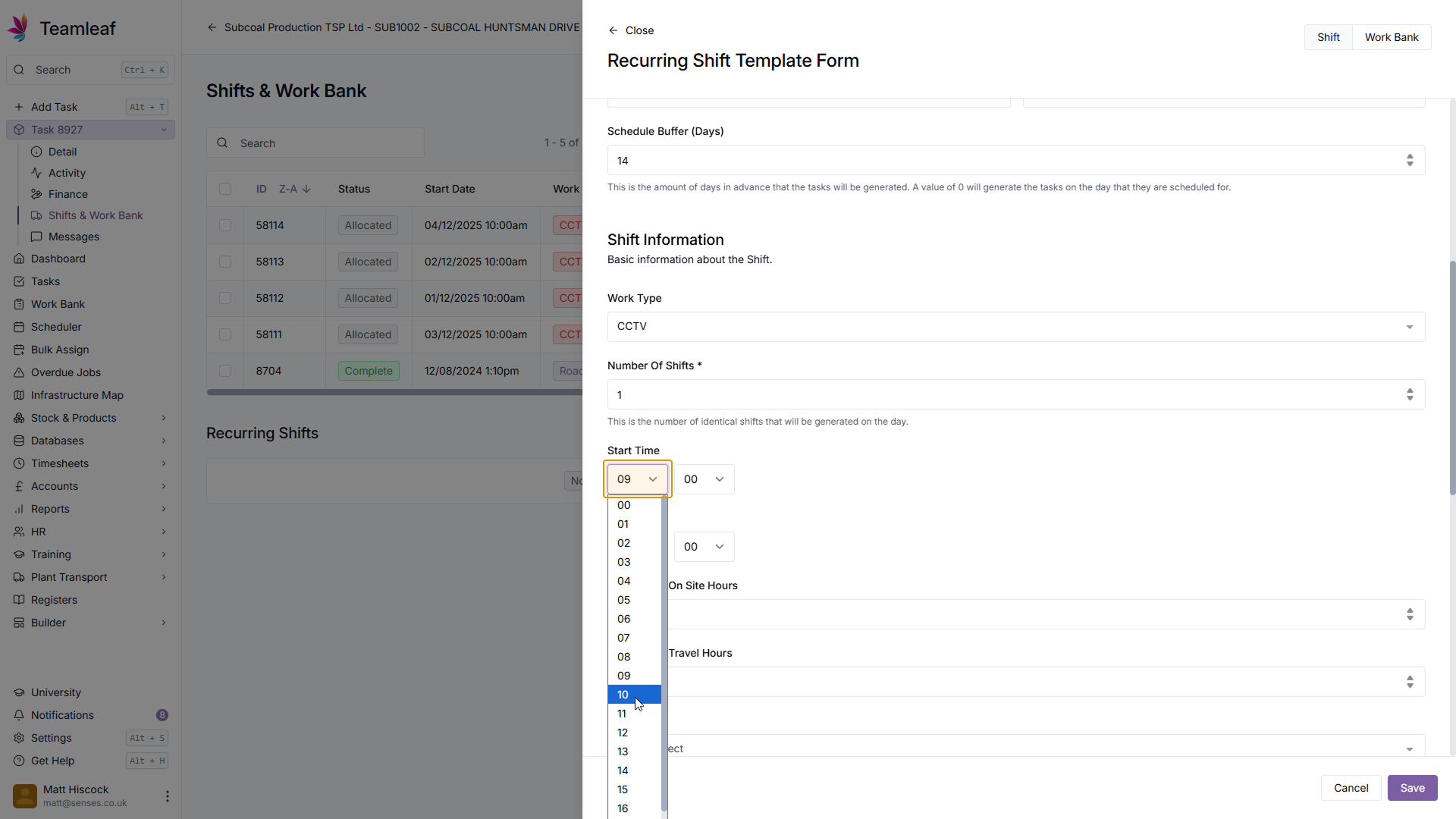
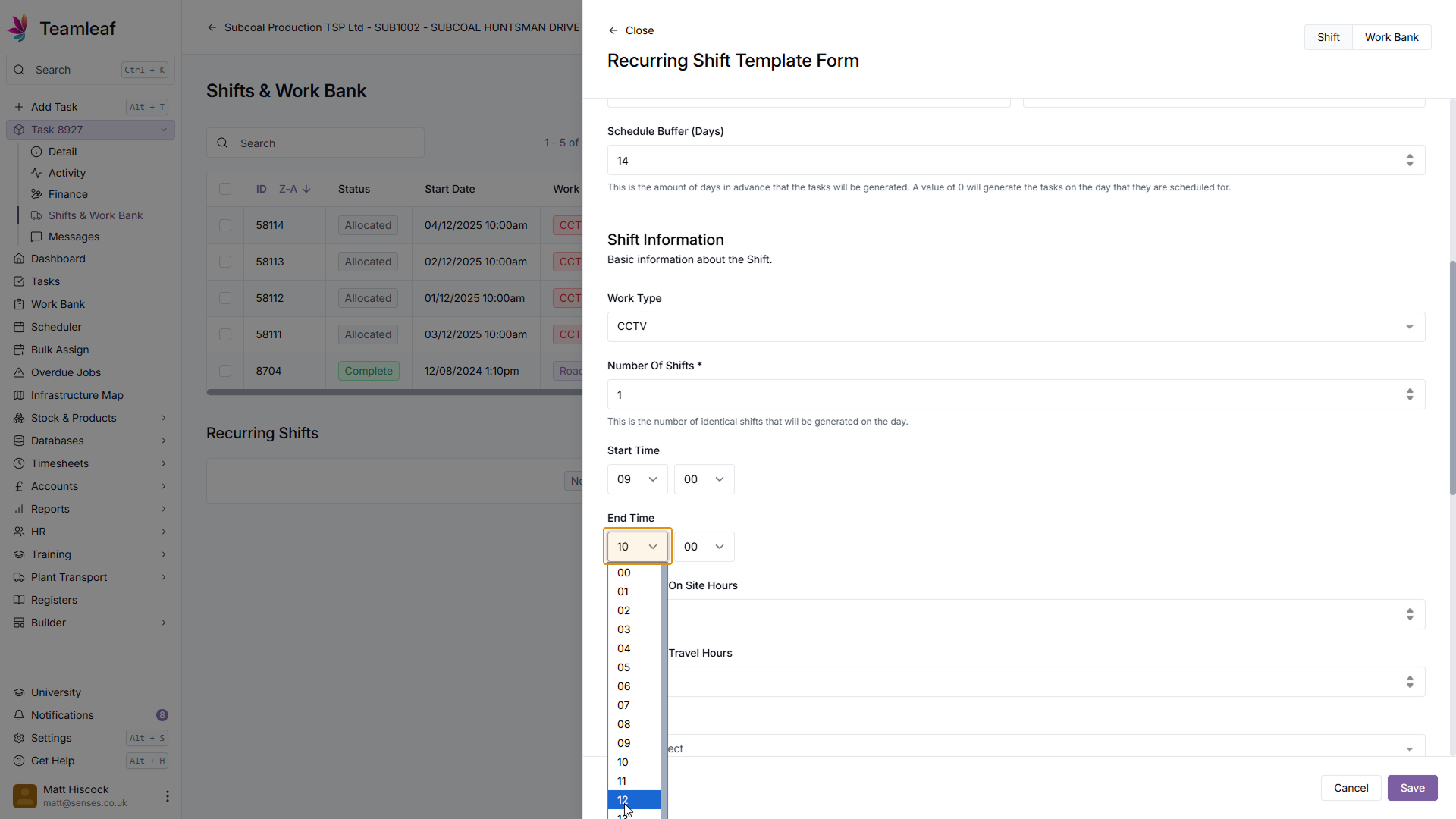
Select Start and End times
Next, select what time you'd like the shifts to start and end
Step 13
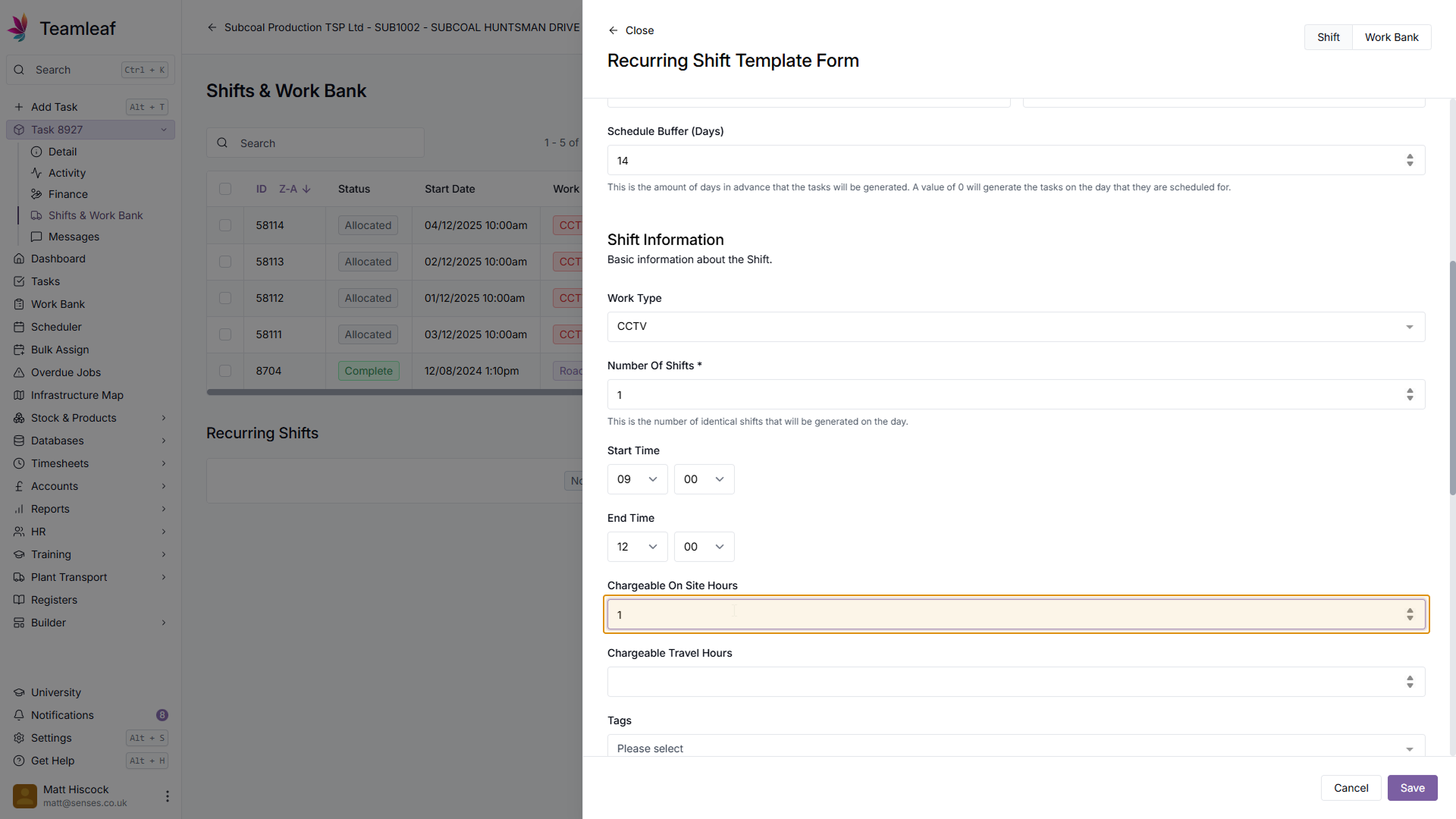
Enter chargeable hours
Next, enter how many on-site and travel hours are chargeable for each shift
Step 14
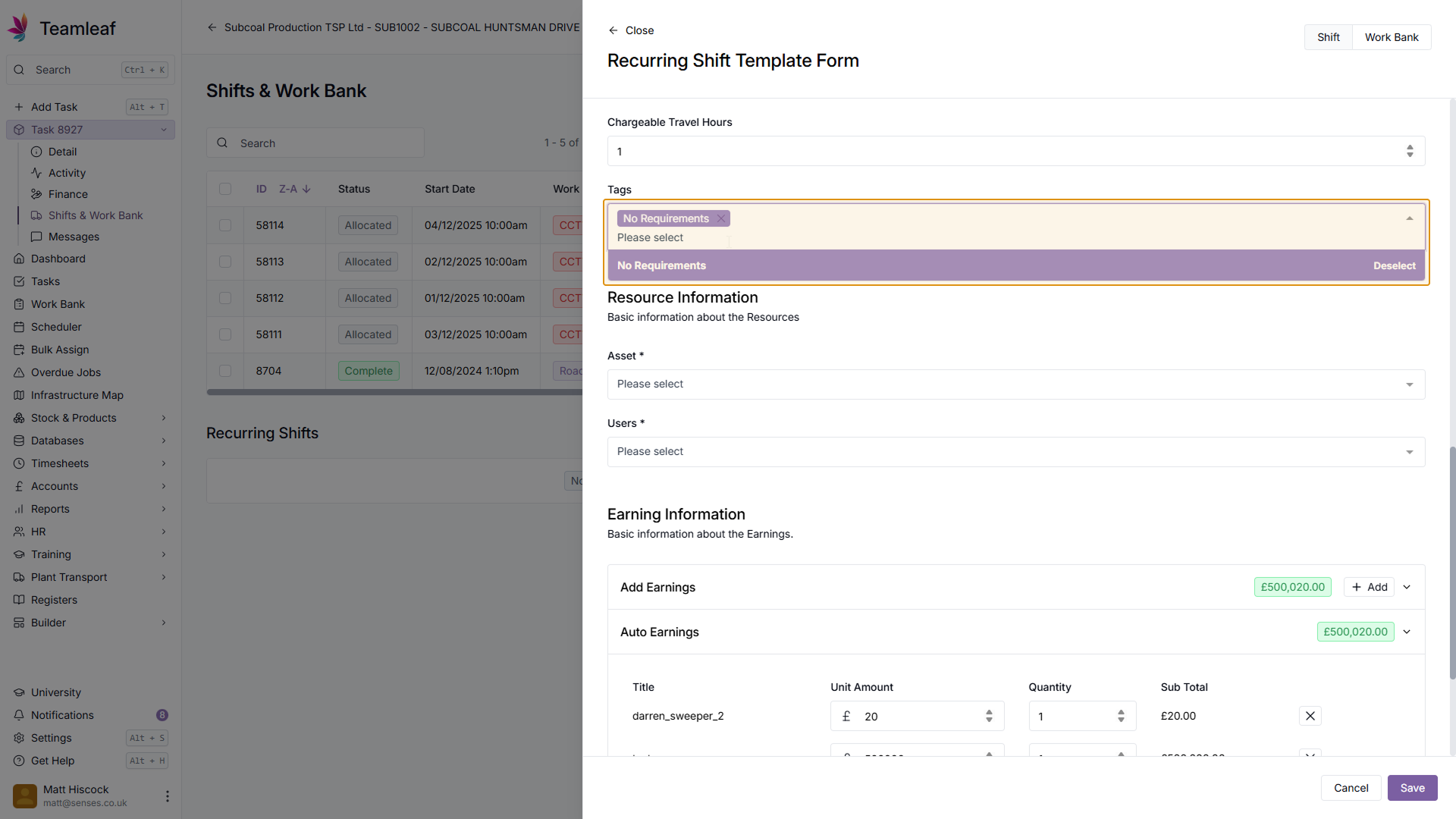
(Optional) Select Tags
Next, if you wish, you can add tags to shifts in this recurring shift template.
Step 15
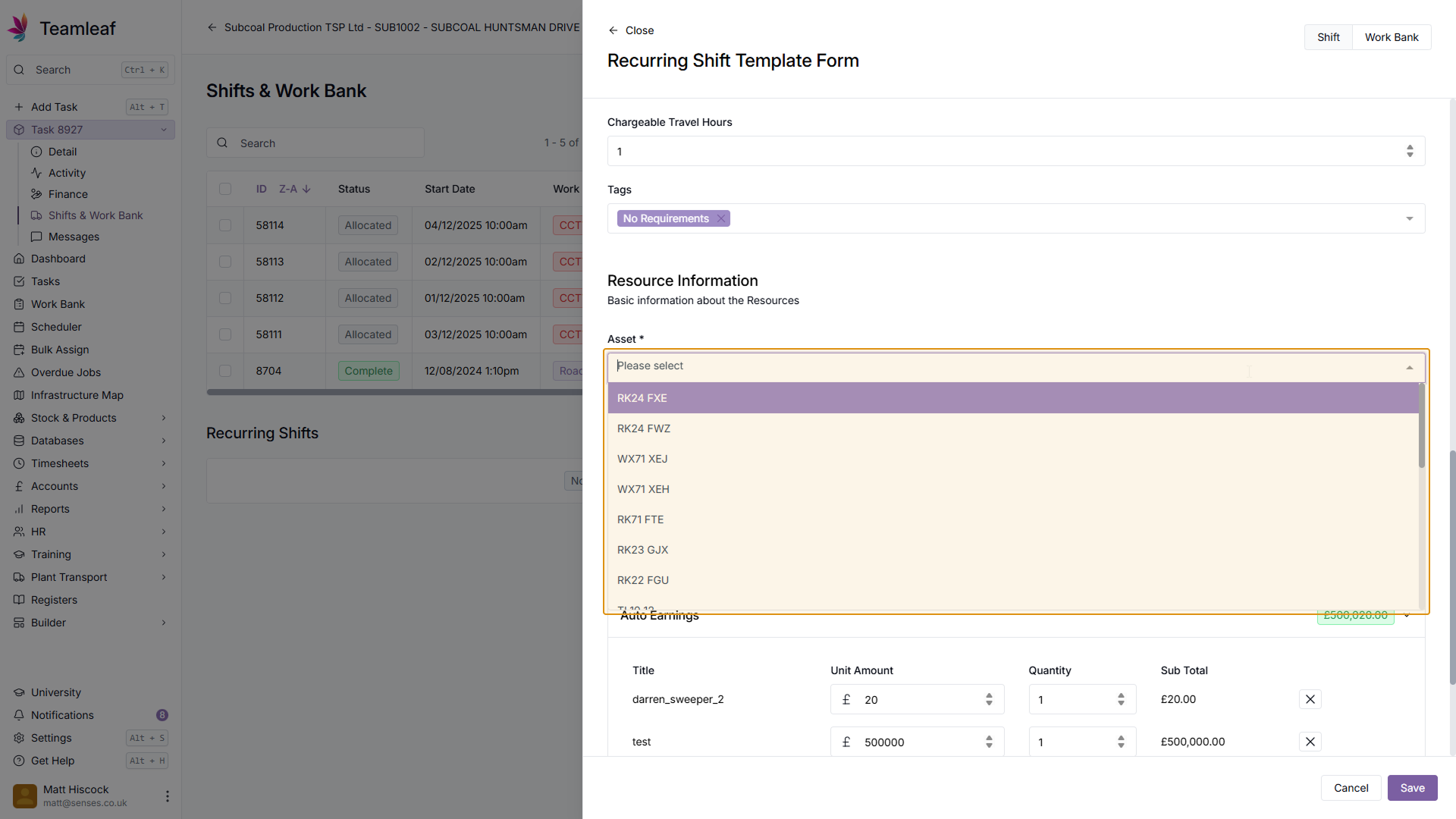
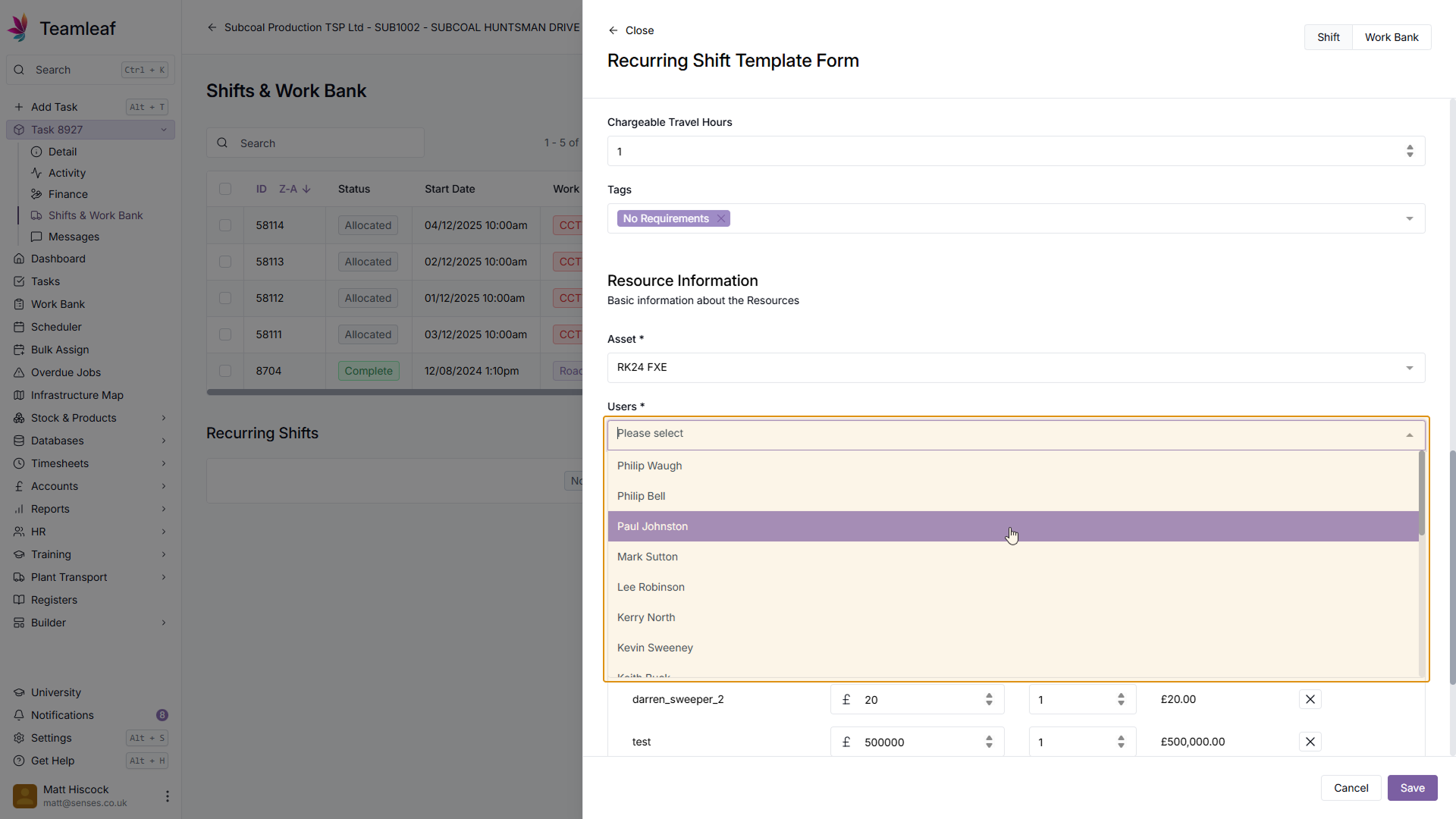
Select Asset and Users
Next, select which Asset and Users you'd like to use for this Recurring Shift
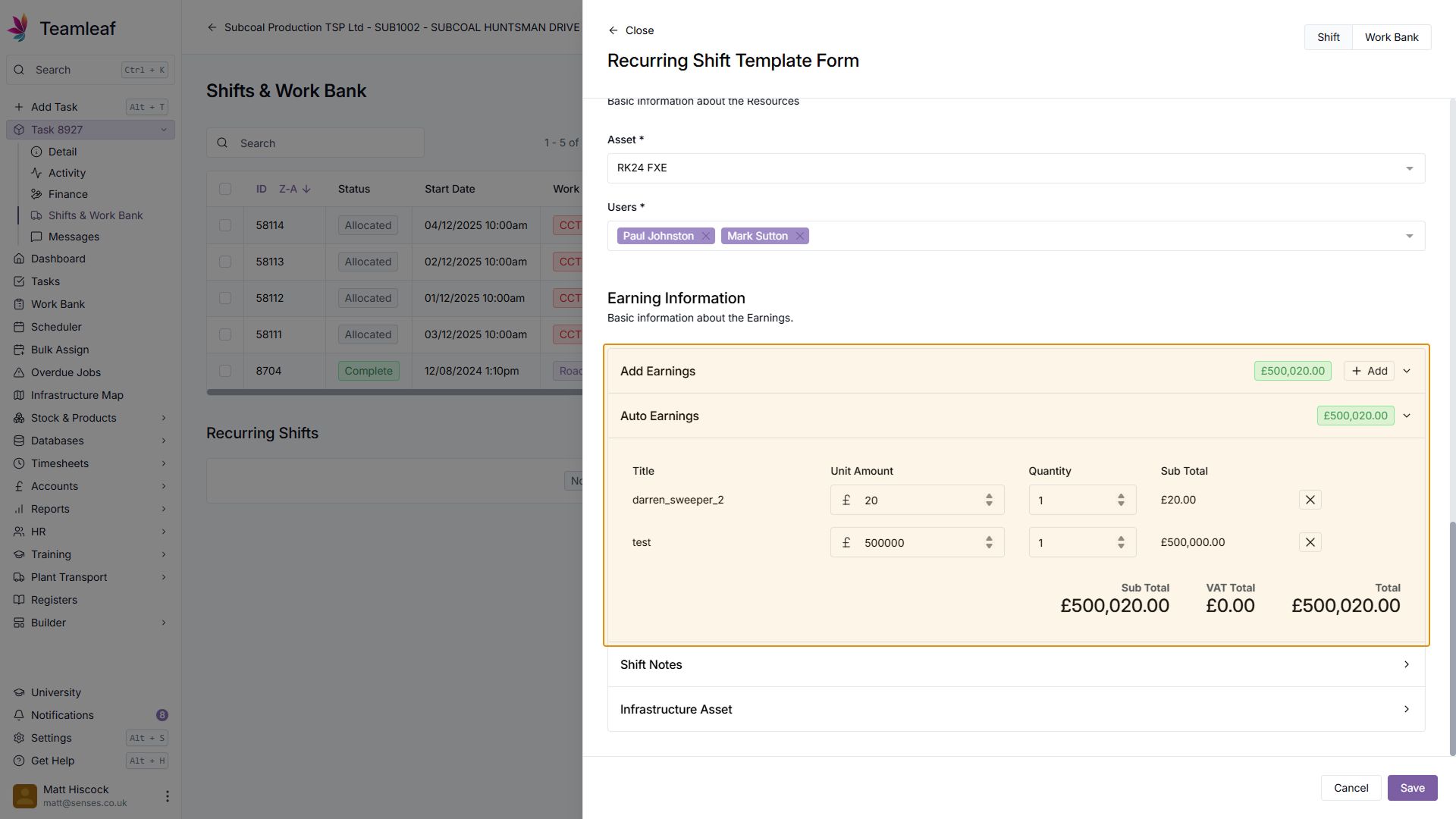
Step 16
Add Earnings
Next, you can add, edit, or remove earnings for this shift
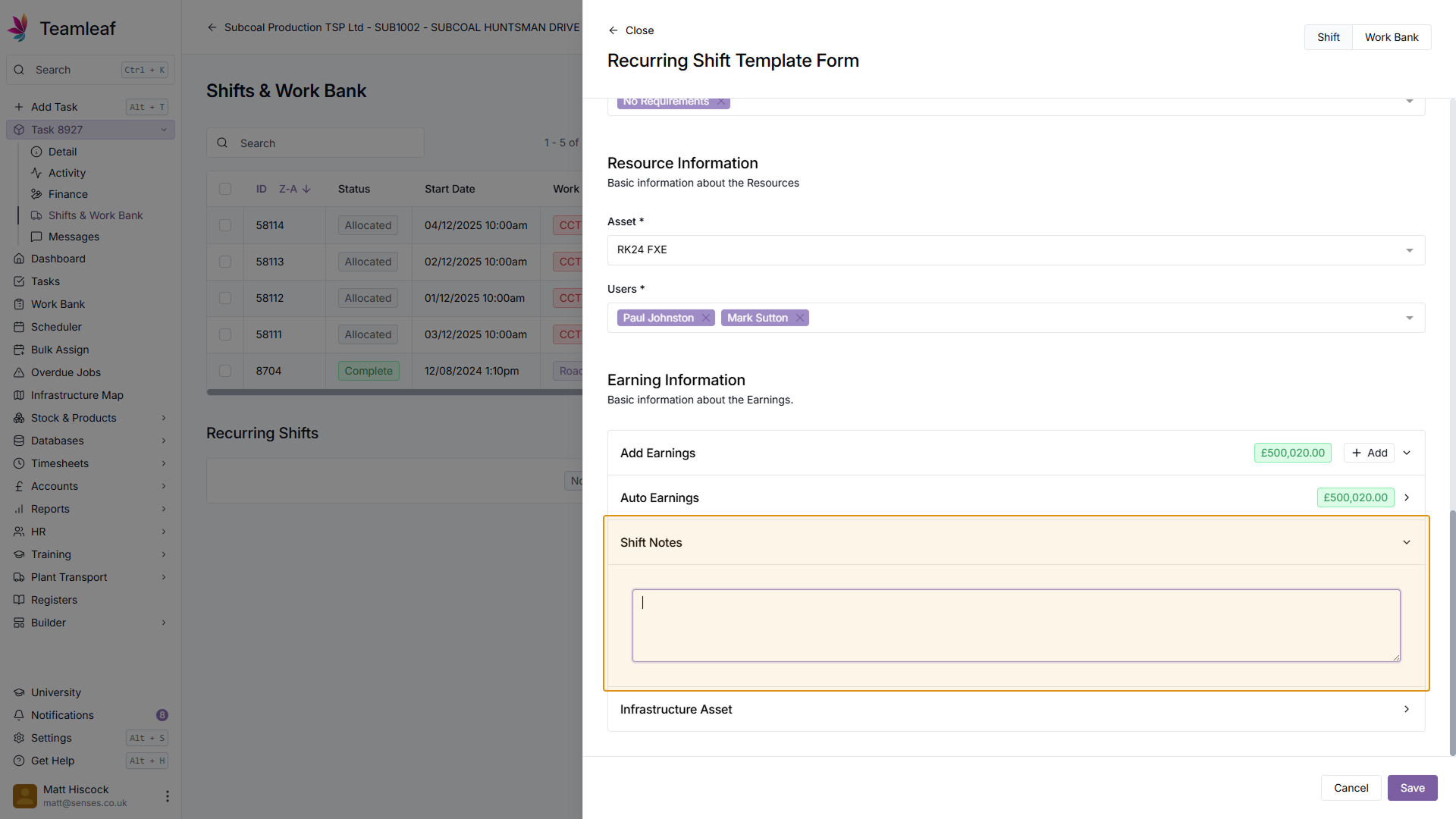
Step 17
(Optional) Add Shift Notes
If you wish, you can add notes to this shift
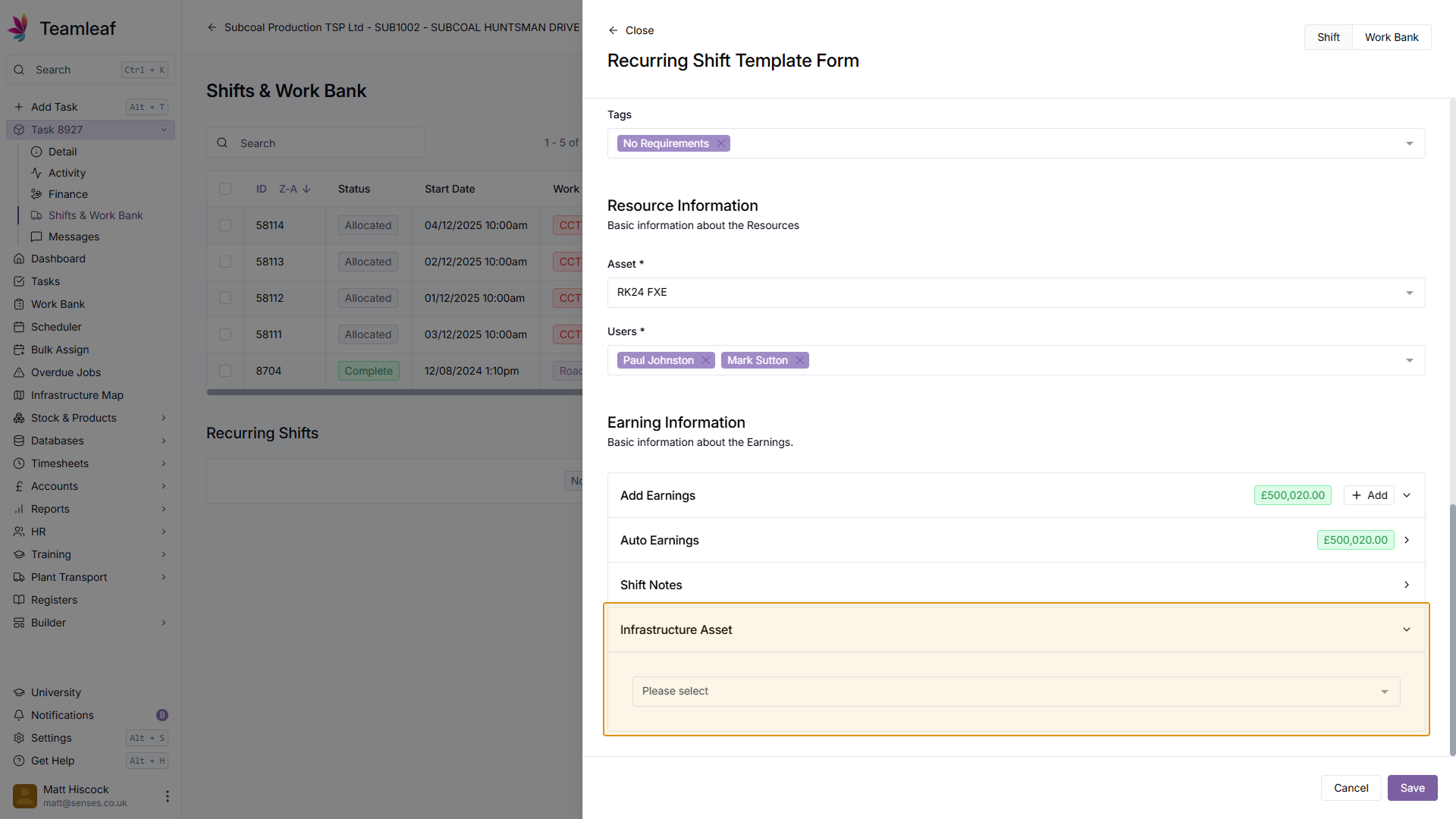
Step 18
(Optional) Add Infrastructure Asset
Next, if required, you can add an infrastructure asset
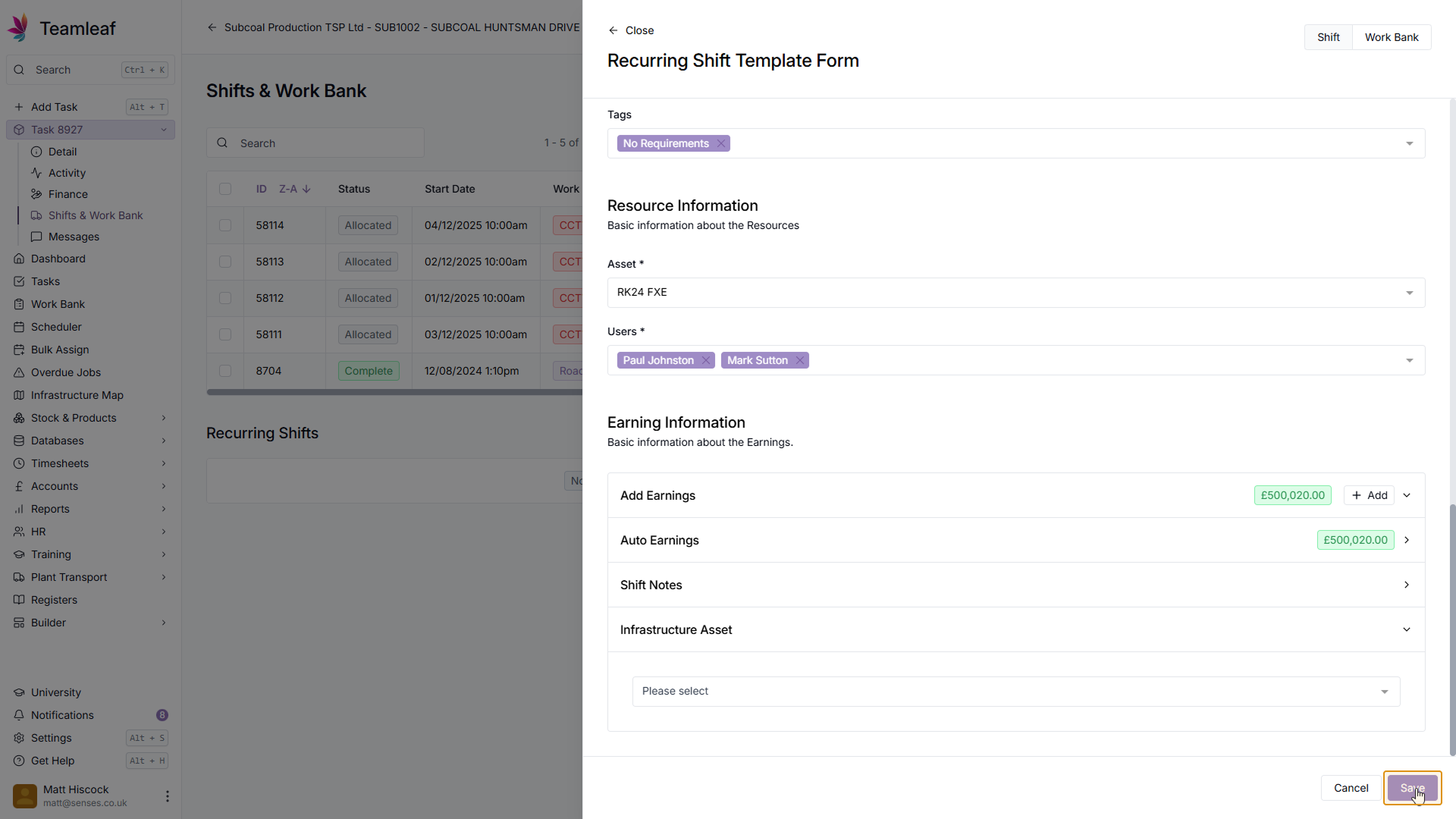
Step 19
Click 'Save' button
Next, once you're happy with the Recurring Shift information click the 'Save' button in the bottom right
Step 20
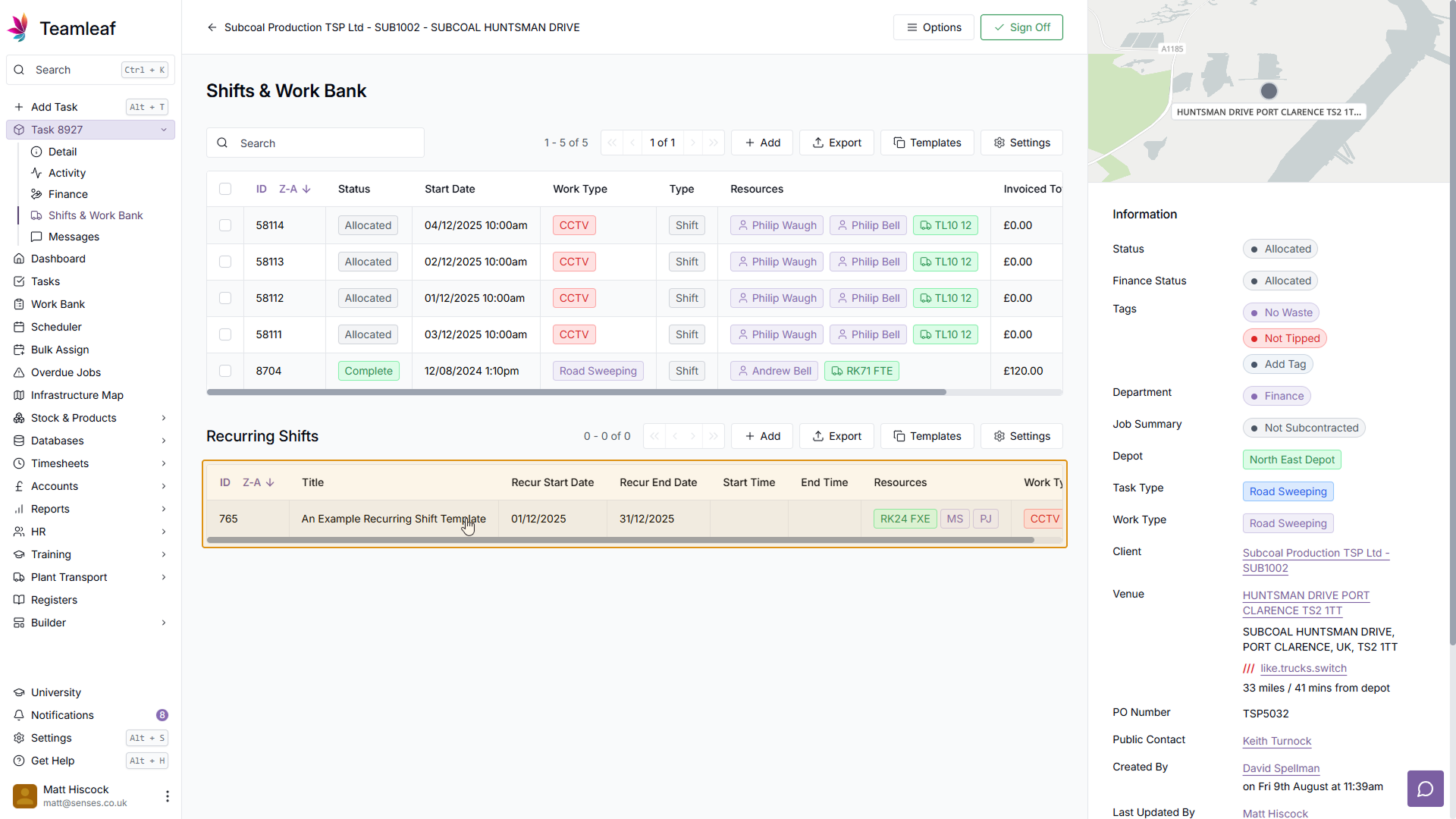
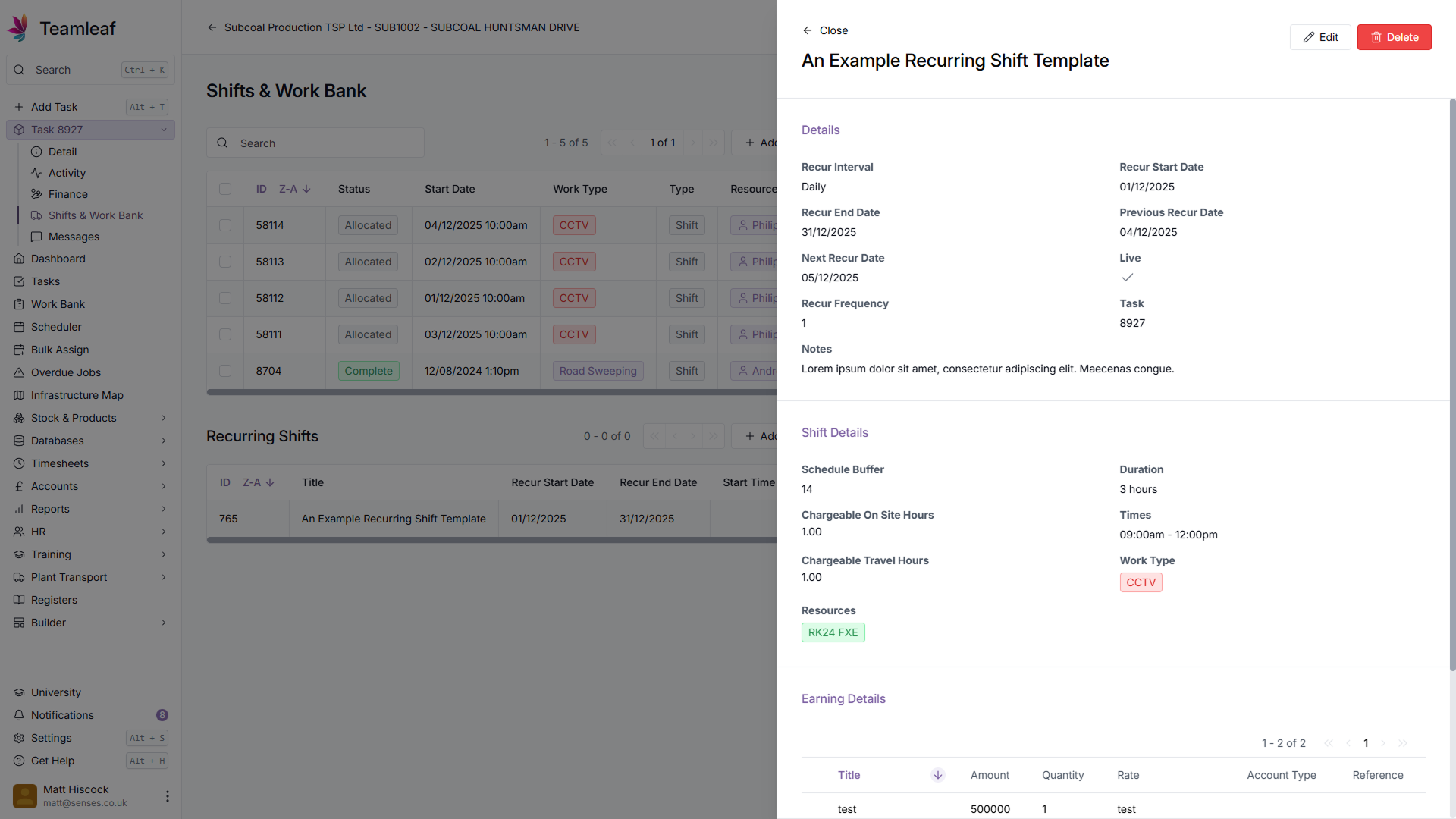
View Recurring Shift Template
You've now saved your Recurring Shift Template. To view it, click the row on the Shifts & Work Bank page
Related Courses
Intracompany
Invoicing
Scheduler
Shifts
Tasks
Drains Direct Essentials
Understand the Essentials for Drains Direct, Scheduling, Intracompany, Invoicing and more...
View Course
→
Intracompany
Invoicing
Scheduler
Shifts
Tasks
EVCSL Essentials
Understand the Essentials for EVCSL, Scheduling, Intracompany, Invoicing and more...
View Course
→
Intracompany
Invoicing
Scheduler
Shifts
Tasks
Lanes Group Essentials
Understand the Essentials for Lanes Group, Scheduling, Intracompany, Invoicing and more...
View Course
→
Related Tutorials
Shifts
Creating a new Shift
Learn how to add a new shift to Teamleaf, including how to add all the relevant information that your team need to carry out the work.
View Tutorials
→
Shifts
Deleting a Shift
Learn how you can delete a Shift through either the Task List or the Scheduler
View Tutorials
→
Shifts
Editing a Shift
Learn how to edit a shift, through a Task page and through the Scheduler
View Tutorials
→
Scheduler
Shifts
Using the Scheduler
In this tutorial you will learn how to reschedule shifts, assign shifts to new crews, use Teamleaf Ai, and organise your scheduler with row colours
View Tutorials
→