Recording an Asset Maintenance
Learn how to add a maintenance to your assets in Teamleaf
Step-by-Step Guide
Fleet Management
Step 1
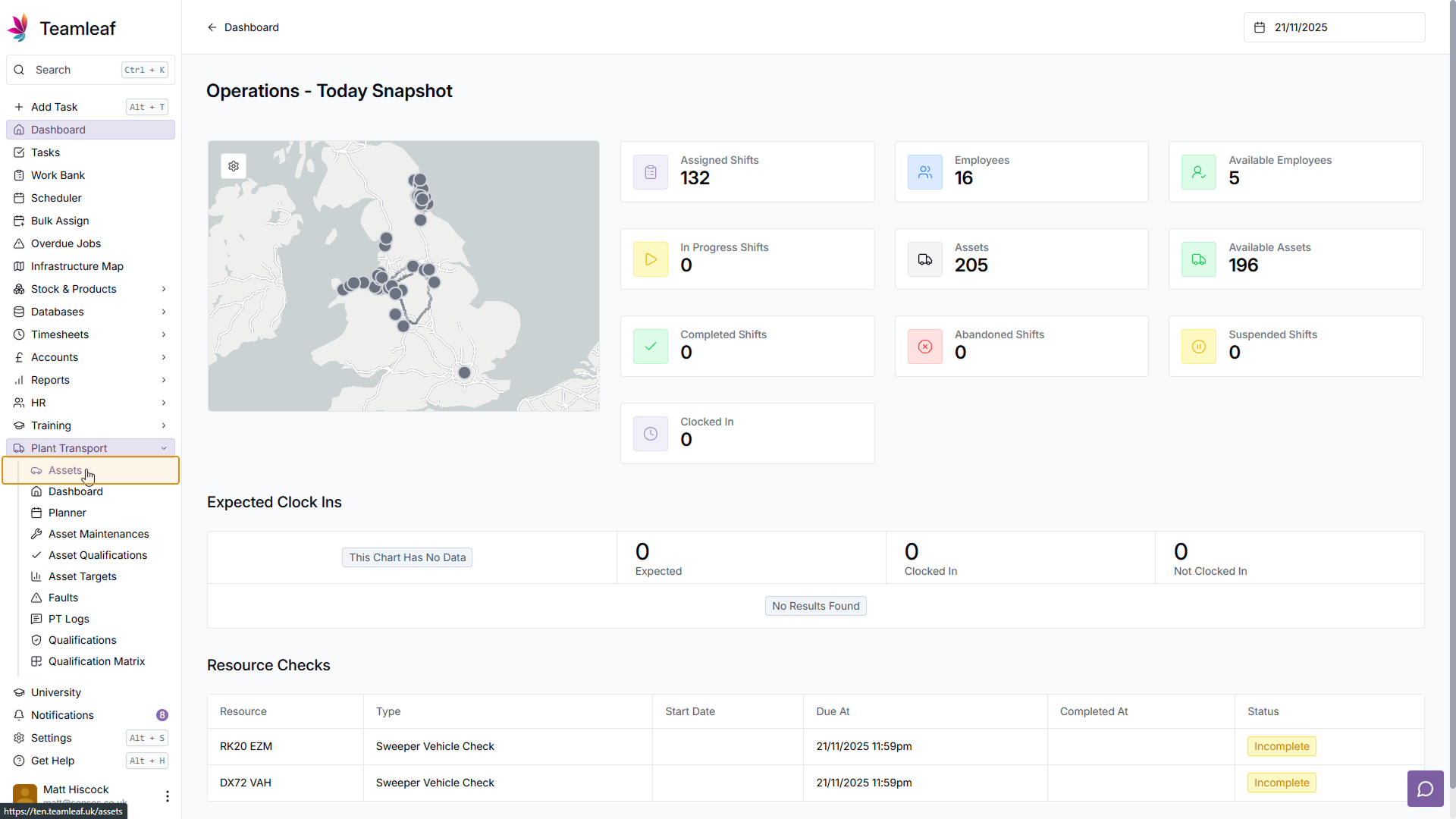
Go to 'Assets'
On the left sidebar, click 'Plant Transport', then click 'Assets' in the dropdown menu
Step 2
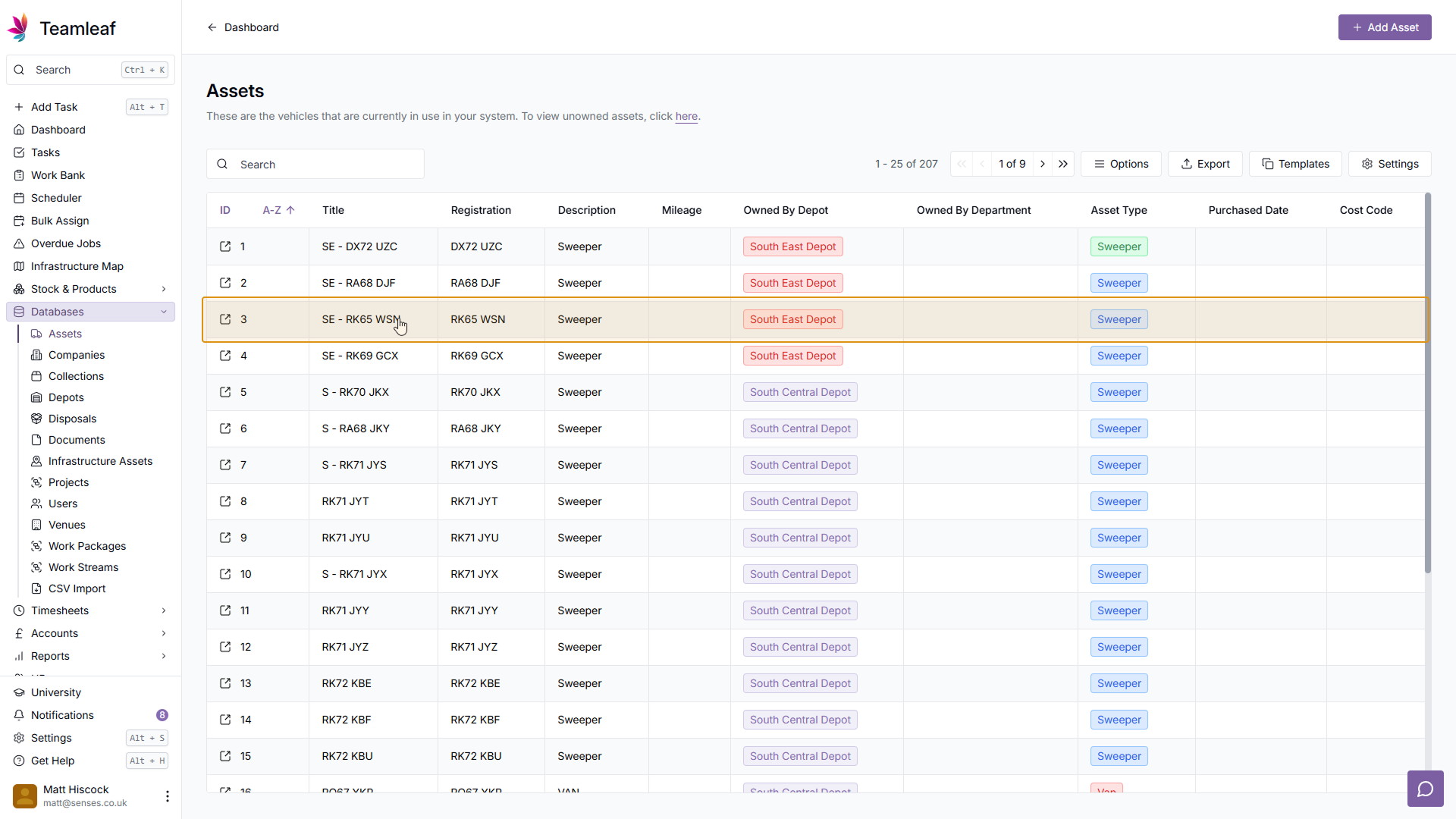
Select Asset
In the Assets list, click the Asset that you'd like to add a maintenance to
Step 3
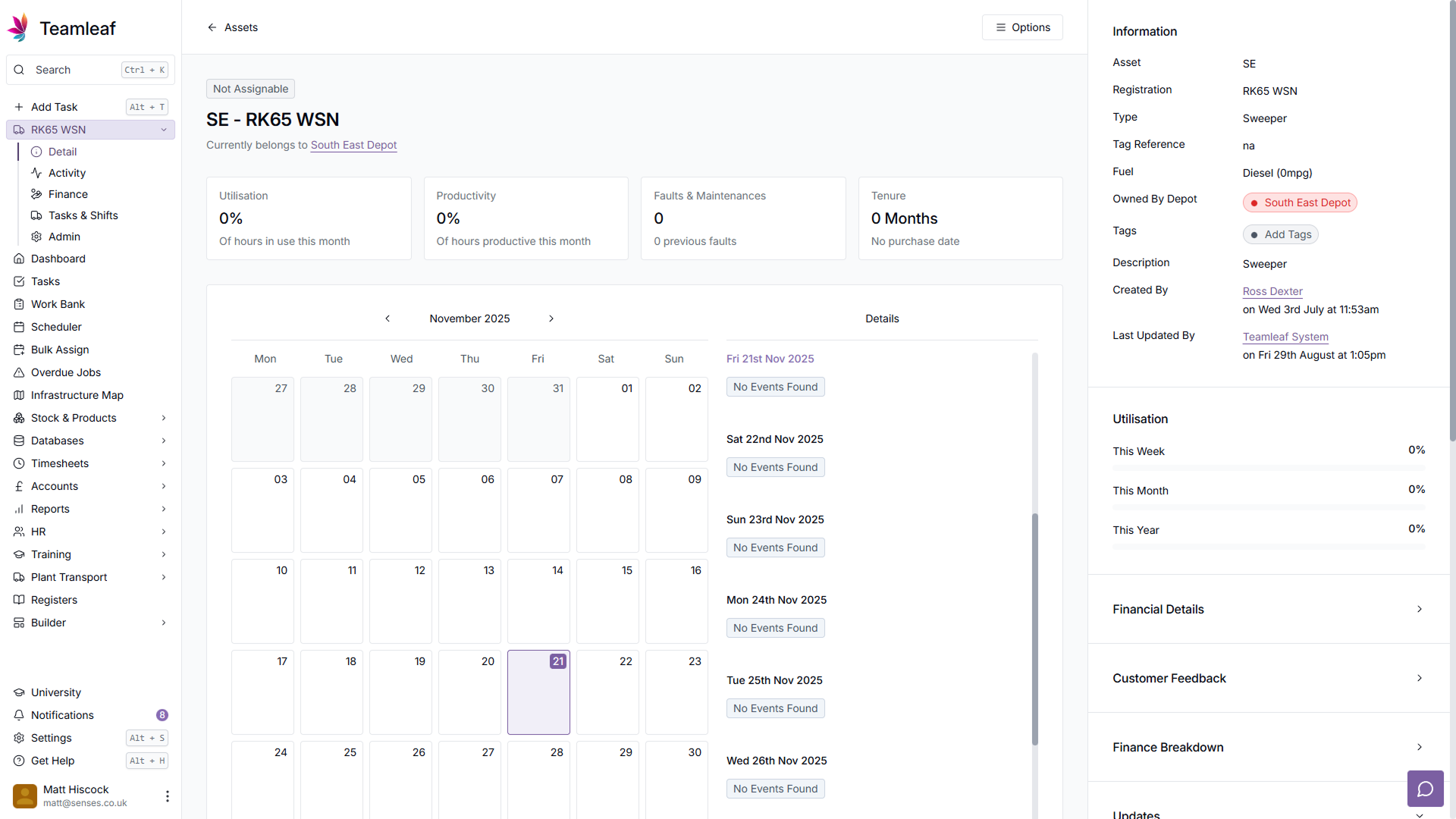
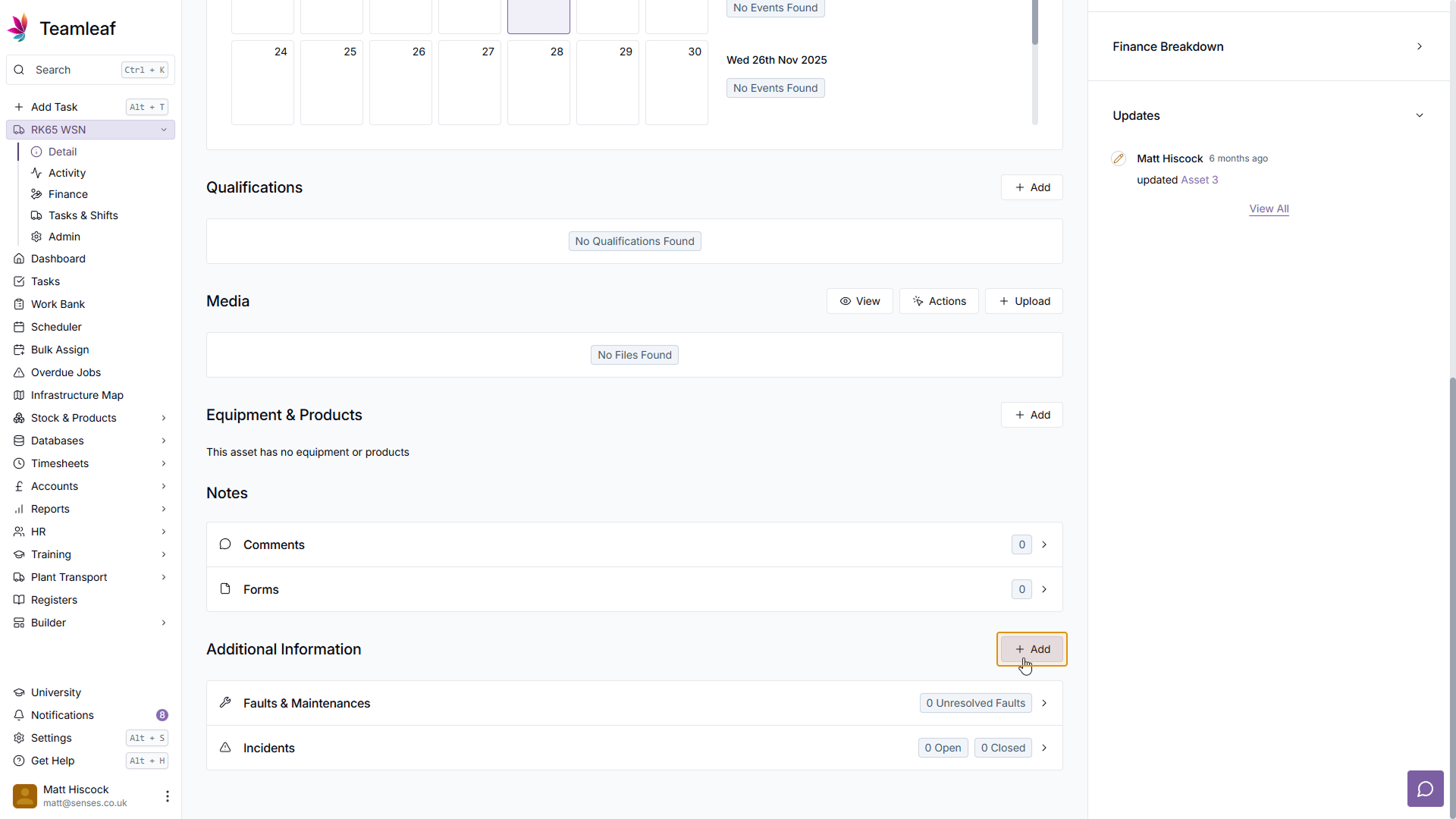
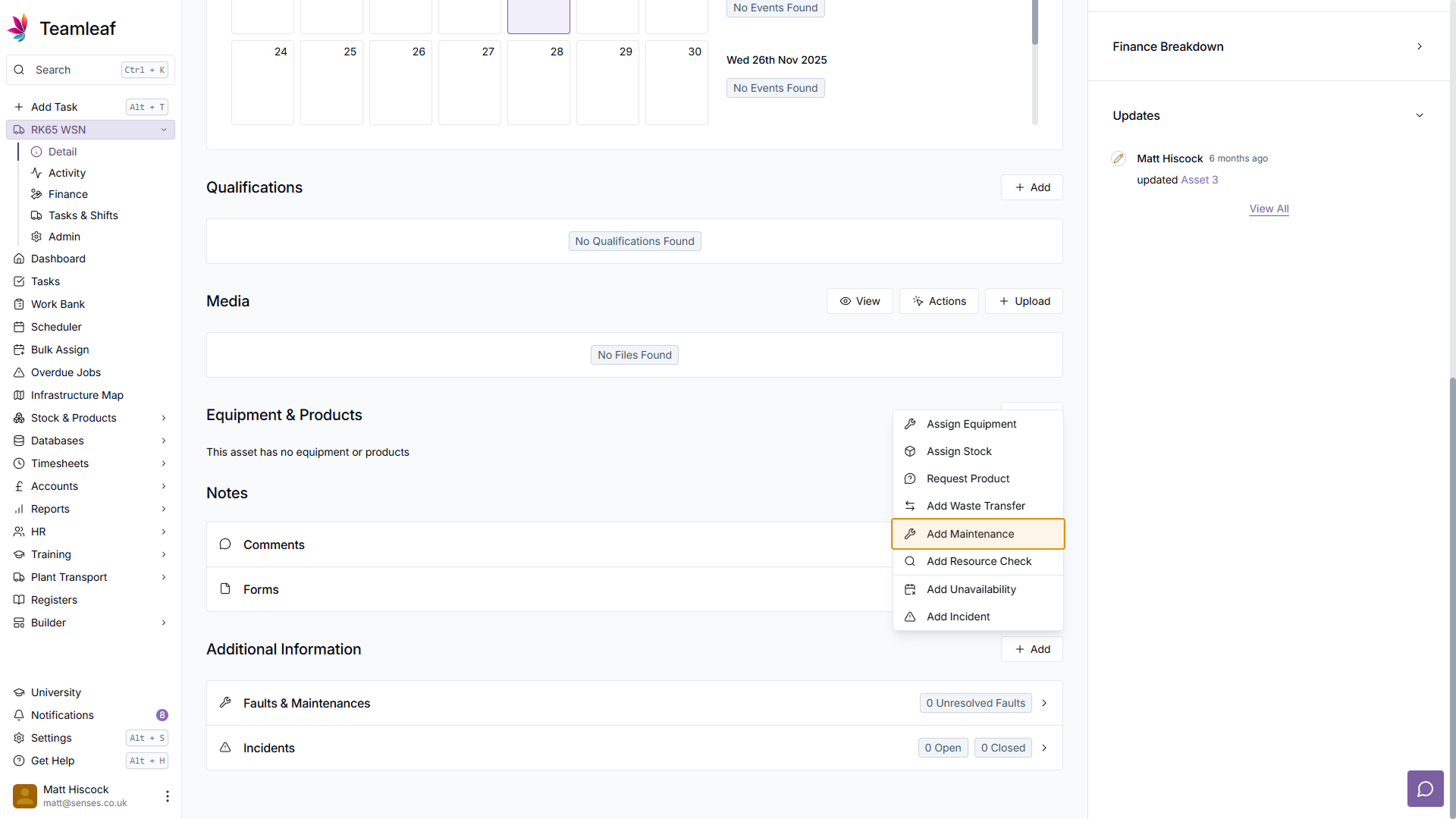
Click 'Add' button
On the Asset page, scroll down to the Additional Information section, then click 'Add', then click 'Add Maintenance' in the dropdown menu
Step 4
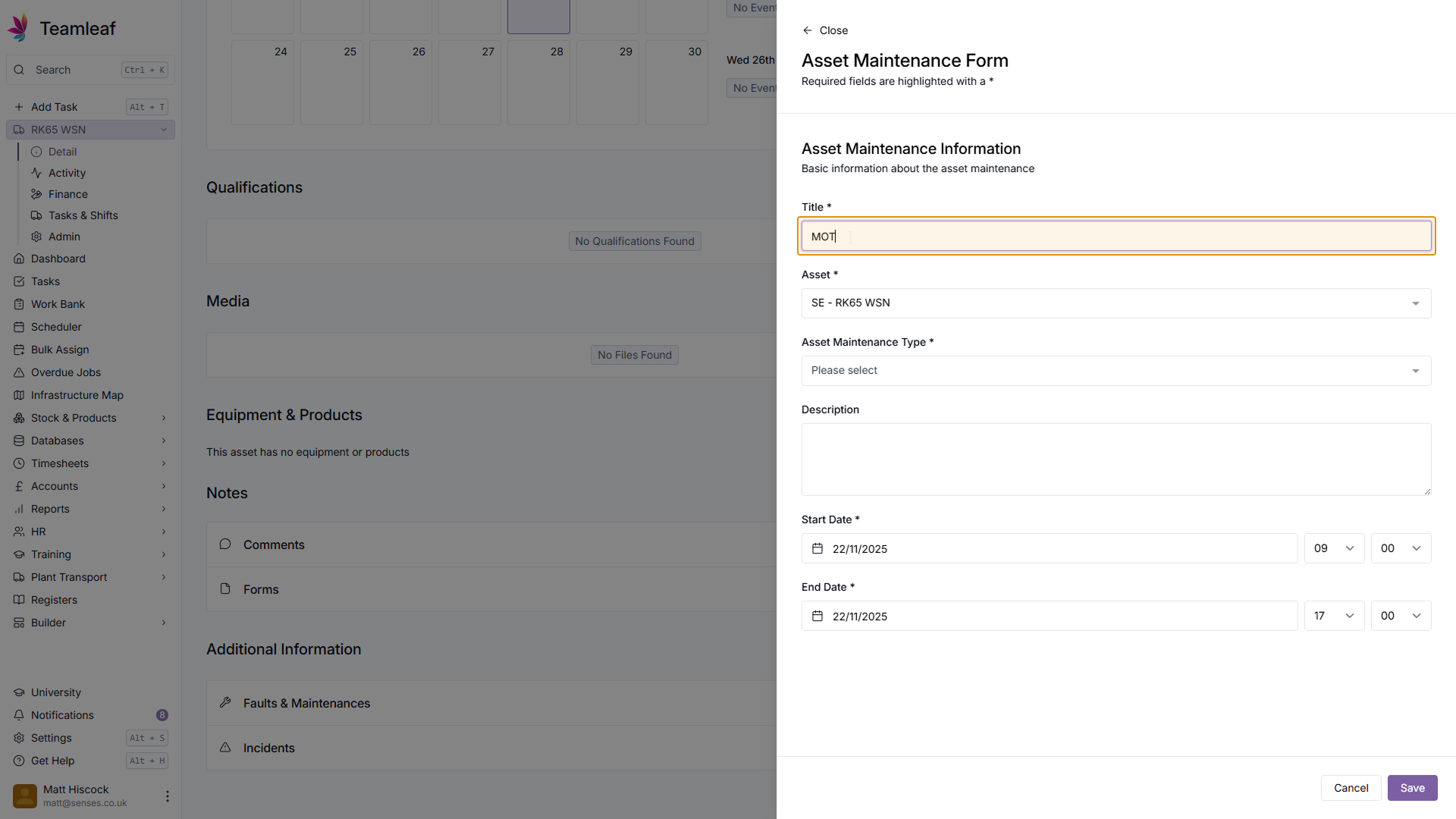
Add Maintenance Title
Next, in the menu that opens, enter a Title for this Maintenance
Step 5
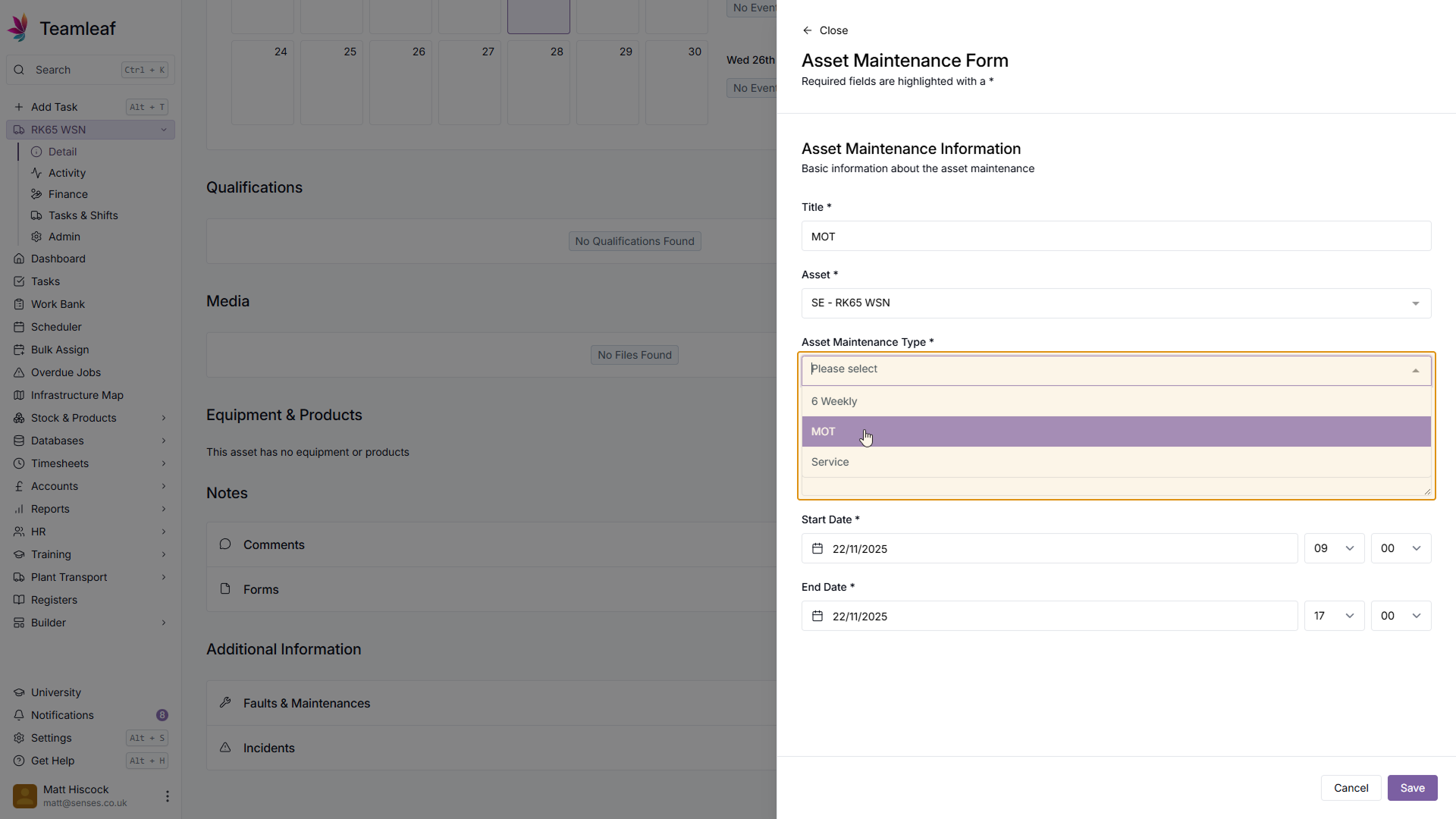
Select Asset Maintenance Type
Next, select which Asset Maintenance Type you'd like to use for this Maintenance
Step 6
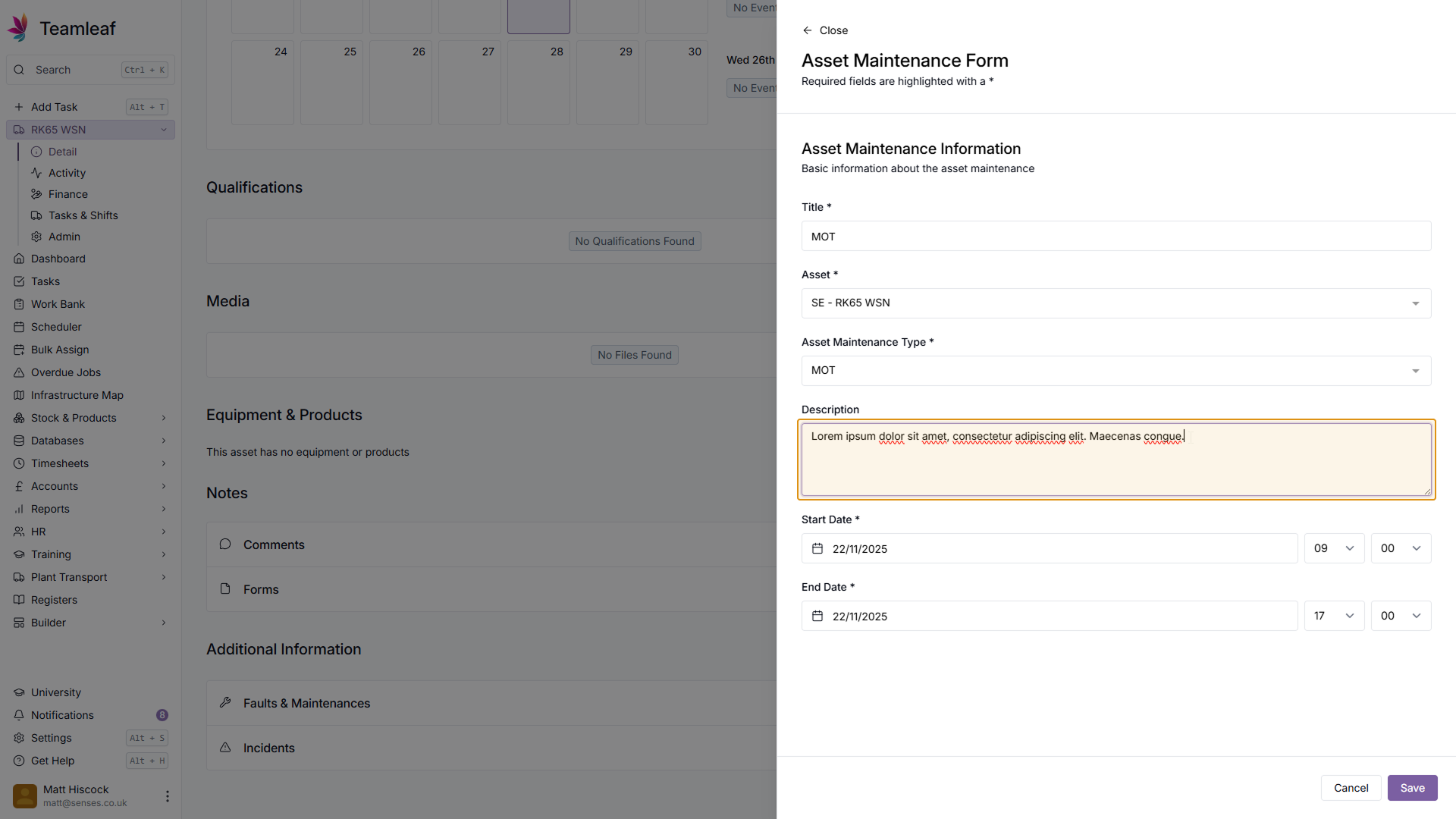
Add Description
Next, if you wish, you can add a description to give more context about this maintenance
Step 7
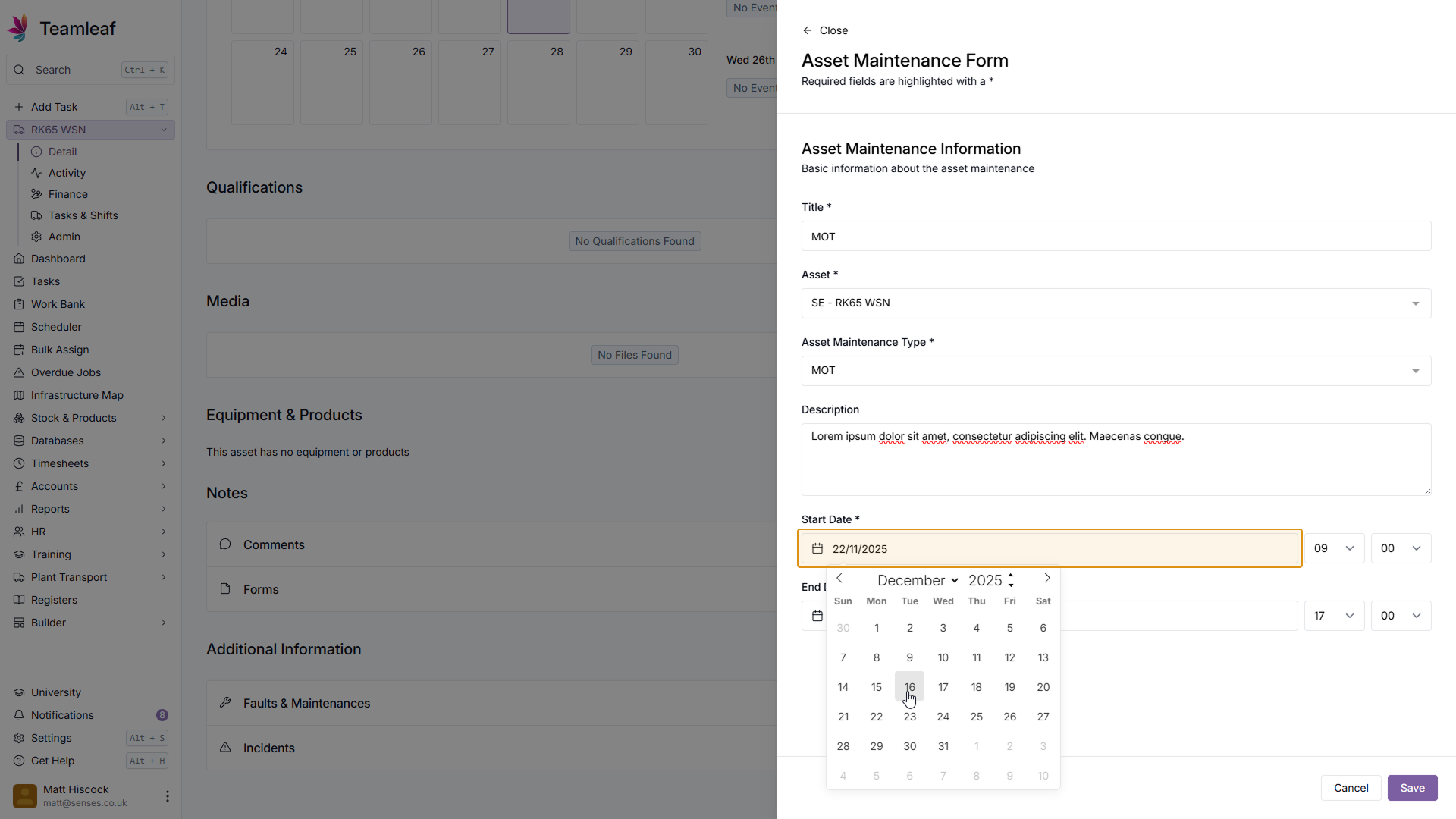
Select Maintenance Start Date
Next, select the Start Date for this maintenance by selecting a date in the date picker
Step 8
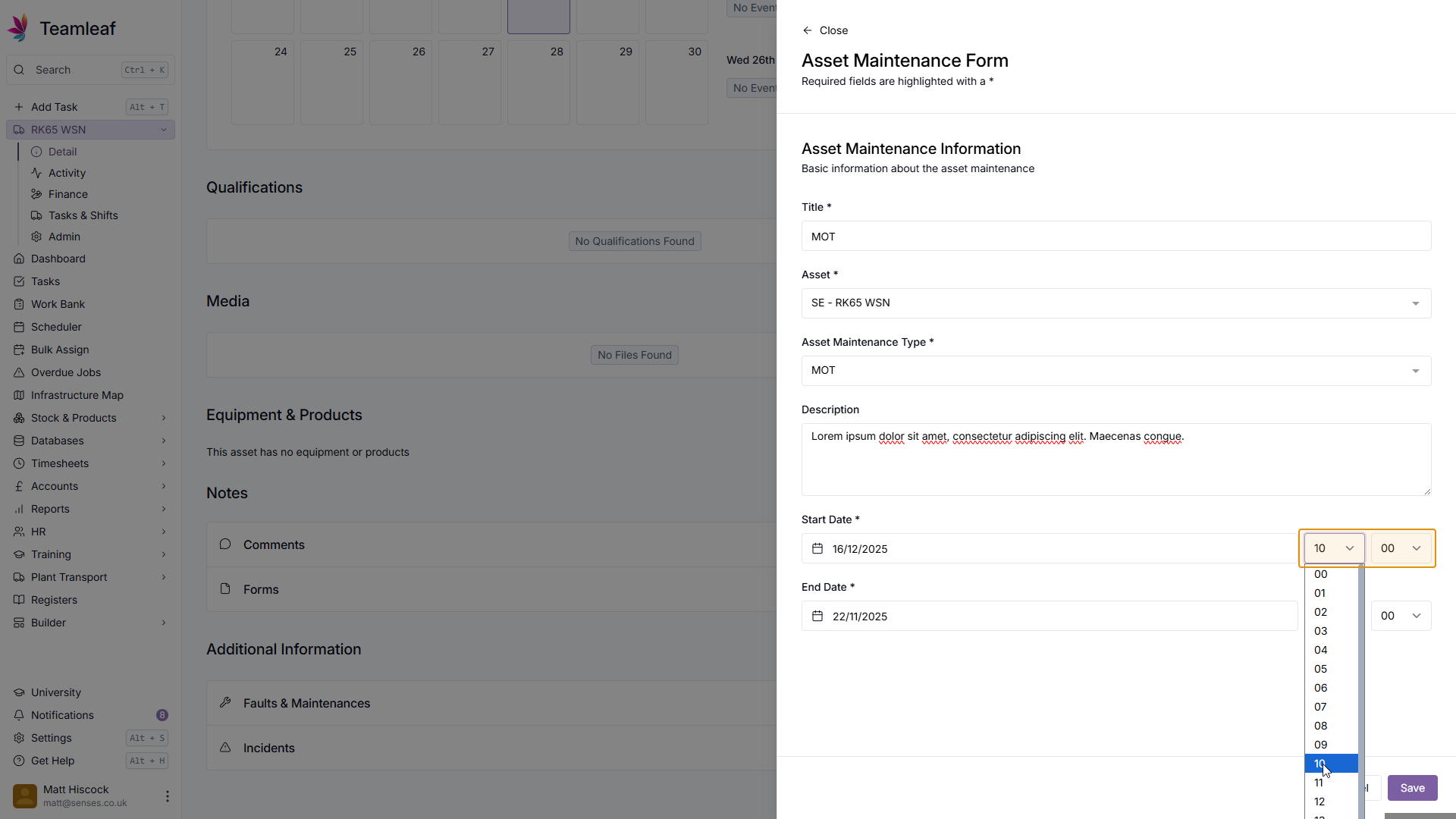
Select Start Time
To the right of the Start Date, you can select Start Time. Select the Hour and Minute of the start time you'd like to use in the dropdown menus here
Step 9
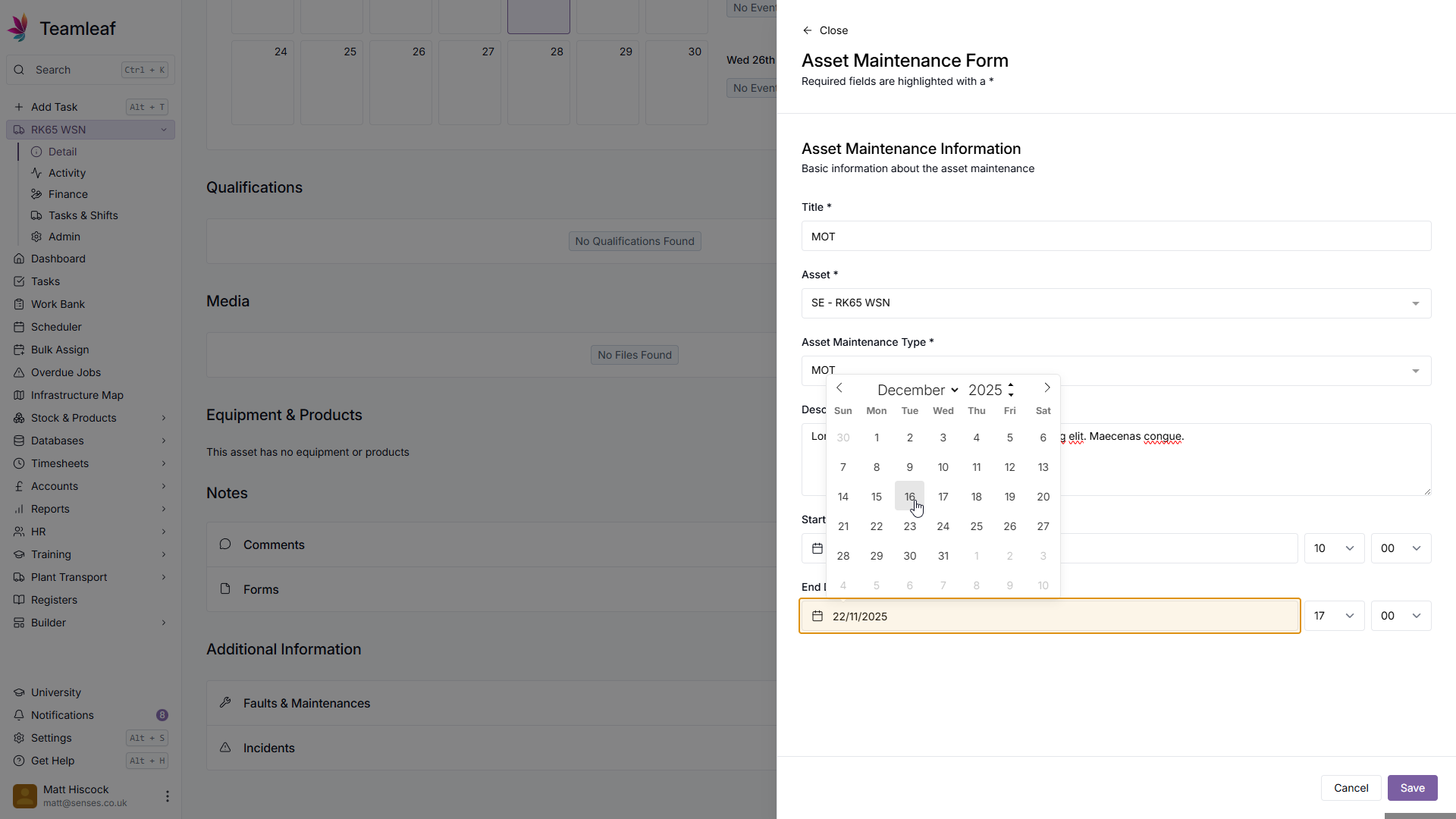
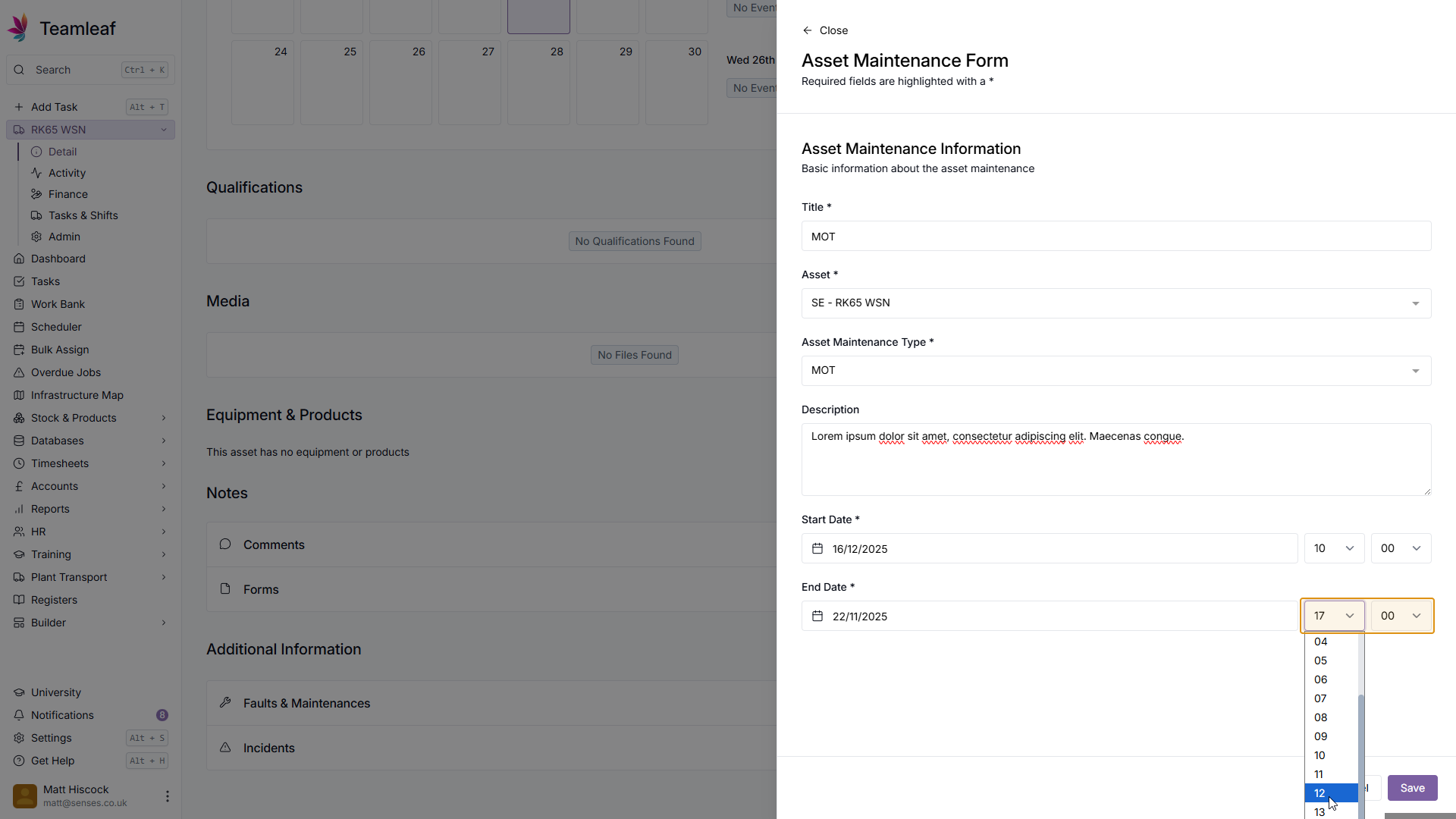
Select End Date and Time
Like you did for the start date and time, select an end date and time using the pickers below.
Step 10
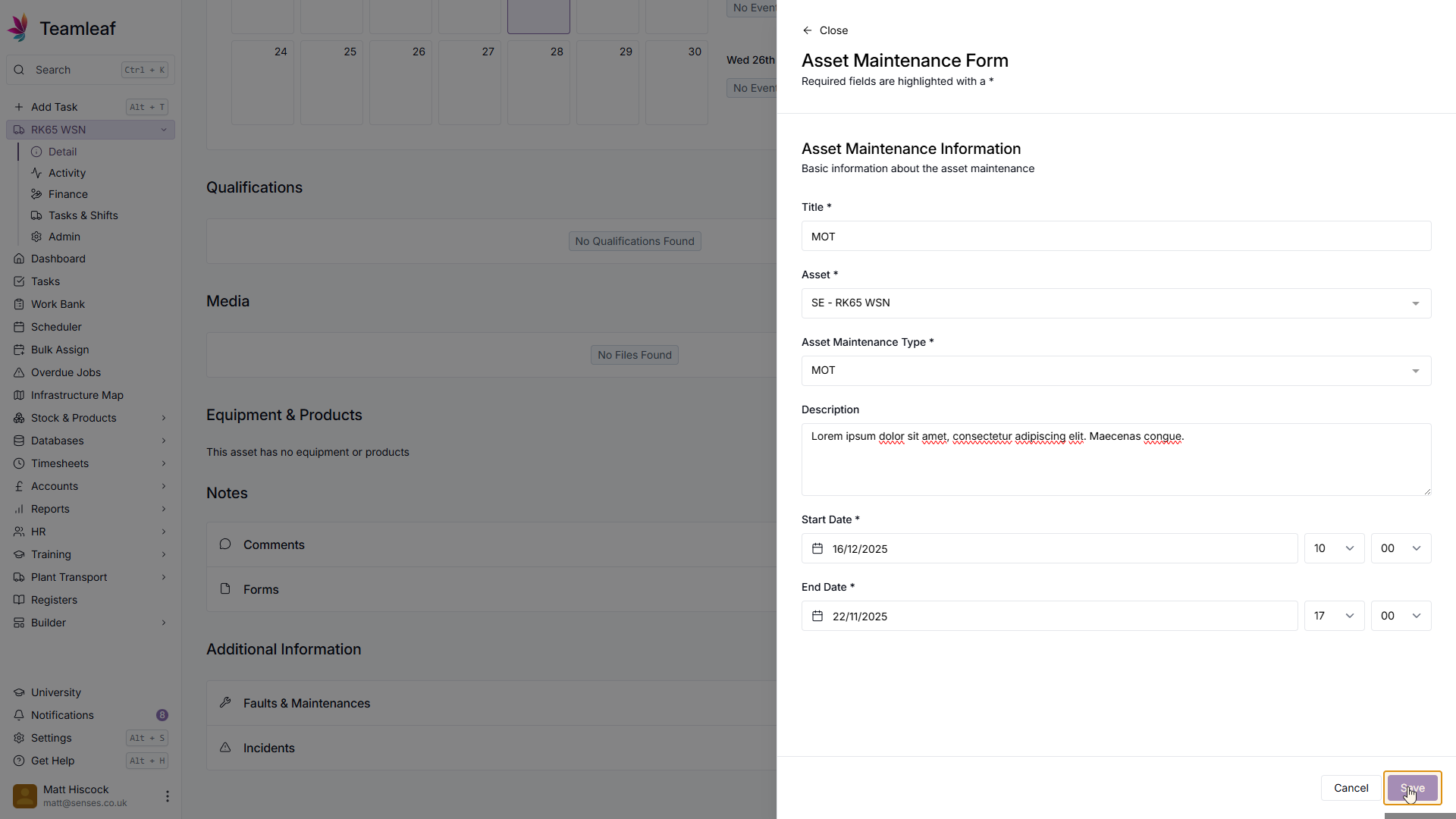
Click 'Save' button in the bottom right
Next, click the Save button in the bottom right of the form
Step 11
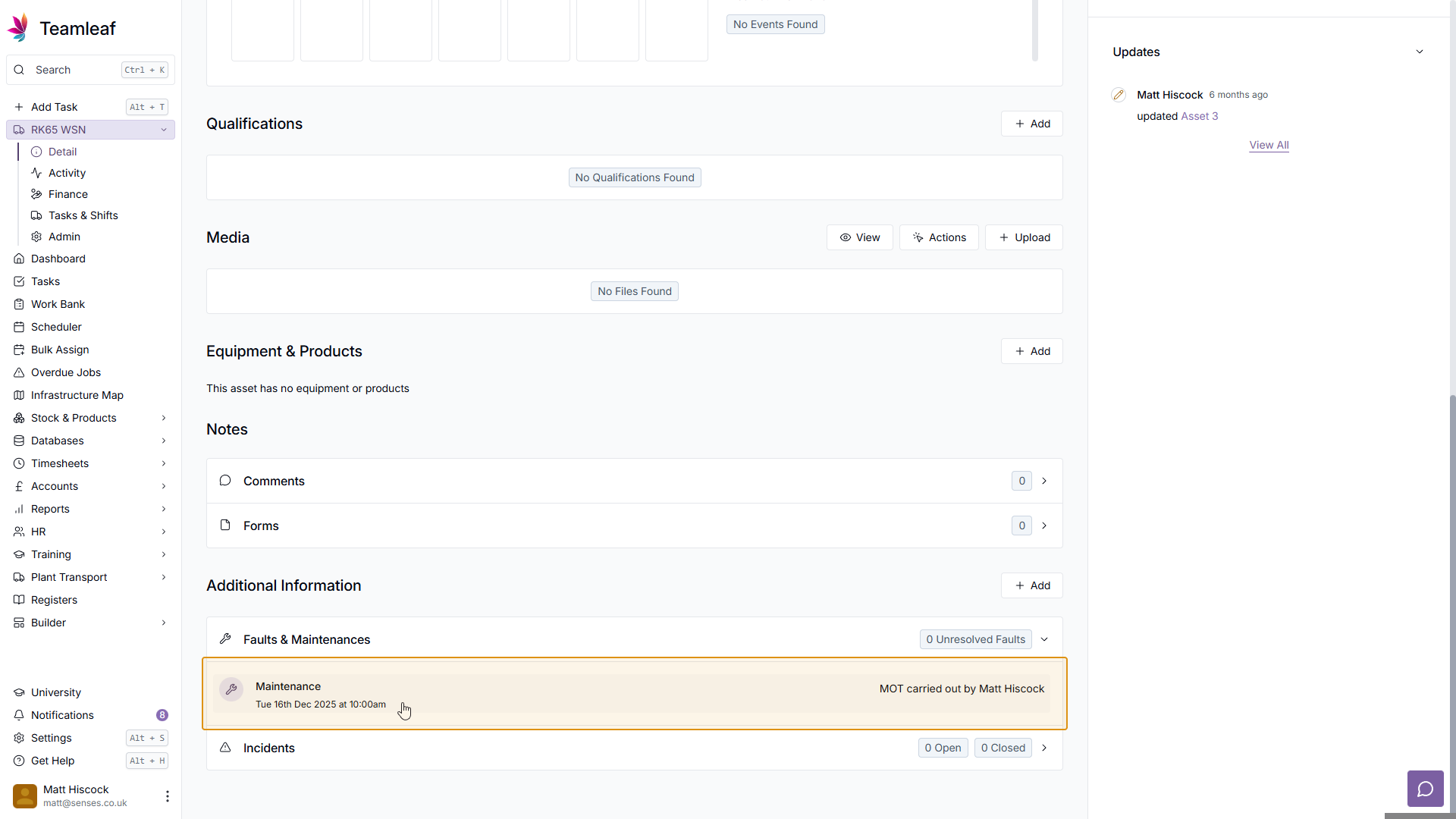
See Maintenance
Once you've clicked save, you will now see your new Maintenance under the 'Faults & Maintenances' section on the Asset Page.