Signing Off a Task
In this tutorial you will learn how to sign off a Task and how it affects the Task's flow through Departments
Step-by-Step Guide
Tasks
Step 1
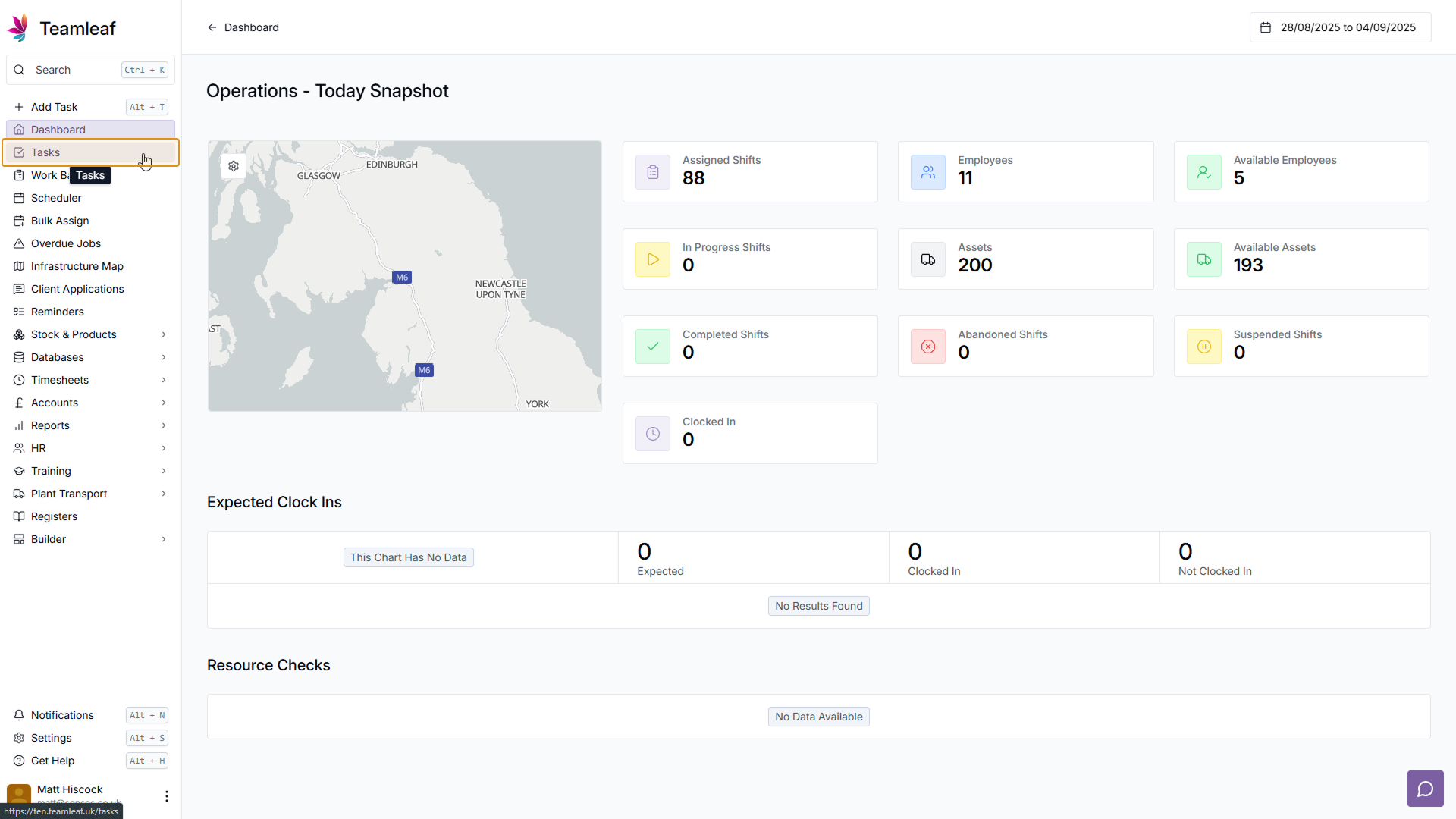
Go to Task List
To start, you'll need to go to the Task you wish to sign off. To do this, go to the Task List page
Step 2
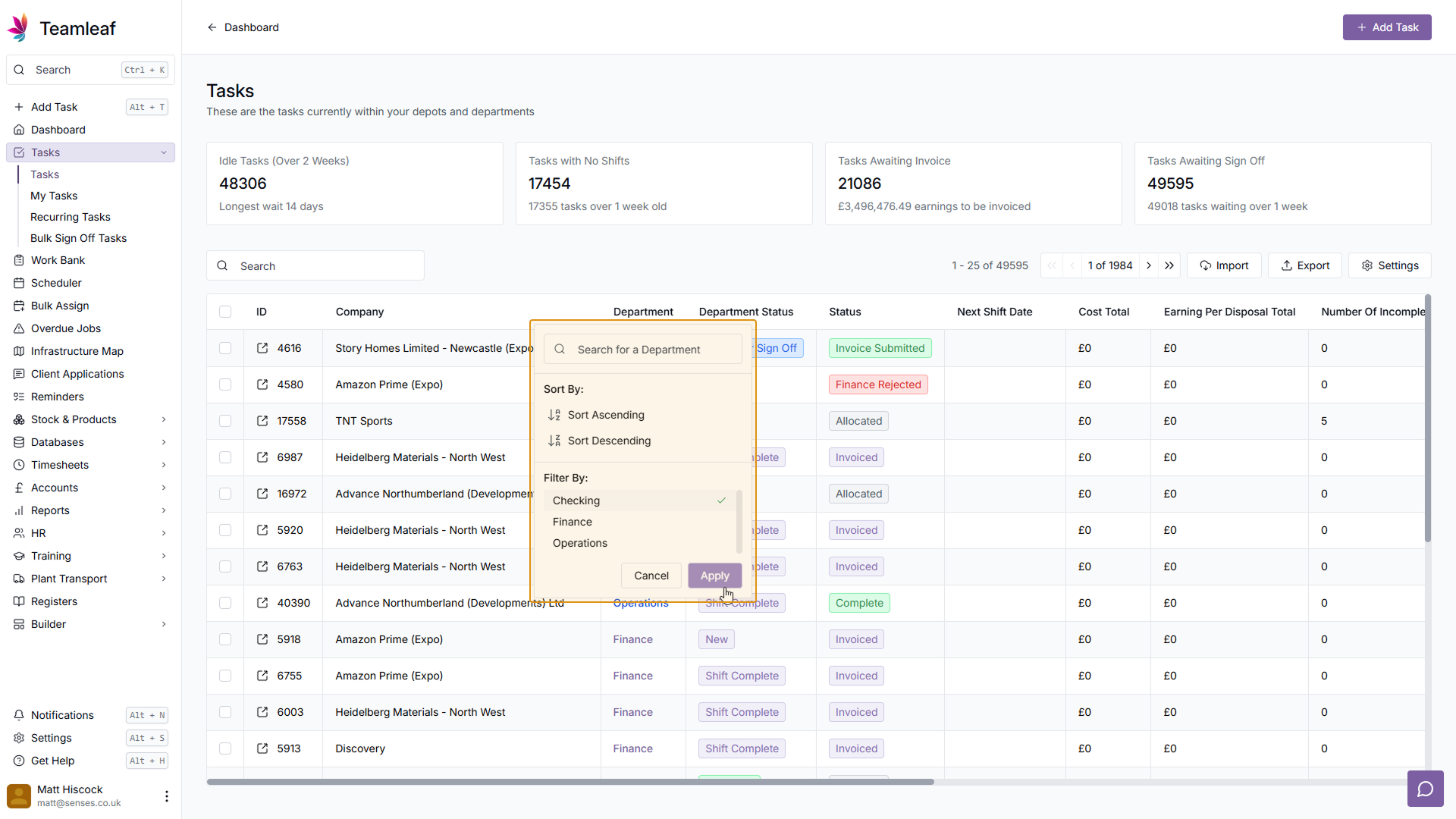
(Optional) Refine by Department
On the task list page, you have the option to refine your Task List with various filters. You can use the Department filter to refine by only departments relevant to this sign off - if you wish

Step 3
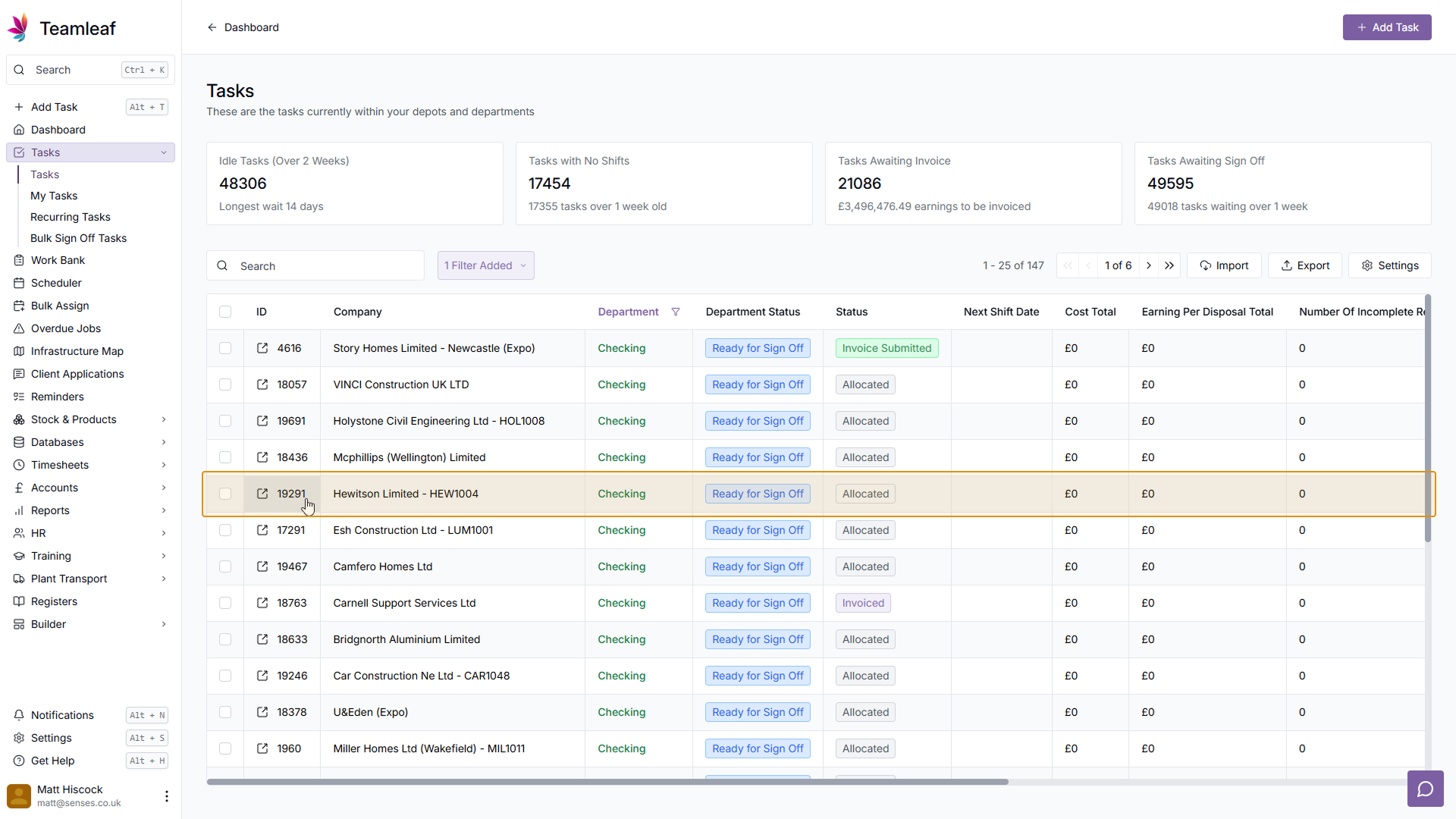
Select a Task
Once you have found the Task you wish to Sign Off, click that Task
Step 4
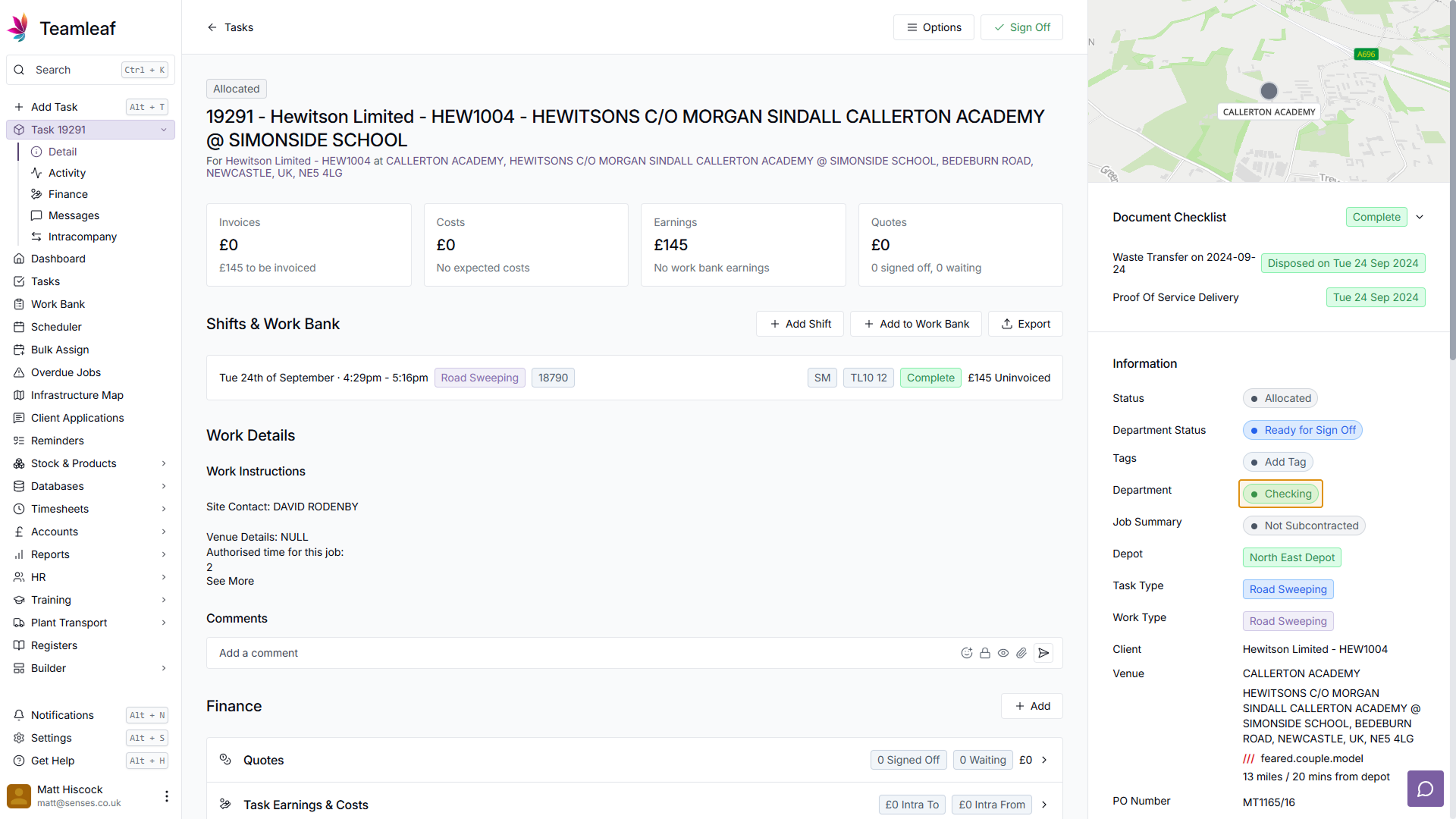
See current Department
Now you are on the Task page, you can see which Department this task is currently on, by looking at the 'Information' section at the right of the page. After signing this task off, the Department will change.
Step 5
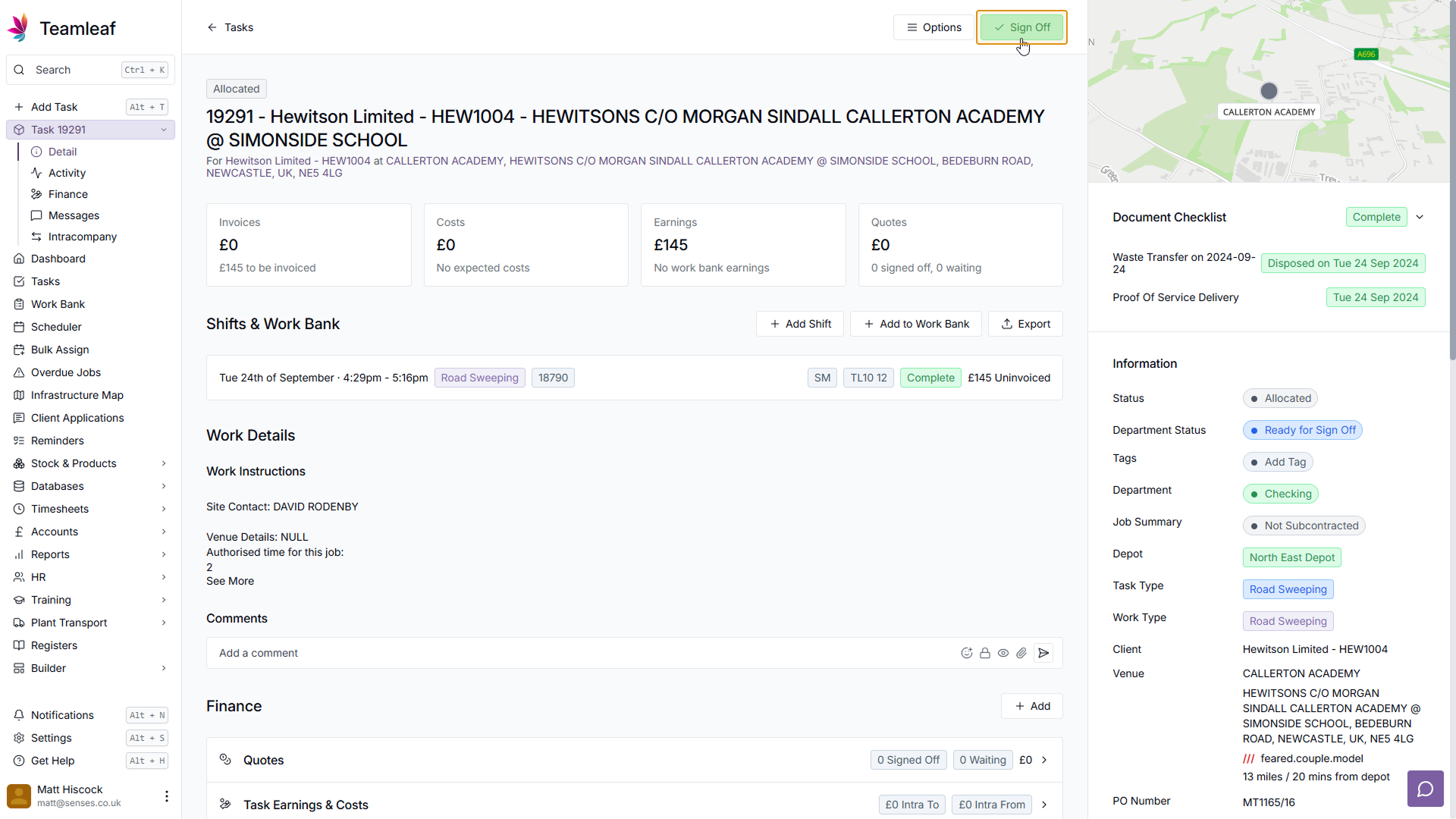
Click the 'Sign Off' button
At the top of the page there is a 'Sign Off' button, click this to sign the task off
Step 6
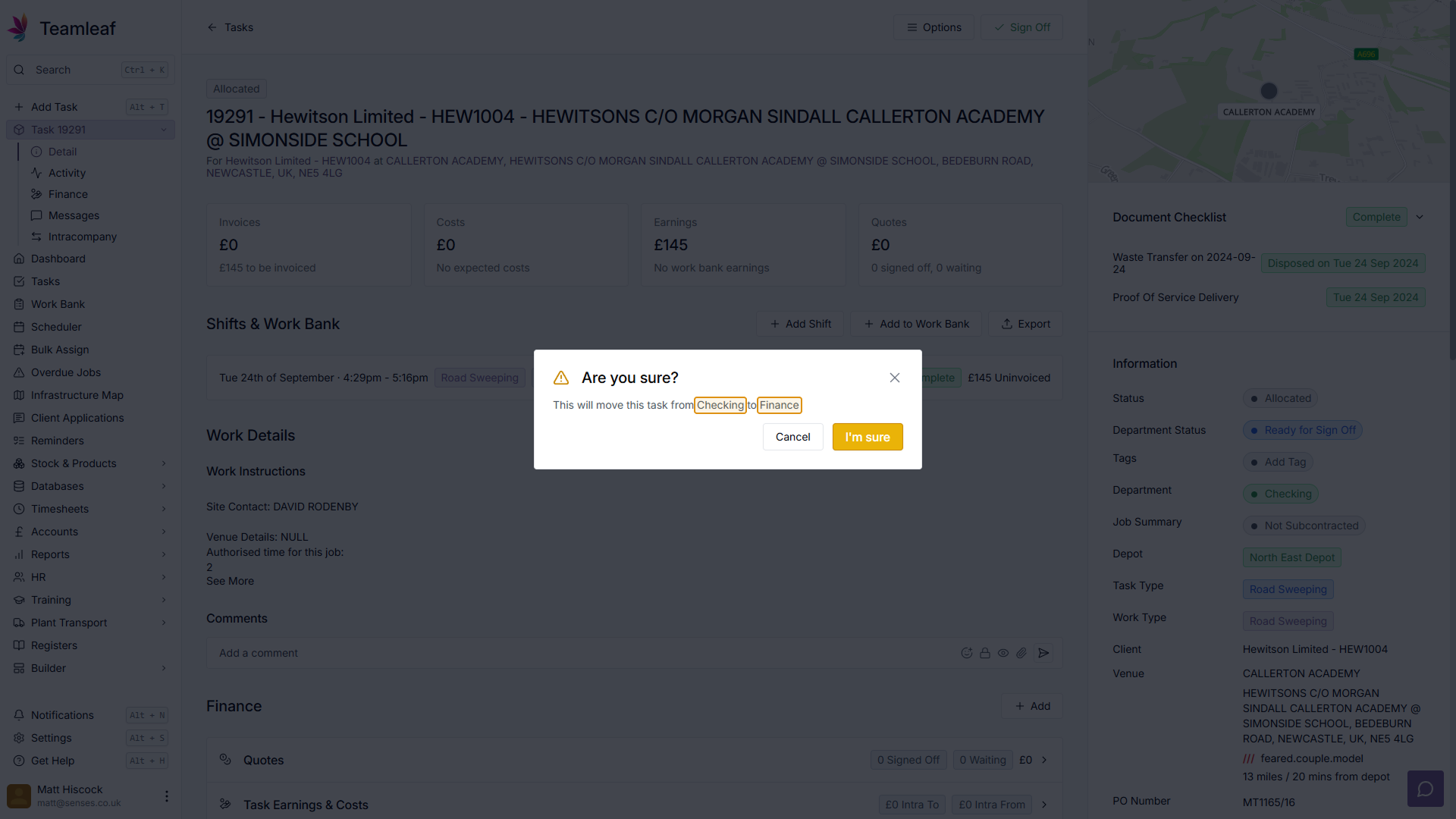
Task Sign Off Popup
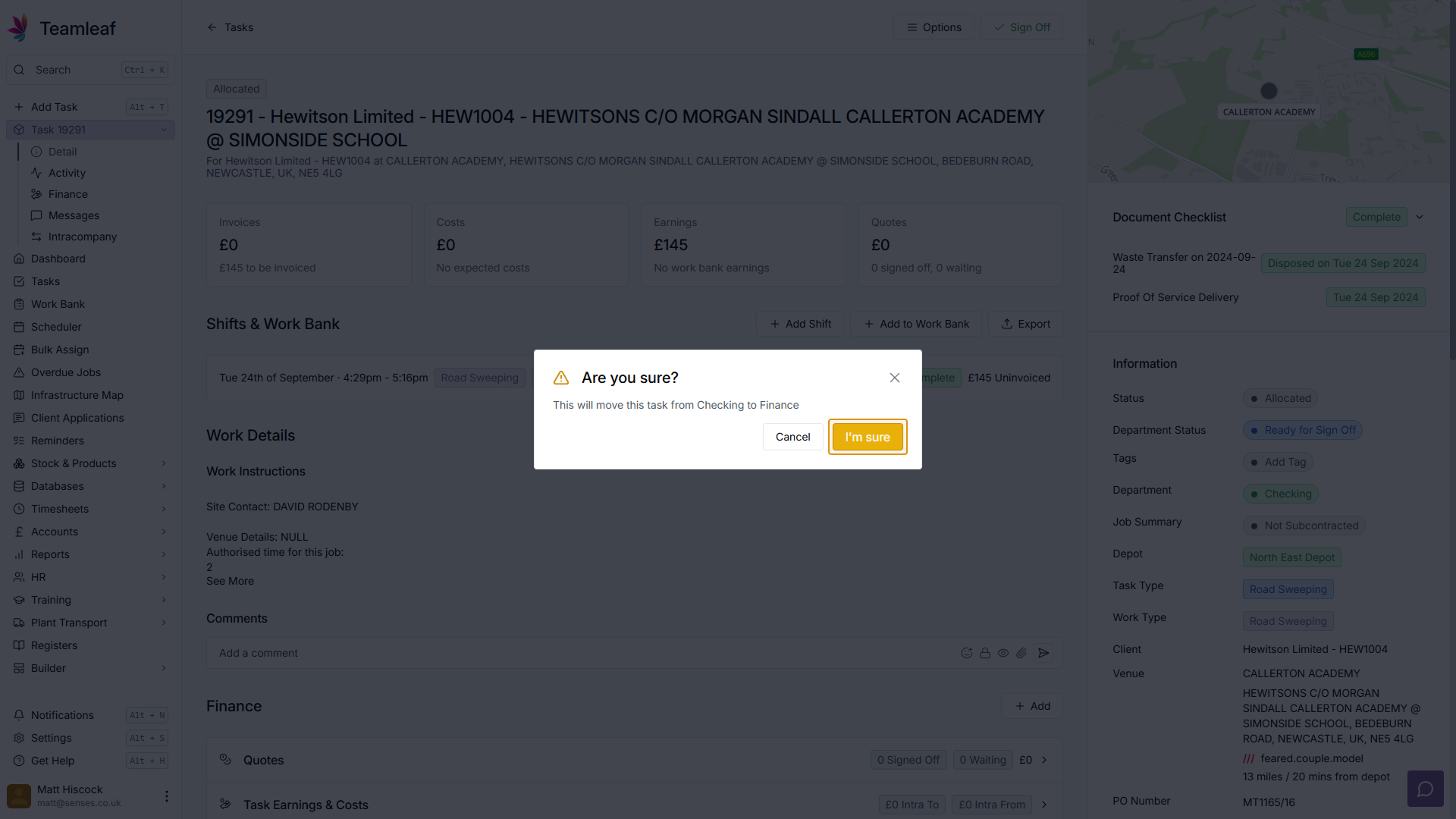
A popup will then appear with information about the Sign Off. Here you will see which department the task is currently on, and which department it will be moved to after it has been signed off. Clicking the "I'm Sure" button in the bottom right of the popup will then make this change.
Step 7
Return to Task Page
After Signing Off the task, you will then see the department is now updated in the 'Information' section

Related Courses
Intracompany
Invoicing
Scheduler
Shifts
Tasks
Drains Direct Essentials
Understand the Essentials for Drains Direct, Scheduling, Intracompany, Invoicing and more...
View Course
→
Intracompany
Invoicing
Scheduler
Shifts
Tasks
EVCSL Essentials
Understand the Essentials for EVCSL, Scheduling, Intracompany, Invoicing and more...
View Course
→
Intracompany
Invoicing
Scheduler
Shifts
Tasks
Lanes Group Essentials
Understand the Essentials for Lanes Group, Scheduling, Intracompany, Invoicing and more...
View Course
→
Related Tutorials
Tasks
Creating a new Task
Learn how to add a Task to Teamleaf, using handy shortcuts to get all the data you need, entered quickly
View Tutorials
→
Setup
Tasks
Customising the Task Table
In this tutorial you will learn how to alter your Task Table settings
View Tutorials
→
Tasks
Understanding the Task Page
Learn how to find and add all the information you need on the task page
View Tutorials
→
Tasks
Using the Task Table
In this tutorial you will learn how to use the Task Table to effectively navigate your work
View Tutorials
→